
Tools › Compress PDF, choose the file, pick Balanced, tap Compress. For a PDF full of scans or photos, that often turns a file too big to attach into one that goes. It is free.
Before you send the result, though, it is worth knowing how it gets smaller, because it is not magic and it is not free of cost.
What Compress actually does
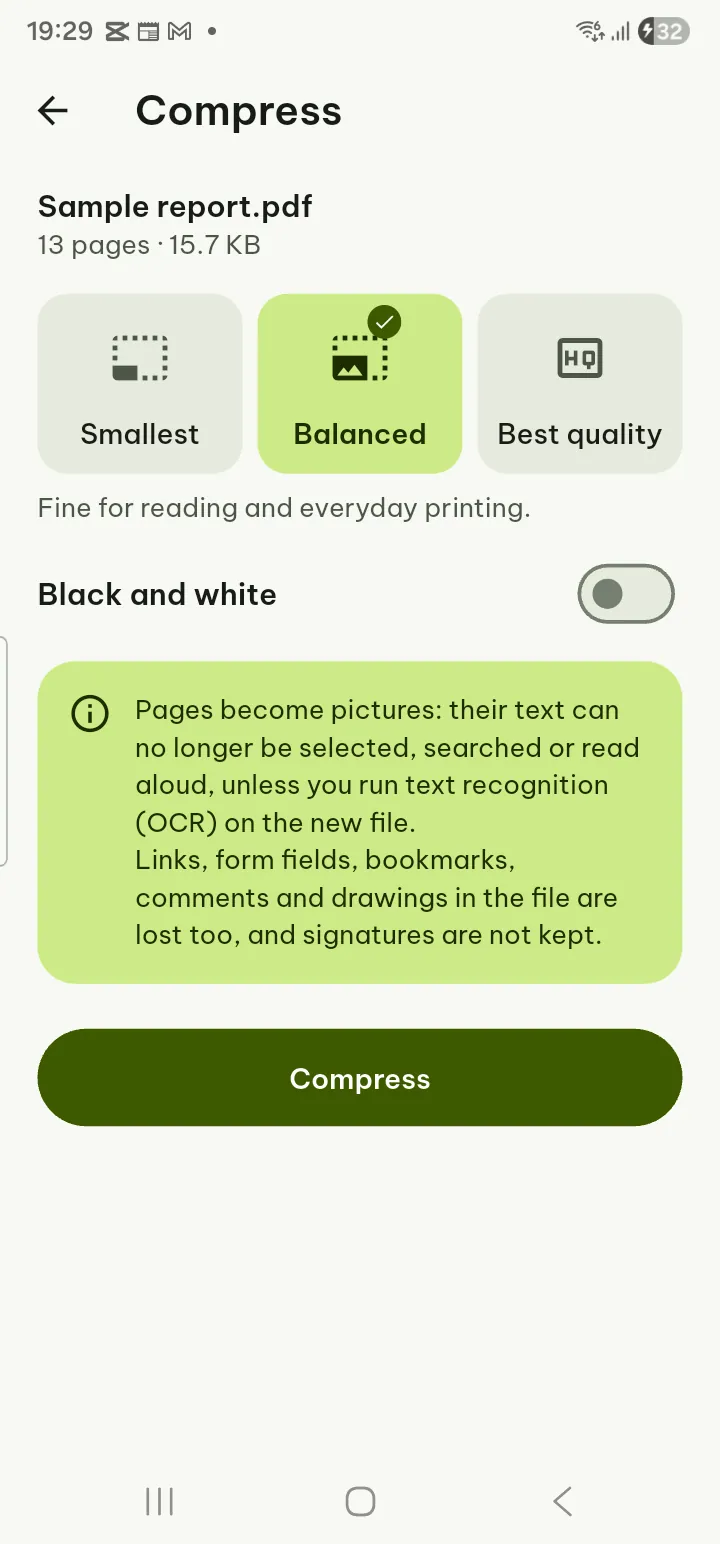
Pagiro makes the file smaller by turning each page into a picture. The three levels say what each is good for:
- Smallest: fine for reading on a phone.
- Balanced: fine for reading and everyday printing.
- Best quality: sharper pages, bigger file.
Black and white makes it smaller again, for pages where colour does not matter.
That shrinks the files that are usually the problem, scans and pages full of photos. The trade-off is real, and the Compress screen warns about it before you tap.
What you lose
Because the pages become pictures, the new file loses everything that is not a picture:
- the text can no longer be selected, searched or read aloud (unless you run text recognition on the new file);
- links, form fields, bookmarks, comments and drawings are lost;
- digital signatures are not kept.
Your original is not touched. Compress makes a new file named "(compressed)" next to it in your library, so you can send the small one and keep the full one.
If the text matters to the person receiving it, open the compressed file and run Edit › Recognize text to make it searchable again. Check the size again afterwards.
When it will not help
A PDF that is mostly typed text, such as a report saved from a text document, is usually small already: the letters are stored as text and fonts, not as pictures. Turning those pages into pictures can make the file bigger, not smaller.
Pagiro checks this. If the result would not be smaller than the original, nothing is saved, and you see "The result would not be smaller than the original, so it was not saved." Try Smallest or Black and white, or use one of the ways below.
Other ways to get under the limit
Send fewer pages. Often the other person needs three pages, not forty. Tools › Extract pages makes a file with only those, text and links intact. Free.
Split it. Tools › Split PDF › By size (Pro) cuts the PDF into files under the size you give in MB, for example one per e-mail. Splitting by page ranges is free if you know where to cut.
Scan smaller in the first place. When you save a scan, Quality has Small file, Balanced and High. For a letter going by e-mail, Small file is usually enough, and the text recognition stays in.
Photos to PDF are already reduced: Images to PDF brings photos down to print quality (300 dpi on an A4 page) unless you turn on Full resolution. If a PDF made from photos is huge, check that switch.
Sending it
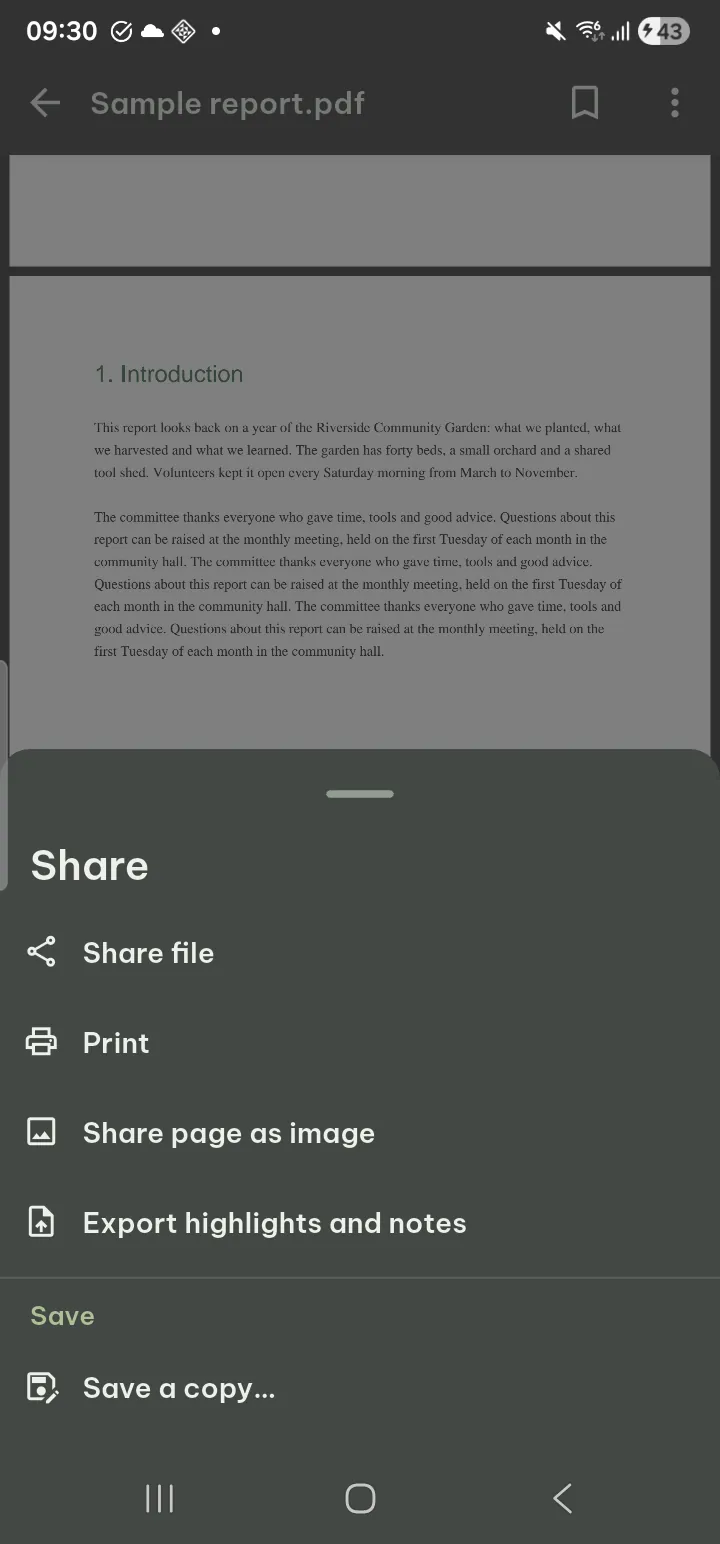
Tap the new file on the result sheet to check it, then Share. From an open PDF, Share › Share file does the same; if you have drawn on the file you choose With my annotations or Original file.
Many files at once? Batch (Pro) runs Compress PDF on up to 300 files in a queue.