
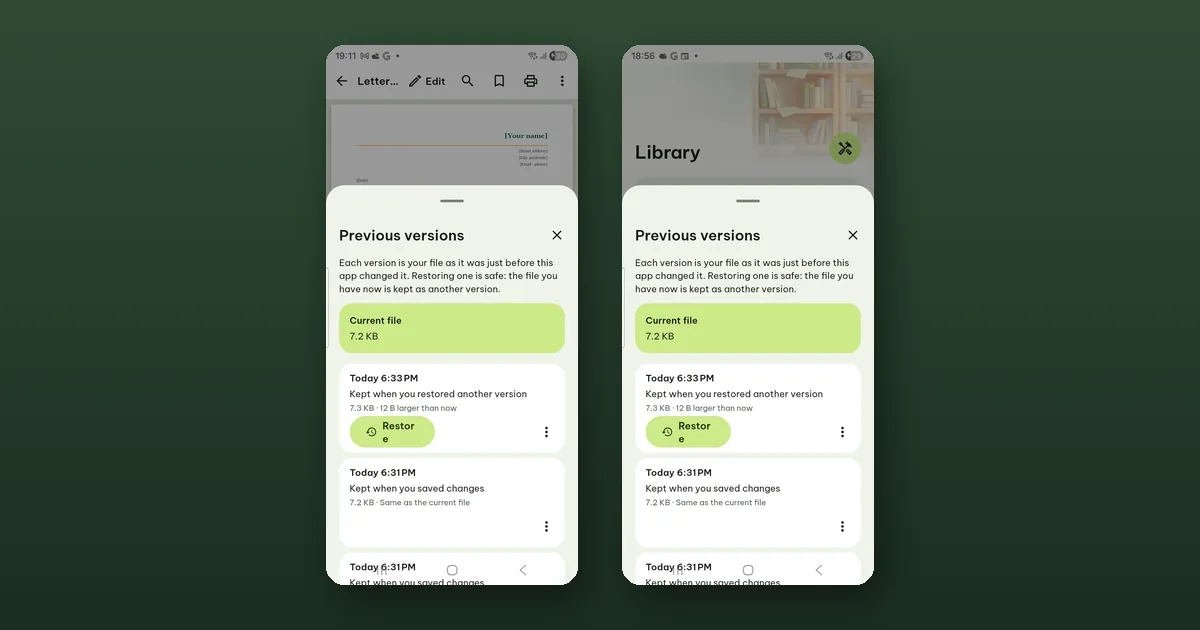
Open the document's menu in the Library (or ⋯ in a reader) and tap Previous versions. Each entry is the file as it was just before Pagiro saved over it. Tap Restore on the one you want. That is the whole rescue, and it is free.
The rest of this post is about what is in that list, how long it stays there, and the few cases where restoring needs a second thought.
What gets kept
Every time Pagiro changes a file, it first puts the old copy aside. The list says why each copy exists:
- Kept when you saved changes: you edited a .docx, .xlsx, .pptx, .csv or text file, or a PDF, and tapped Save.
- Kept when you saved marks or form entries: highlights, drawings, a signature or filled-in fields went into a PDF.
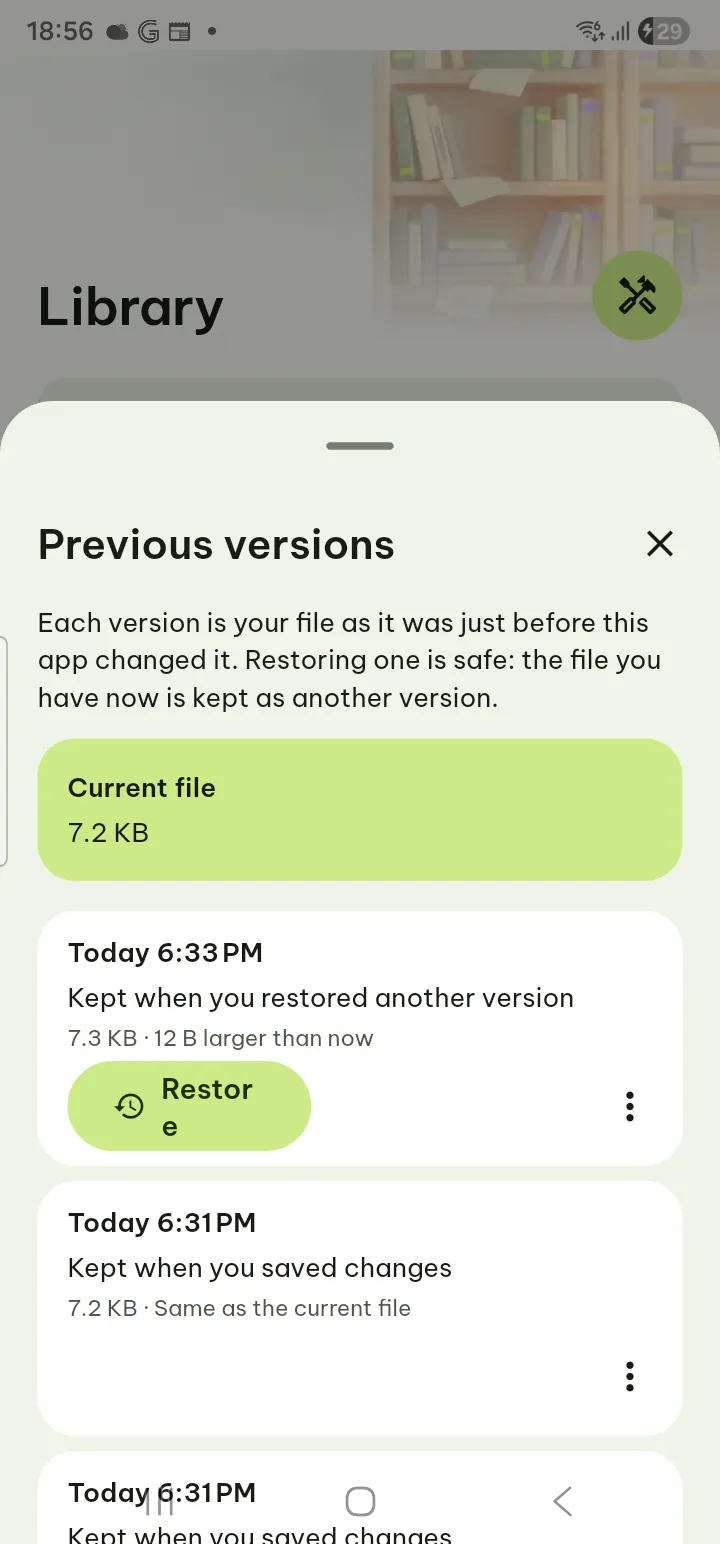
- Kept when you restored another version: restoring is itself a change, so the file you had a moment ago is kept too.
- Changed in another app, kept before it was replaced: the file was changed elsewhere and you chose to replace it.
Updating a file inside a ZIP archive also keeps the old ZIP as a previous version.
Each entry shows the date and time, the size, and how it compares with the file now ("12 B larger than now", "Same as the current file"). The current file sits at the top, so you always know what you would be replacing.
Getting there quickly
Right after a save, the message at the bottom of the screen has Show previous versions. That is one tap, for the moment you realise the save was a mistake.
Later, the list is in the document menu in the Library, under Tools › Previous versions in an open PDF or document, and under ⋯ › Previous versions in Reading view and text files.
Restoring, and what can go wrong
Tap Restore. Pagiro asks once: the document "will go back to how it was" on that date, and "the file as it is now is kept as another previous version, so you can undo this." Restoring never throws anything away.
A few notes can appear in that question, and they are worth reading:
- If you opened the file from your phone's storage rather than keeping it only in the app, the file on your device is replaced as well.
- Changes you have not saved yet will be lost. Save them first if you want them as a version too.
- A version that was digitally signed comes back exactly as it was, so its signature stays as it was. A version that had a password comes back with that password.
Not sure which version you want? The ⋮ menu of each entry also has Save as a copy, Share and Delete this version. Save as a copy puts that version in your library as a separate file and leaves the current one alone. Open both and look, then decide.
How long, and how many
Versions do not pile up for ever. Open Settings › Storage & backup › Manage and find Previous versions. It shows how many there are and how much space they take, and three limits:
- Versions per document: 5 unless you change it (choices from 1 to 20).
- Total size limit: 200 MB for all documents together (choices from 50 MB to 2 GB).
- Keep for: 60 days (choices from 7 days to a year).
When a limit is reached, the oldest versions go first, and the newest version of each document is kept by the count and size limits. A version older than Keep for is removed whatever its place in the list, so if you edit a file rarely and want a long safety net, raise that one.
Short on space? Clear all previous versions in the same place deletes them for every document. It asks first and tells you how many and how big; the documents themselves are not touched.
Where they live
Previous versions are kept privately on this device, inside the app. They are not uploaded or sent anywhere. Documents in the Vault have their own Earlier versions, kept inside the Vault.
Two things to know if you move phones or clean up:
- Export data (free) leaves them out unless you tick Include previous versions; they then go into a separate .zip next to the backup. A Scheduled backup (Pro) can include them as well. When you restore such a backup, the versions are not put back into the app: you save them as a file and open what you need.
- Empty the library removes every document from the library together with its previous versions.
What it is not
Previous versions only know about changes Pagiro made, or changes it noticed when it was about to replace a file. A file you edited in another app and never opened again in Pagiro has no history here. And it is one phone's history, not a backup: if the phone is lost, so are the versions, unless they were in an export or a scheduled backup.
The short reference is in the user guide under Previous versions.