
A PDF form is one of two things: a file with real form fields that know where your answers go, or a page that only looks like a form because someone printed lines and boxes on it. Pagiro fills in both, but the steps are different, so it helps to know which one you have.
The quick test: open the PDF. If the fields are outlined on the page and the first button of the bottom bar is Fill & Sign, it has real fields. If the first button is Edit, it is a flat page.
A form with real fields
This is the easy case, and it is free.
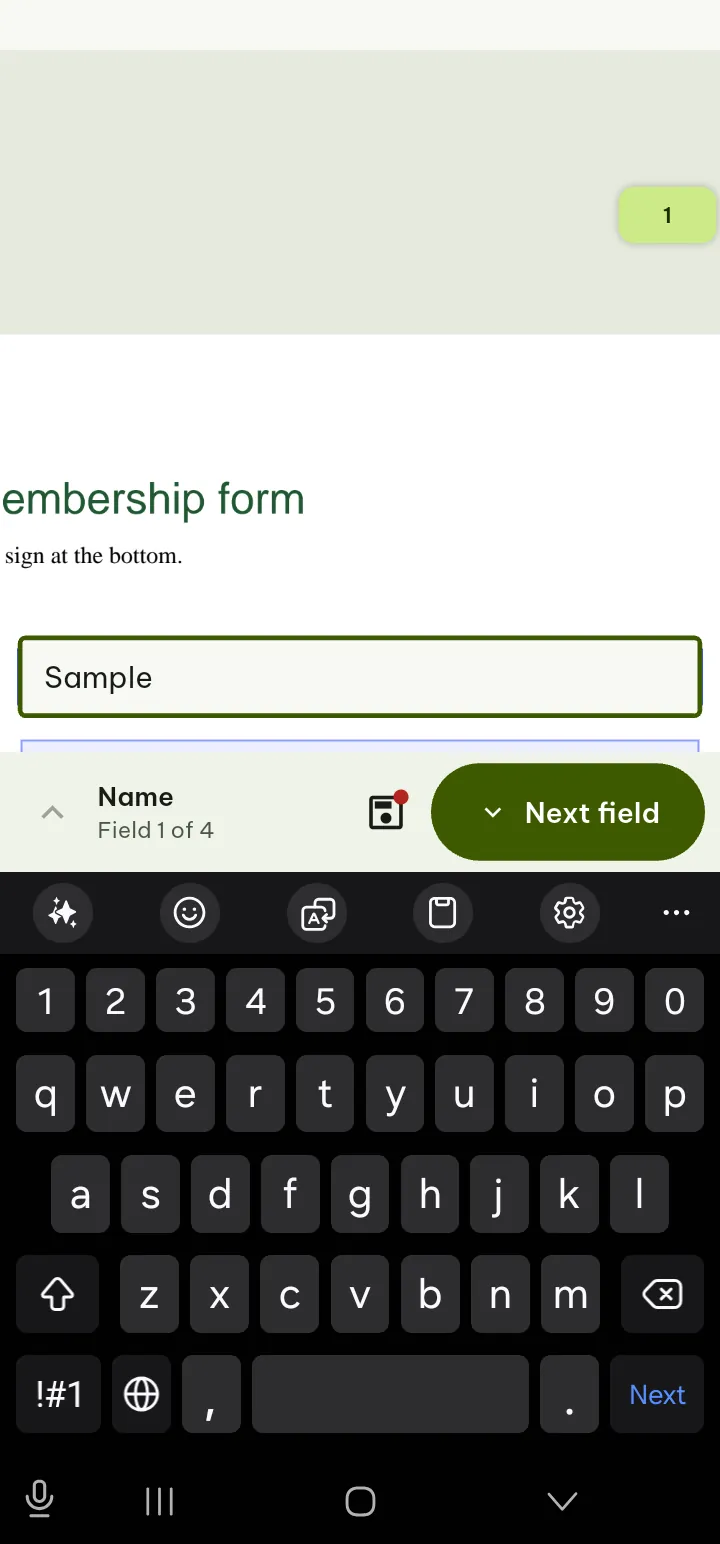
- Tap Fill & Sign. The bar now has Next, Sign, Date, Tick and Send.
- Tap a field and type, pick from the list, or tick the box. You do it right on the page, not in a separate list of questions.
- Next jumps to the next empty field, so on a long form you can keep tapping Next instead of hunting for the box you missed.
- Tap Save above the keyboard. Send shares the filled-in form. Done in the top bar goes back to reading.
Date puts today's date on the page where you tap next, and Tick does the same with a tick mark, which is useful when a form's tick boxes are printed rather than real fields. Sign adds your signature; the post on signing covers that part.
If you lose track of what is left, Tools › Form has All fields (a list of every field), Highlight fields and Clear what I typed, which takes out your answers if you want to start again.
A form without fields
A lot of forms are made by scanning a paper form, or saving a text document as PDF without adding fields. There is nothing to tap into: the lines are just lines.
If you open one with Tools › Fill in form, Pagiro says "This PDF has no form fields to fill in." and offers the ways out:
- Type text anywhere on the page: tap where the answer goes and type. A text box appears there, and you can move it if it sits a little off the line. This is free and is what most people need.
- Add a note on the page: a sticky note, for when you want to comment on the form rather than fill it in.
- Create form fields (Pro): turn the flat page into a real form, described below.
Typing on the page is not the same as filling a field. The other person gets a PDF with your text on top of the page, which looks right when printed or viewed, but software that reads form data will not find your answers in fields. For a form you print, sign and hand in, that does not matter. For a form that goes into someone's system, ask whether they have a version with fields.
With Pro, Fill & Sign on a paper form also has Find blanks: Pagiro finds the lines, boxes and check boxes on the page and outlines them, and you tap one to type in it. It saves the fiddly part of placing each text box by hand. The boxes it places are ordinary text boxes, so moving and changing them stays free.
Making a form of your own
If you send forms rather than fill them in, Tools › Create form fields (Pro) adds real fields to any PDF without a password. Pick a field type at the bottom (Text box, Check box, Radio button, Drop-down, List box, Signature field, Button), then tap the page or drag to draw the field. Properties, Duplicate, Align and Tab order tidy it up, and Create N fields writes them into a new file.
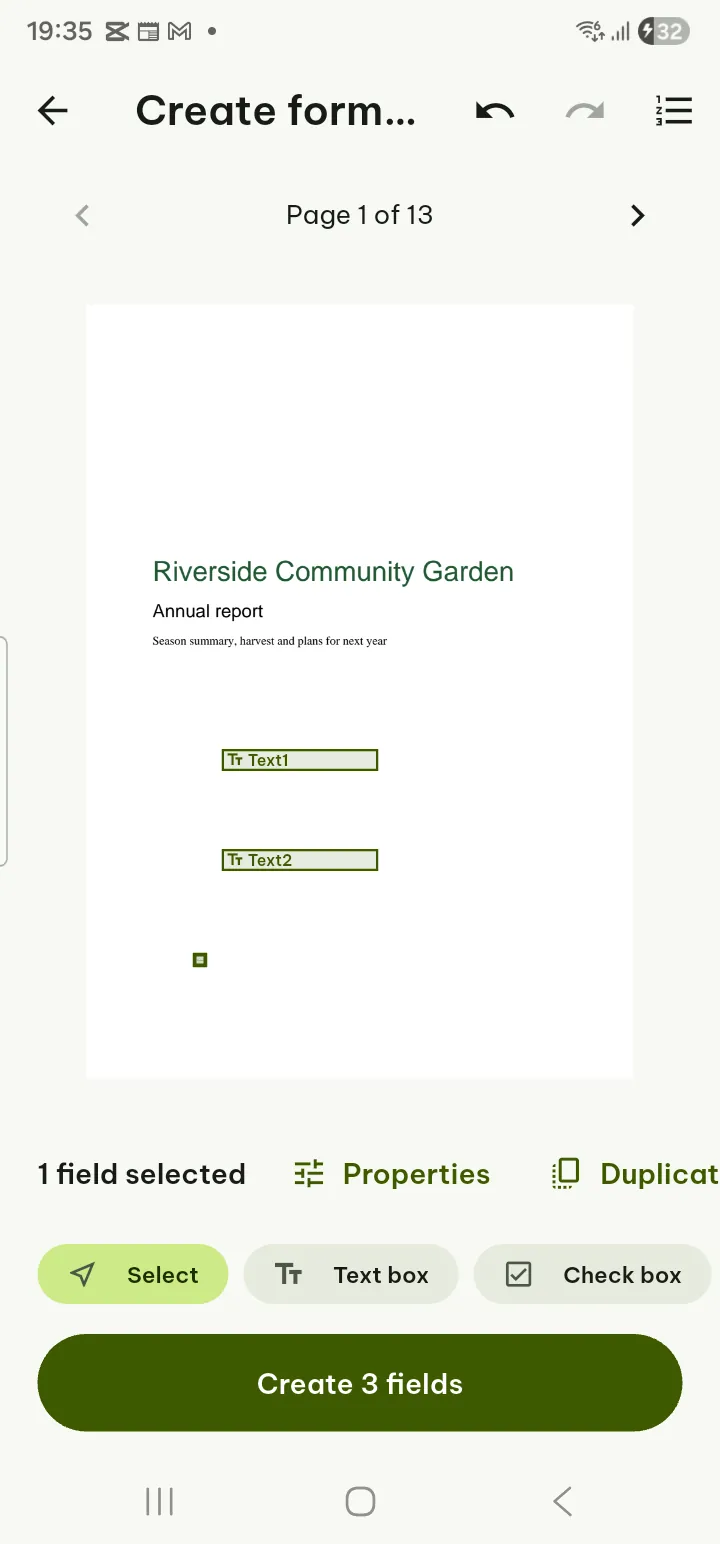
Tab order is worth the extra minute: it sets the order in which someone filling in your form moves from field to field.
Two things to know before you send
A filled-in form can still be changed by whoever receives it. If you want the answers to become part of the page, Tools › Flatten (Pro) turns form fields, and comments and drawings if you tick them, into part of the page. They can no longer be edited, so keep the unflattened copy in case you need to fix a typo.
If the form was digitally signed by whoever made it, filling it in adds your answers after that signature, and PDF readers will say the file was changed after it was signed. Pagiro tells you this before you start. Usually that is expected (the sender signed a blank form), but if you are unsure, ask the sender.
Every button is listed in the user guide under Fill in forms.