User guide › PDF
Reading and editing PDF
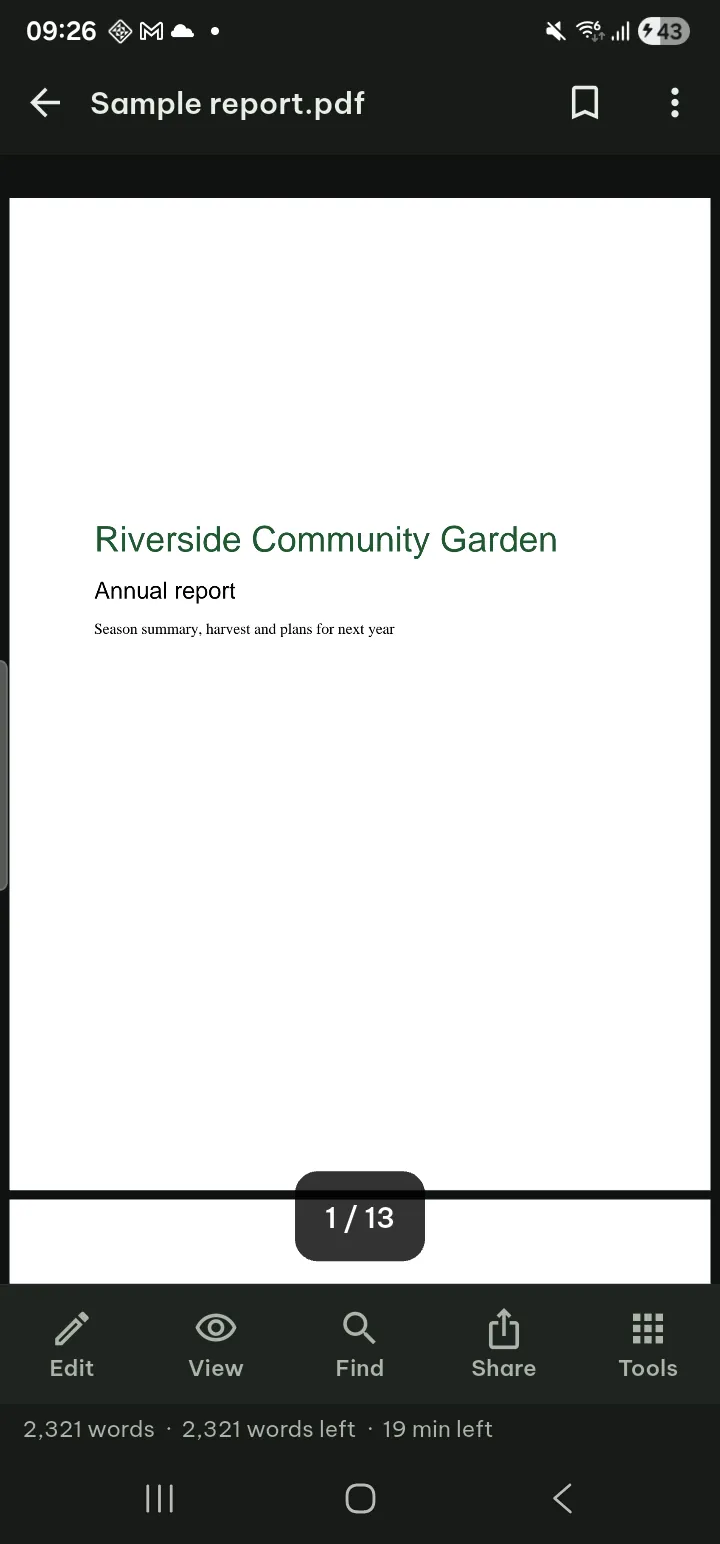
Tap the page to show or hide the bars. The top bar has the bookmark button and ⋯; the bar at the bottom has Edit, View, Find, Share and Tools (on a PDF form the first button is Fill & Sign). Everything on this page is free except where it says Pro.
- Pages and contents
- Zoom and layout
- Display and reading view
- Search
- Bookmarks, highlights, notes
- Draw and annotate
- Edit text
- Fill in forms
- Sign
- Pages, redact, recognize
- Save and share
- Read aloud
- Protected and signed PDFs
Pages and contents
- Go to a page: tap the page number pill (for example 12 / 80), type the number, tap Go to page. Drag the fast-scroll thumb at the edge to move quickly.
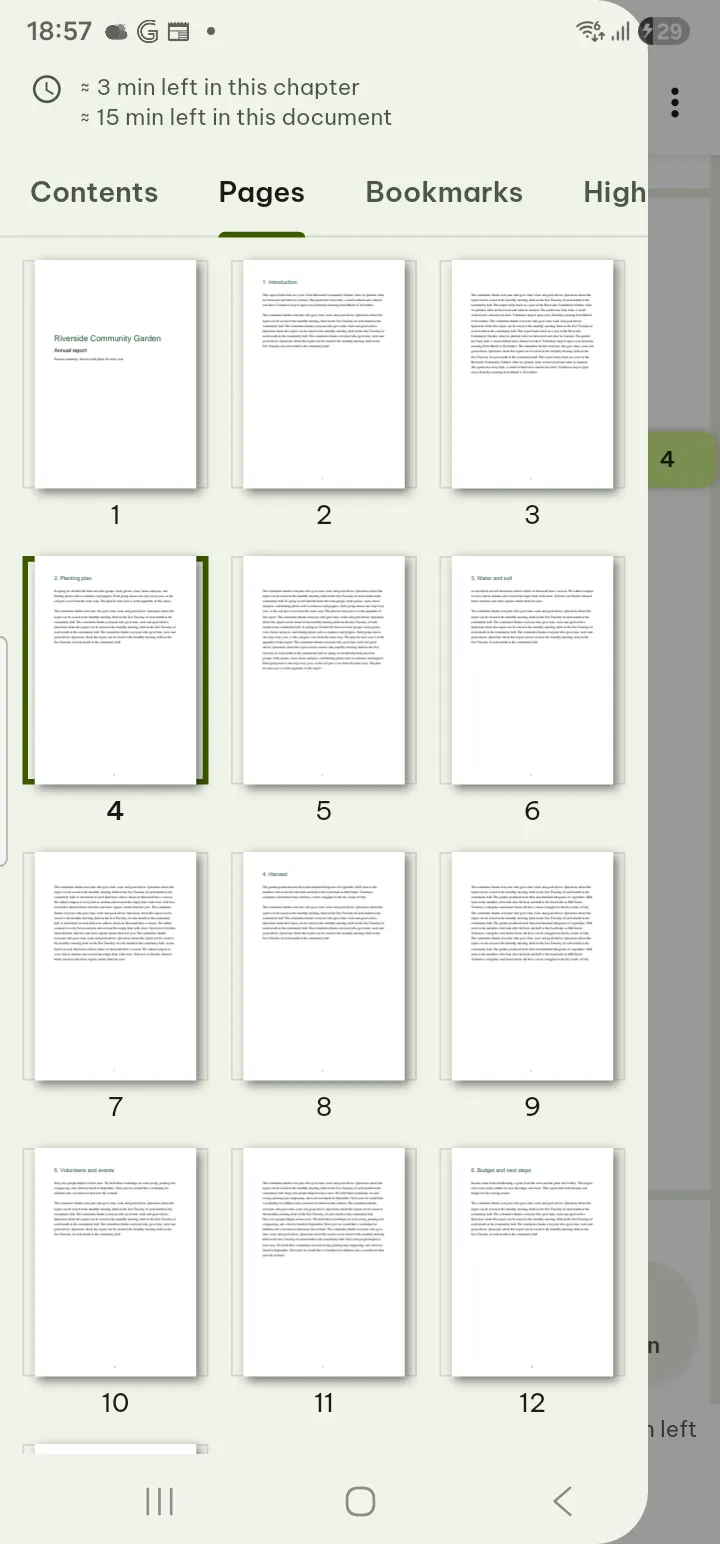
- Contents: tap View › Contents (Pages when the file has no outline). The drawer has Contents (the outline, or one made from the headings), Pages (thumbnails), Bookmarks, Highlights and Annotations.
- After following a link, Back to previous position takes you back.
Zoom and layout
- Pinch to zoom, double-tap to zoom in and out. View › Fit page or Fit width switches between the two.
- View › Hide white margins hides the white margins while you read (the file is not changed; to really cut pages use Tools › Crop pages). View › Display chooses Same for all pages, Odd and even pages separately or Each page its own.
- Under View › Scrolling choose Continuous scroll or Page by page; page by page adds Right-to-left page turning, and on a wide screen Two pages side by side with Cover page alone.
- View › Auto-scroll scrolls by itself; change the speed with Slower and Faster.
- Tools › Open side by side shows two documents at once.
Display and reading view
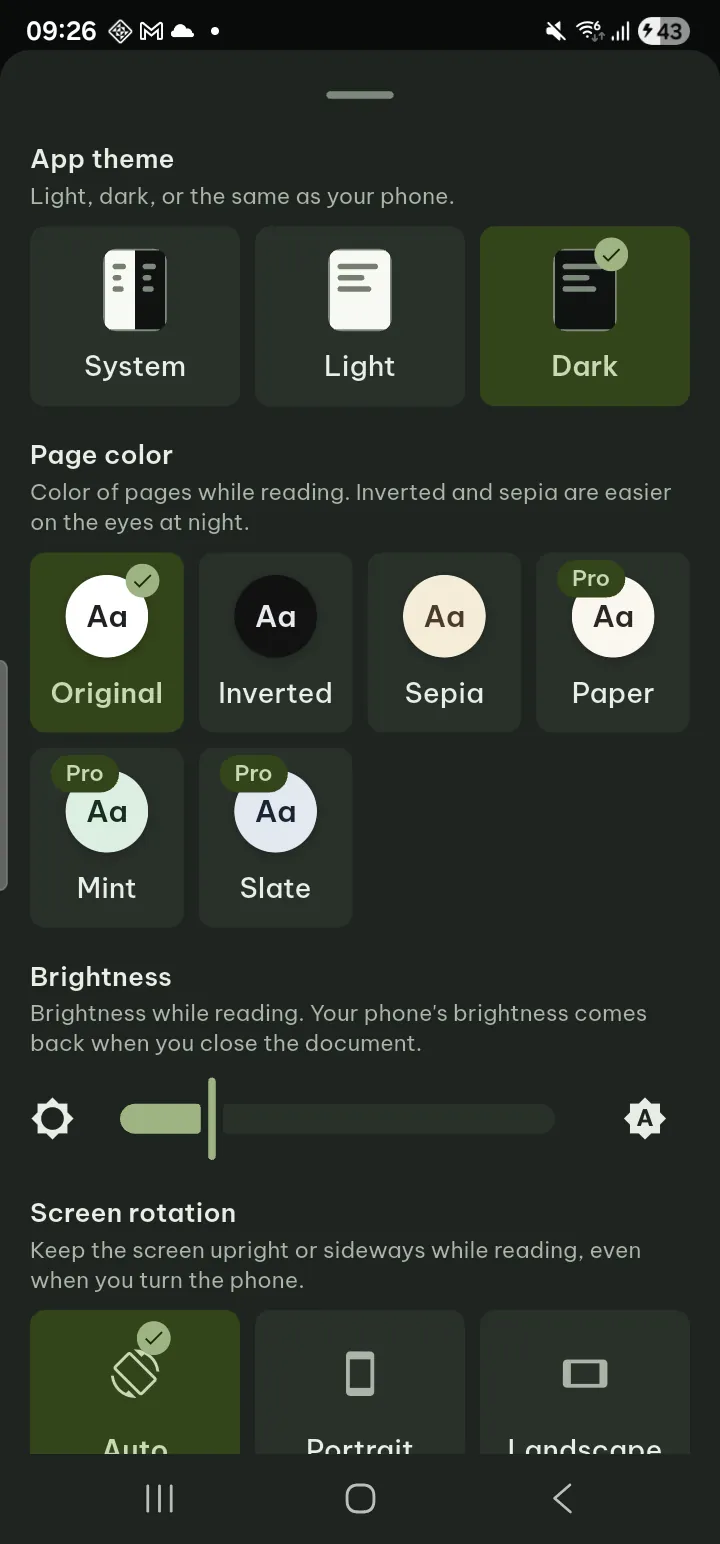
- View › Display sets the App theme, the Page color (Original, Inverted, Sepia; Paper, Mint and Slate are Pro), Brightness, Screen rotation and Keep screen on while reading, and how white margins are hidden.
- View › Reading view reflows the text to the width of the phone, with its own Text settings. Page view goes back.
- Night colors can switch on by themselves at set hours in Settings (see Settings).
Search
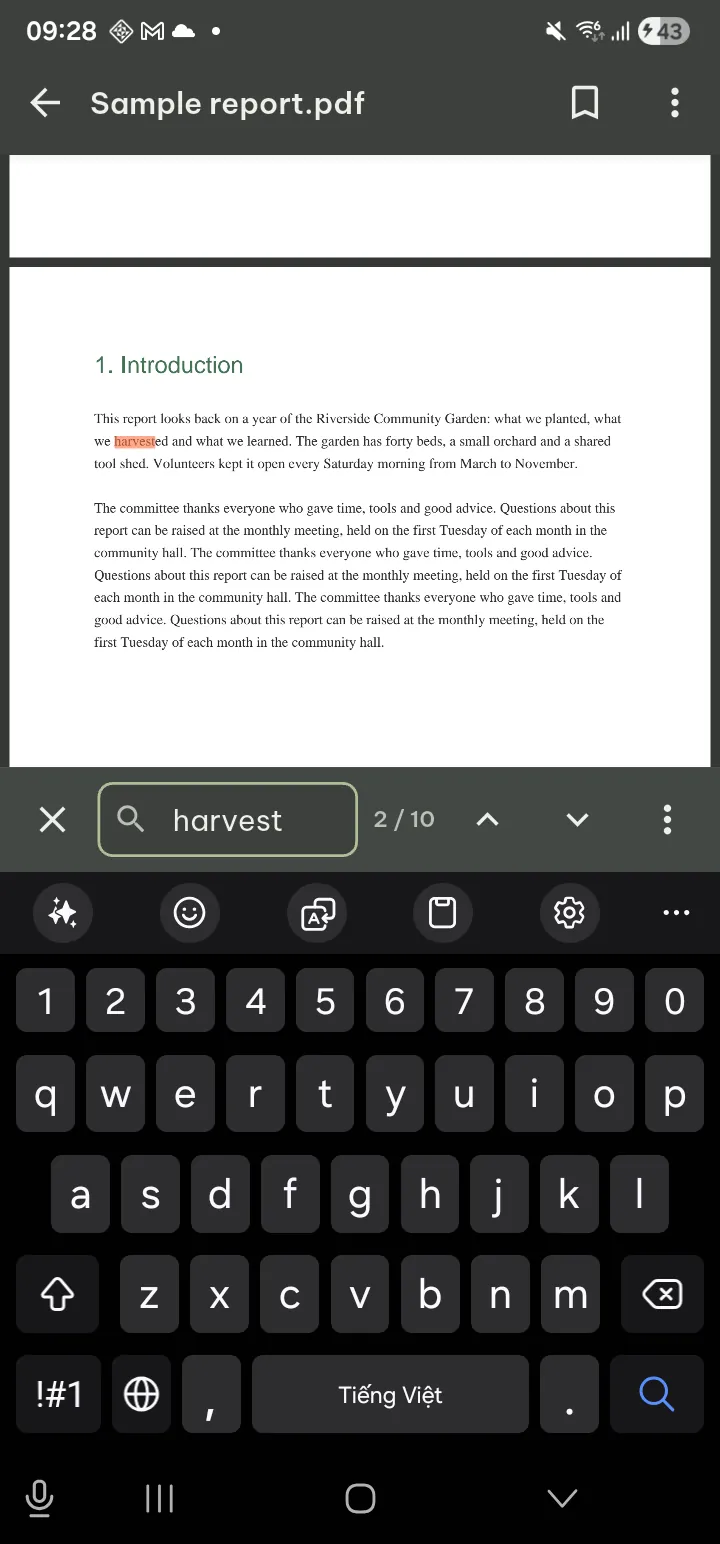
- Tap Find. The search bar opens at the bottom, above the keyboard, with the cursor in Search in document. Type what you are looking for.
- Move with Previous result and Next result, or open ⋯ › All results for the list.
A scanned PDF without a text layer can be searched after text recognition: the search bar says so and offers Recognize text.
Bookmarks, highlights and notes
- Bookmark: tap the bookmark button in the top bar. Bookmarks are listed in Contents › Bookmarks, where you can rename them or swipe to delete.
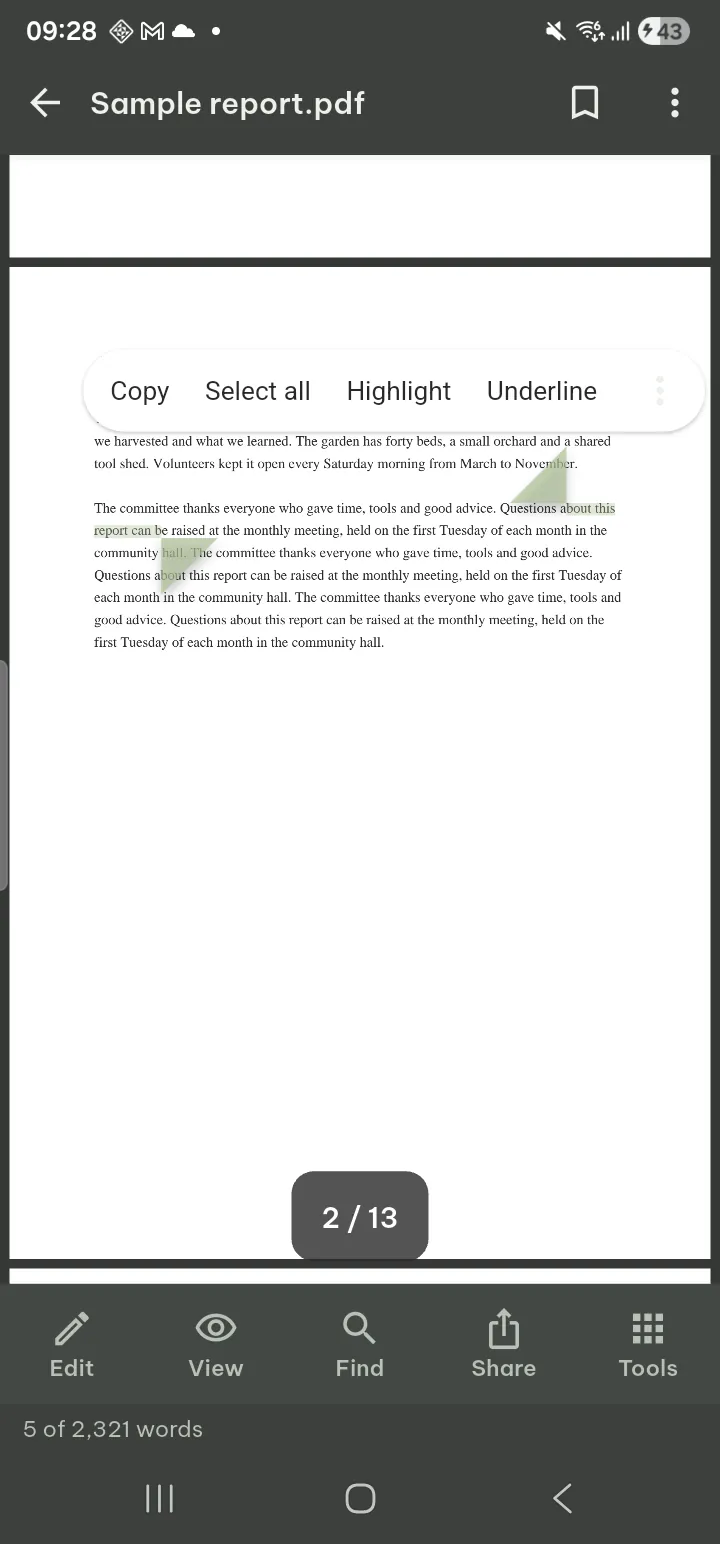
- Highlight: press and hold a word, drag to select, then choose Highlight, Underline, Strikethrough or Wavy underline. The same menu has Share text, Look up (your dictionaries) and Read from here.
- Note: tap a highlight and choose Add note, Highlight color, Make flashcard or Delete highlight.
- Export: Share › Export highlights and notes, or Tools › Make flashcards from highlights for Study.
Draw and annotate
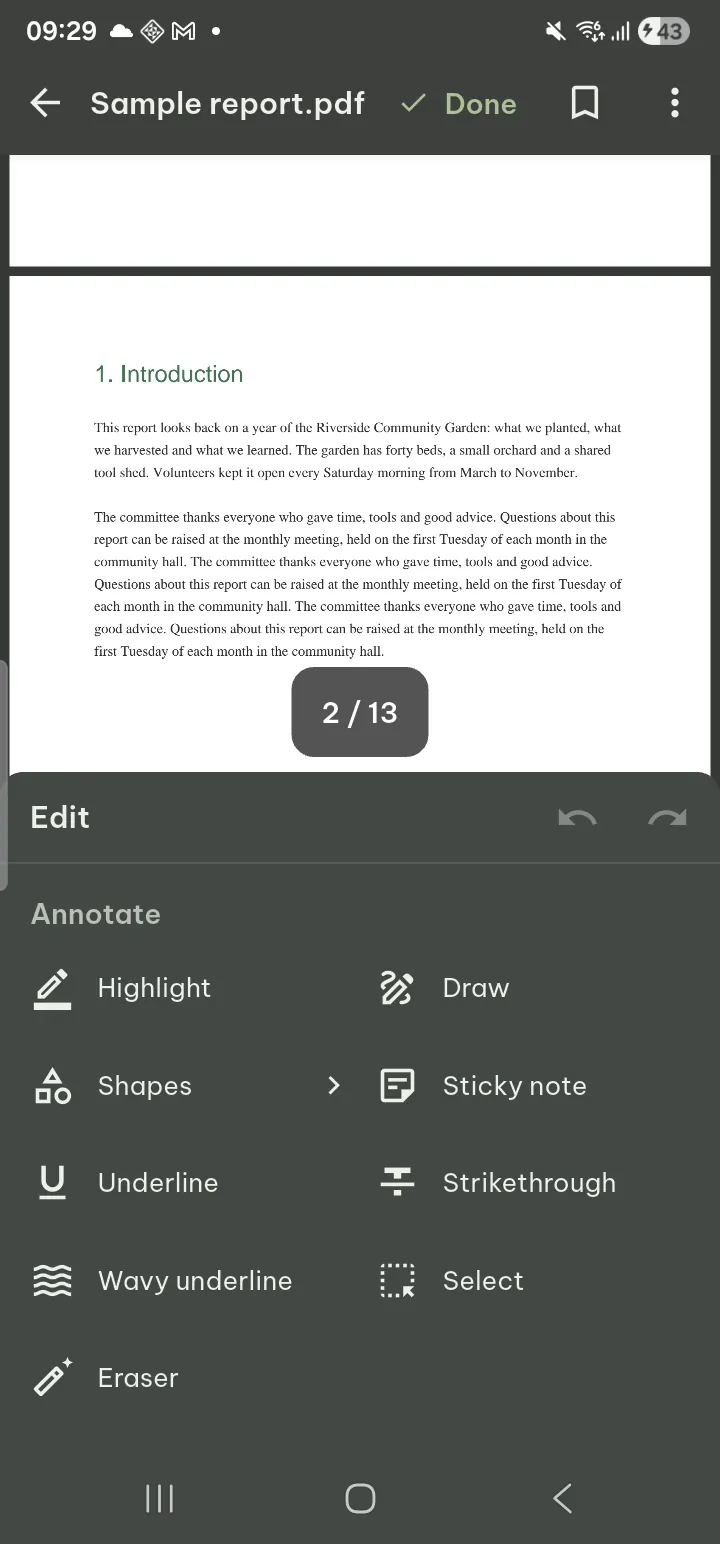
- Tap Edit. A panel opens at the bottom with every tool by name. Annotate comes first: Highlight, Draw, Shapes, Sticky note, Underline, Strikethrough, Wavy underline, Select and Eraser.
- Tap a tool. Shapes shows its choices in the panel: Rectangle or Ellipse.
- Draw on the page. The bar at the bottom has Undo, Redo, the color and the Thickness. Two fingers move and zoom.
- While a tool is in use, the top bar shows its name, Save, Done and All tools. All tools opens the panel again to switch tools.
- Save puts your marks into the file; Done ends editing in one tap.
Undo and Redo are also at the top of the panel. Drawing with a finger chooses whether a finger draws or only a stylus does. Black ink does not remove text; use Redact for that.
Move, resize or delete a mark
- Tap a shape, sticky note or signature you placed to select it (or use Select).
- Drag it to move it, or drag a corner to change its size.
- The bar at the bottom has Duplicate and Delete this mark. Undo takes a change back.
- A text mark (highlight, underline, strikethrough) stays on its text; you can change its color or delete it.
Edit existing text
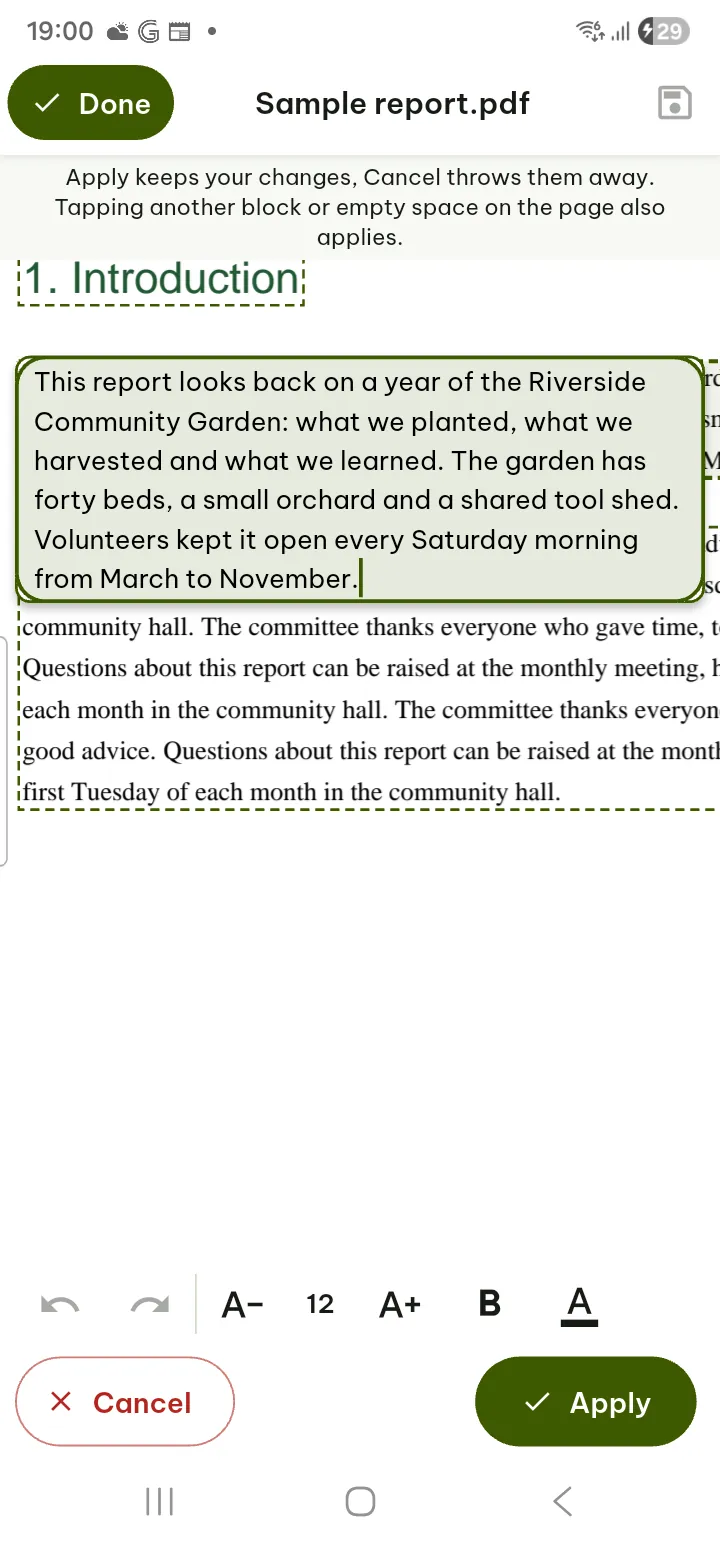
- Tap Edit, then Edit text (under Text).
- Tap a dashed box and type. Smaller text, Larger text, Bold and Text color change its look.
- Tap Apply, then Save.
Scanned pages, rotated or right-to-left text and some fonts cannot be edited; Pagiro says why. Letters missing from the file's font are written with a bundled open font.
Fill in forms
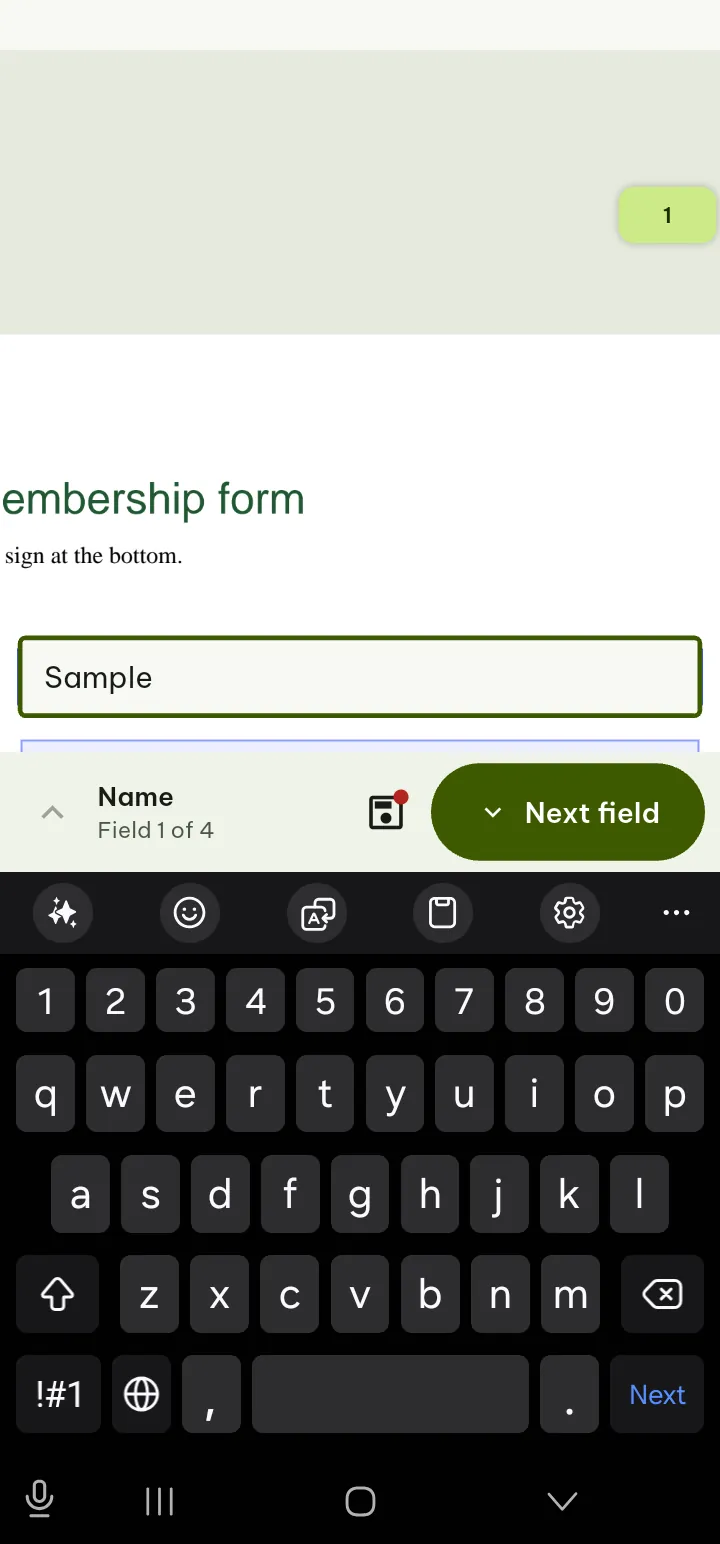
- Open a PDF form. Its fields are outlined on the page, and the first button of the bottom bar is Fill & Sign.
- Tap Fill & Sign. The bar now has Next, Sign, Date, Tick and Send.
- Tap a field and type, pick from the list, or tick the box, right on the page. Next goes to the next empty field; Date and Tick go where you tap next.
- Tap Save above the keyboard. Send shares the filled-in form; Done in the top bar goes back to reading.
Tools › Form has All fields, Highlight fields and Clear what I typed. On a form, the editing panel is in Tools › Edit text, mark up and sign.
A PDF without fields? Add fields Pro lets you create form fields.
Sign
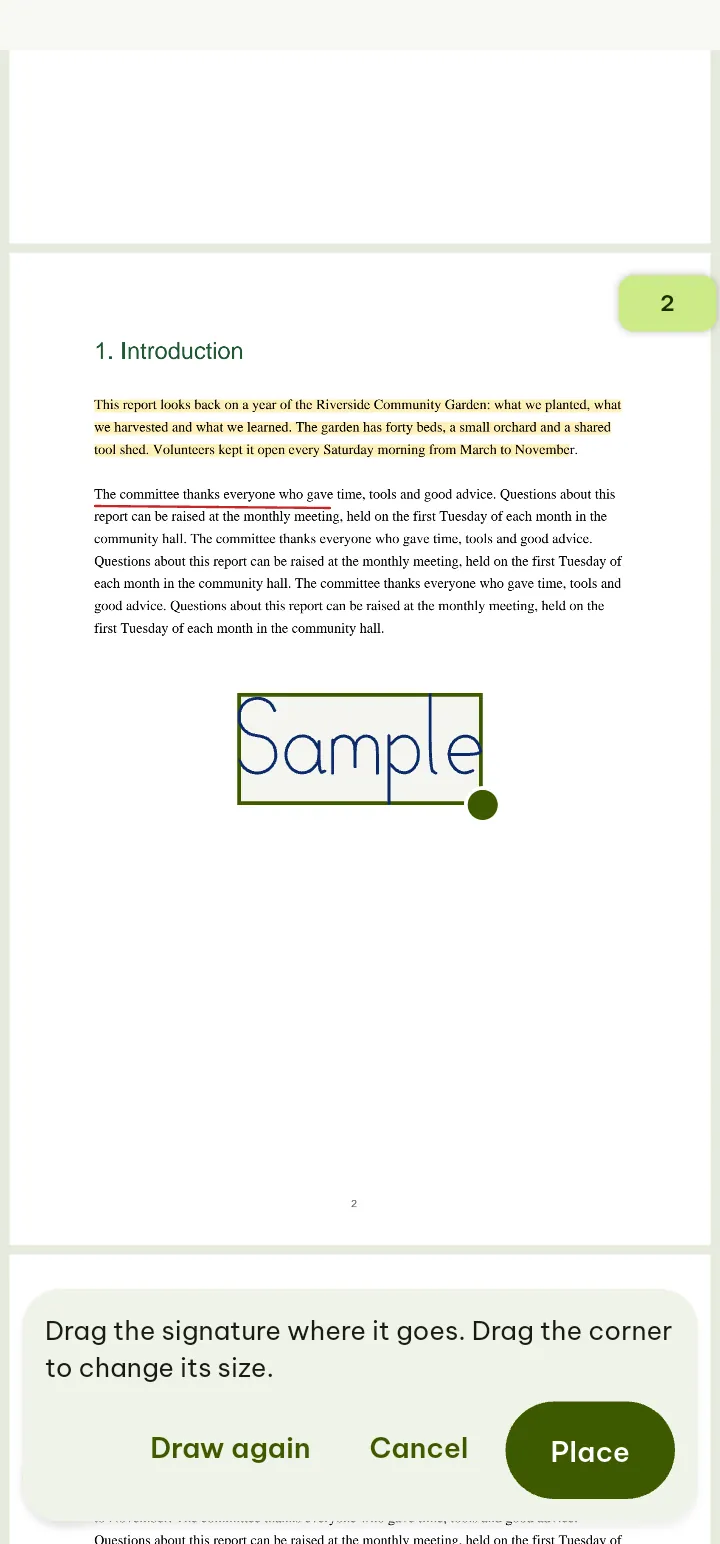
- Tap Edit, then Add signature (under Sign). On a form, tap Fill & Sign, then Sign.
- The first time, Draw your signature and save it. It is kept on your phone for next time; Draw again replaces it.
- Tap where you want to sign. Drag the signature into place, drag the corner to change its size, then tap Place and Save.
A placed signature can be selected again to move, resize or delete it (see Move, resize or delete a mark).
This is a drawn signature, not a digital (certificate) signature.
Pages, redact and text recognition
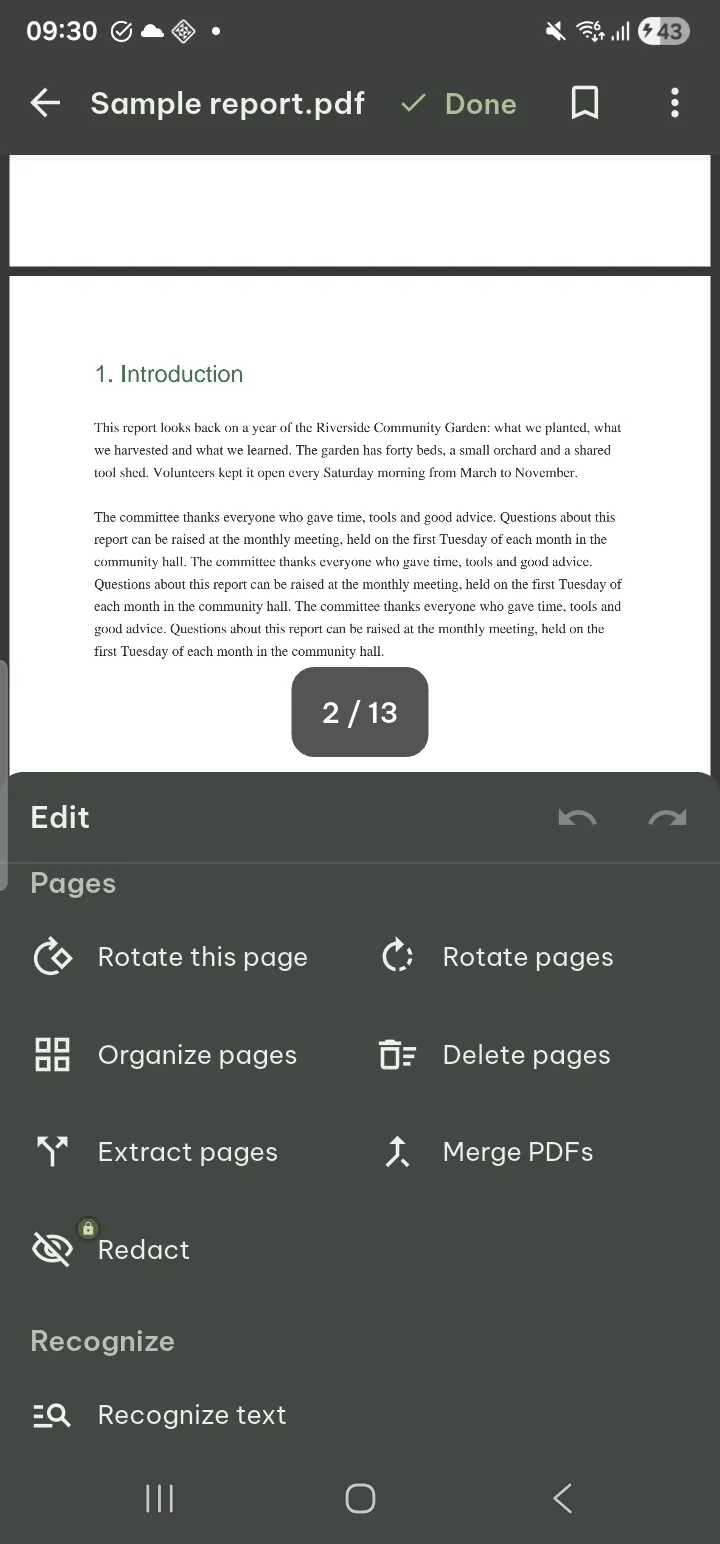
- The Pages section of the Edit panel, and Tools › Pages, have Organize pages, Delete pages, Extract pages, Merge PDFs and Redact Pro. They work as in the Tools tab.
- Edit › Recognize text (also in Tools) makes a scanned PDF searchable and readable aloud. Tools › Recognized text shows the result.
- Tools starts with Print and Compare documents; Tools › PDF tools opens the other tools for this file.
Save and share
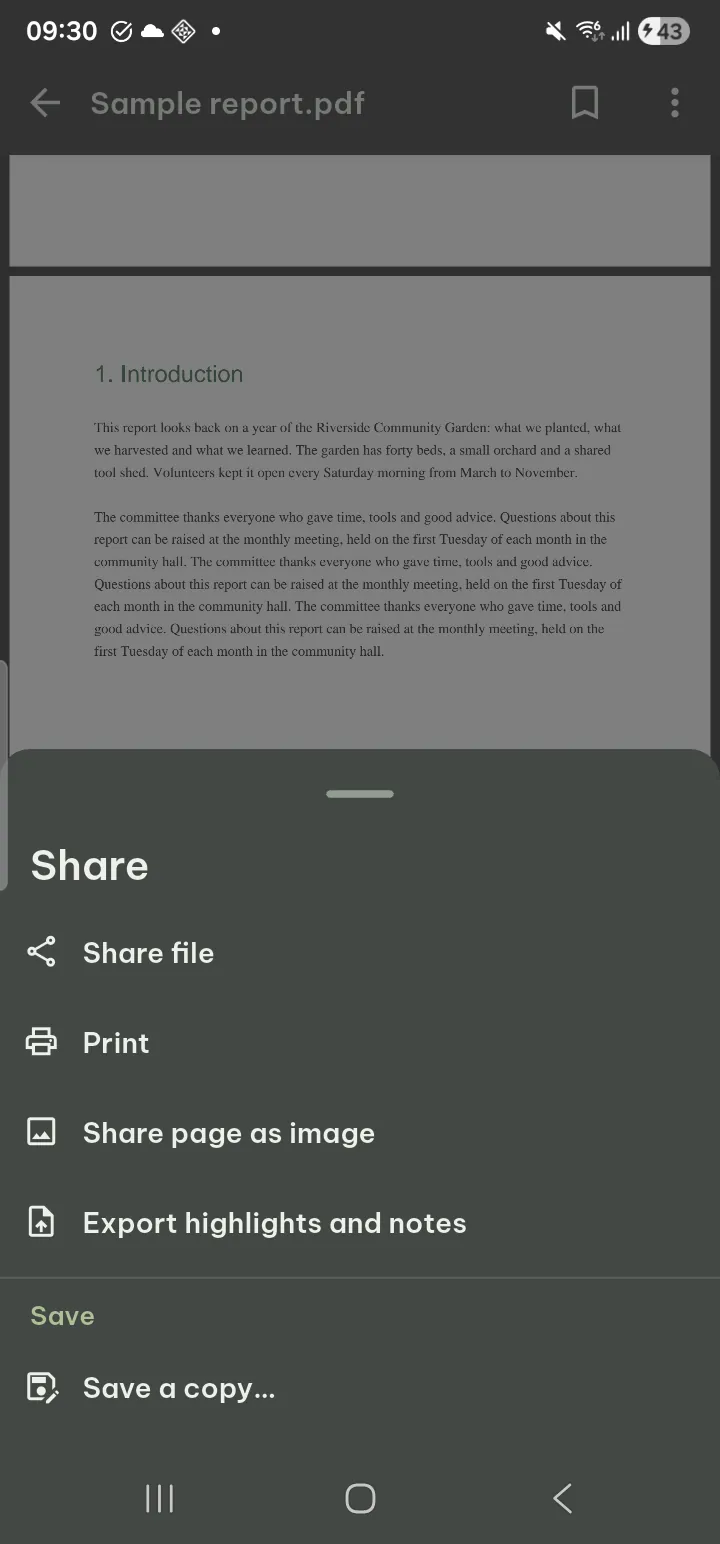
- Save puts your changes into the file, and you keep editing. It is on the top bar while a tool is in use, in the Share & save section of the Edit panel (with a dot when something is not saved yet) and in Share. Save a copy… writes a new file.
- Leaving the document with unsaved changes asks Save your changes?: Save, Discard or Keep editing.
- Share has Share file, Print, Share page as image and Export highlights and notes. When you share or print you choose With my annotations or Original file.
- Each save keeps the file as it was in Tools › Previous versions. Tools › File info shows the title, author and any restrictions.
Read aloud
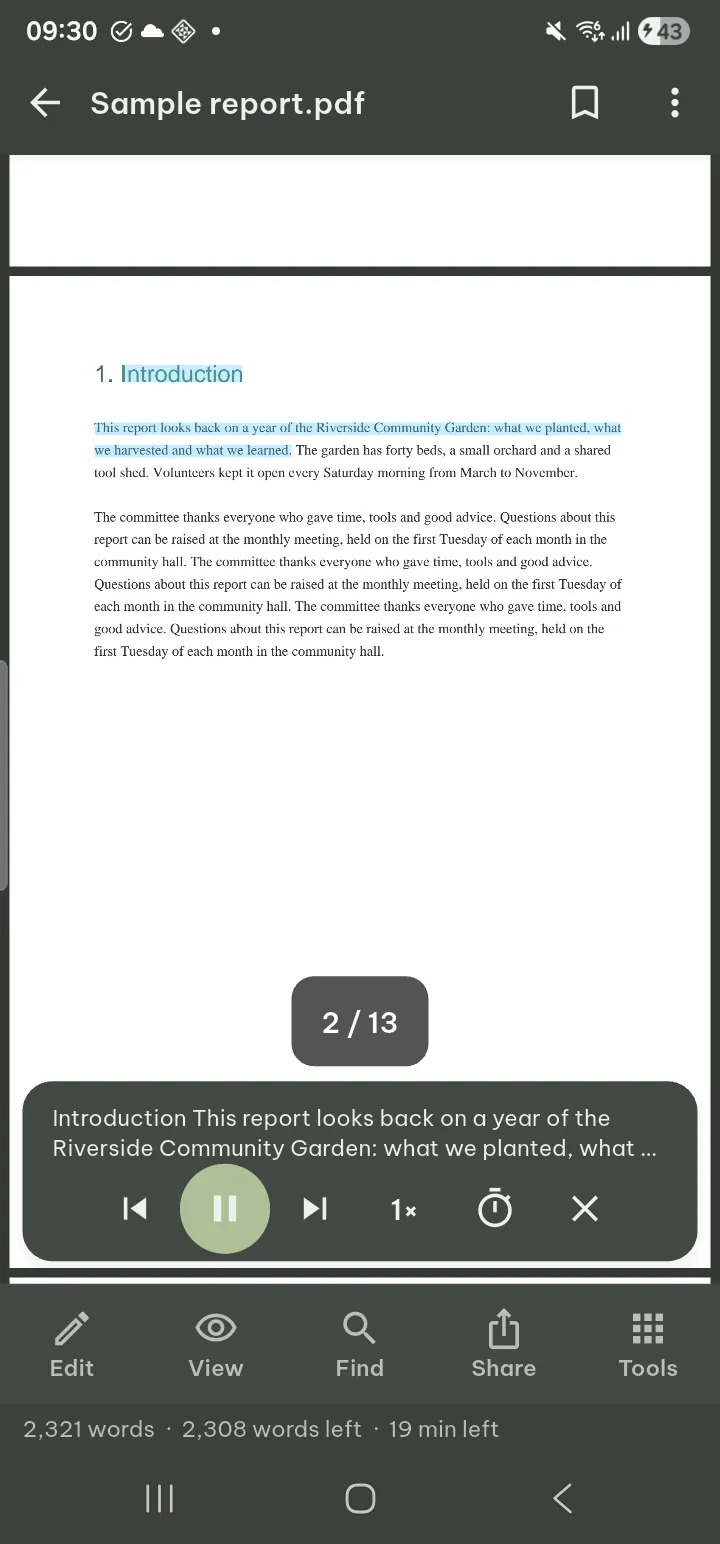
- Tap View › Read aloud (or Read from here on selected text).
- Use Previous sentence, play and pause, Next sentence, Speed and the Sleep timer.
- Stop reading closes it.
Reading continues with the screen off, with controls on the lock screen and headset. It uses the voices installed on your phone (Voice settings). Scanned pages need text recognition first.
Protected and signed PDFs
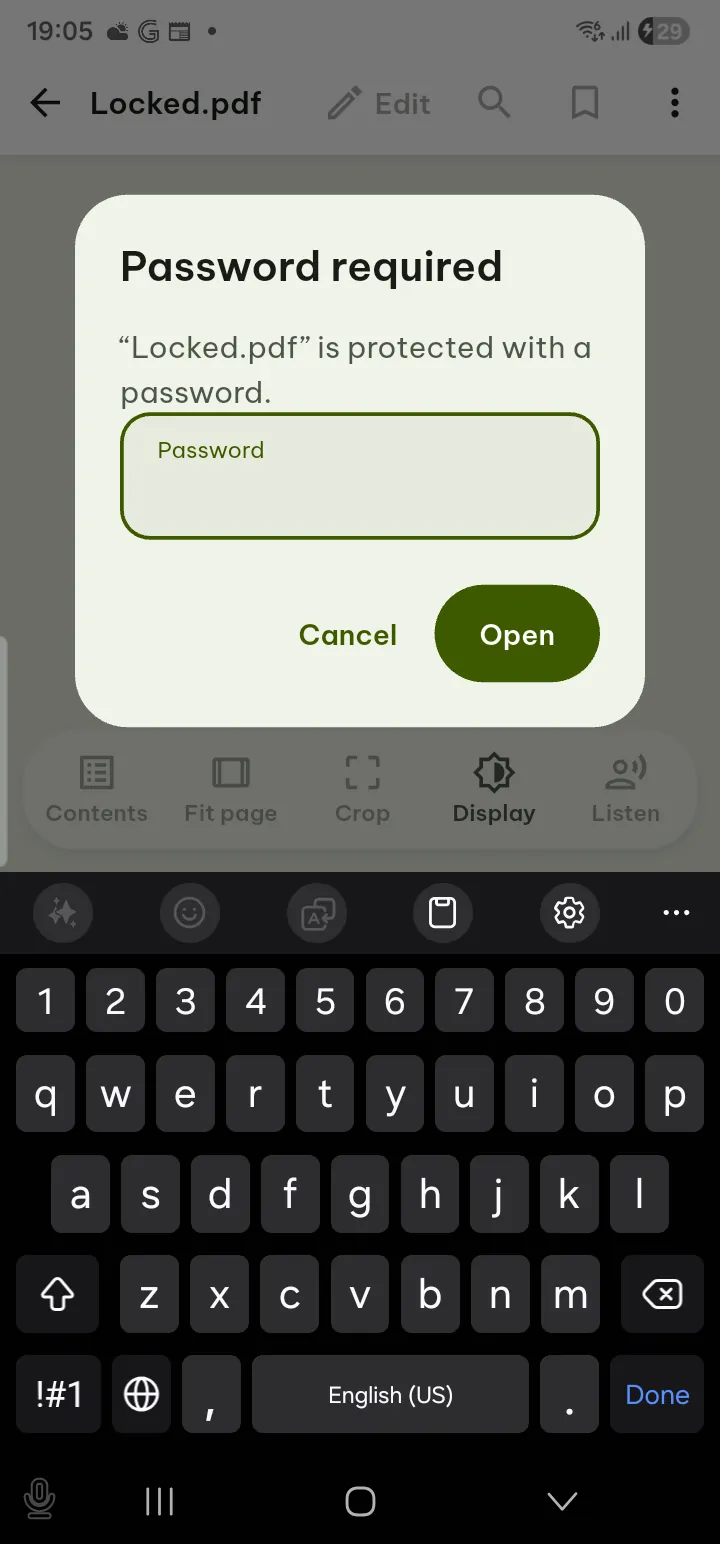
- A password-protected PDF opens after you type its password (Password required). Pagiro cannot recover or bypass passwords.
- Restrictions set by the author are respected: if copying or printing is not allowed, those actions are not offered. File info lists the restrictions.
- A digitally signed PDF is checked before you change it: any edit invalidates the signature, so Pagiro warns first.