User guide › Documents, spreadsheets and slides
Documents, spreadsheets and slides
Pagiro opens .docx, .doc, .rtf, .odt, .xlsx, .xls, .csv, .ods, .pptx, .ppt and .odp files. You can edit .docx, .xlsx, .csv and .pptx; the others open for reading. Edits are saved into the same file, and the version before is kept.
- New document
- Text documents
- Page layout and Reading view
- Spreadsheets
- CSV files
- Slides
- Present
- Text, Markdown, HTML
- Print, save as PDF
- Saving and limits
New document
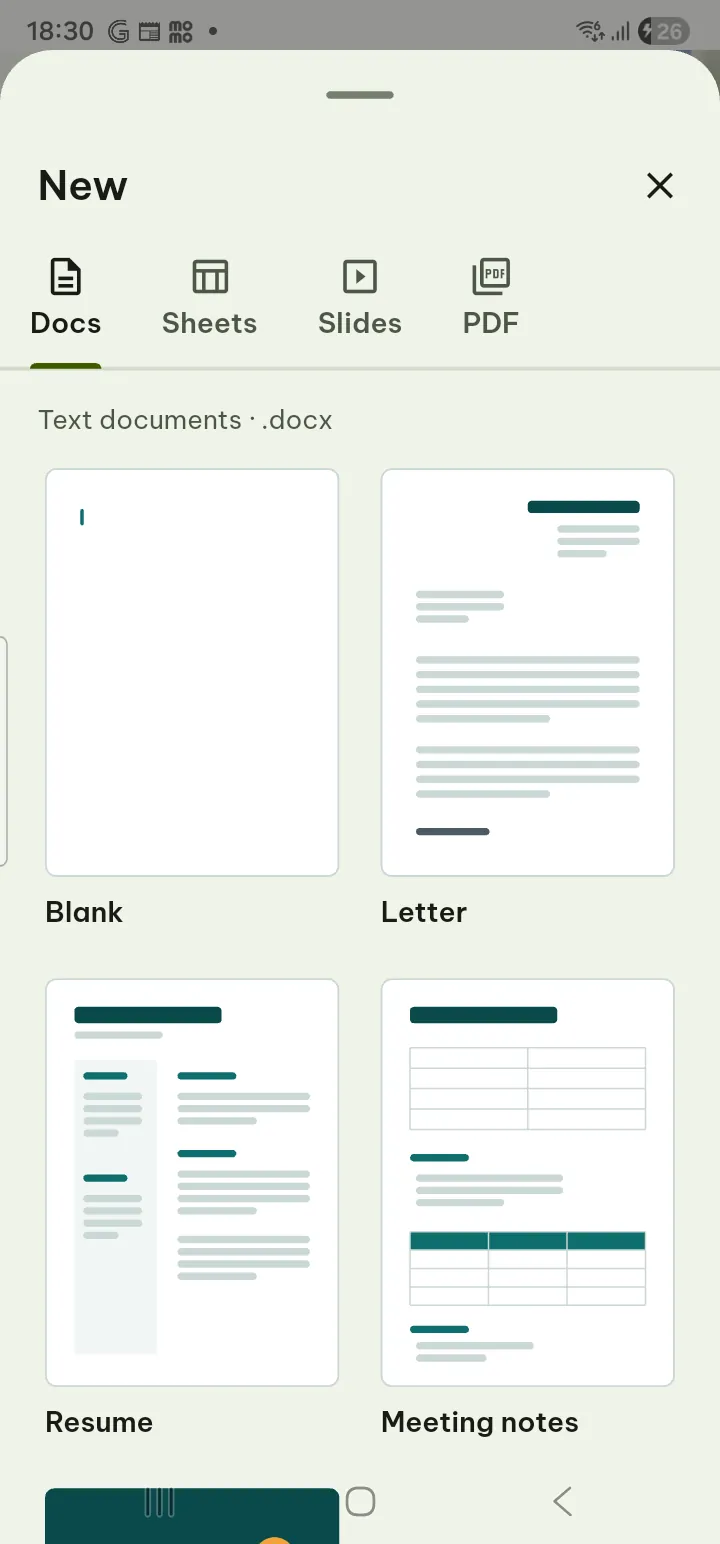
- In Tools tap New (it is also in the + menu).
- Choose a tab, Document, Spreadsheet, Presentation or PDF, and Blank or a template (letter, resume, meeting, report, budget, planner, invoice, attendance, pitch, lesson, album, lined, checklist, form).
- Type a name in Name your file and tap Create. The new file opens ready to edit.
There are two sets of premium templates Pro. In each tab of the New sheet, More templates has 37 premium templates (resumes, contracts, quotations, budgets, timesheets, slide decks and more). You can preview them for free; Use this template needs Pro.
Templates (at the top of the New sheet) opens the template library: 20 pro-grade templates Pro, grouped as documents (resumes, invoice, proposal, annual report), spreadsheets (budget, project tracker, sales dashboard, expense report, timesheet), slides (pitch, business review, marketing plan, project kickoff, lesson) and fillable PDF forms. They are built into the app and work without internet. Search or filter, tap one to look at its pages and colours for free, then Use this template makes a new file of your own to edit (Pro). The template itself never changes.
Text documents (.docx)
Documents open in Page layout, the document as printed. Reading view reflows the text to the screen in your font, size and theme, and can read it aloud. Switch between the two with View in the bottom bar (its first two rows).
- Double tap the word you want to change: it is selected and the keyboard opens, so you can type over it. Or tap Edit in the bottom bar: the cursor is in the paragraph you were reading. Enter starts a new paragraph.
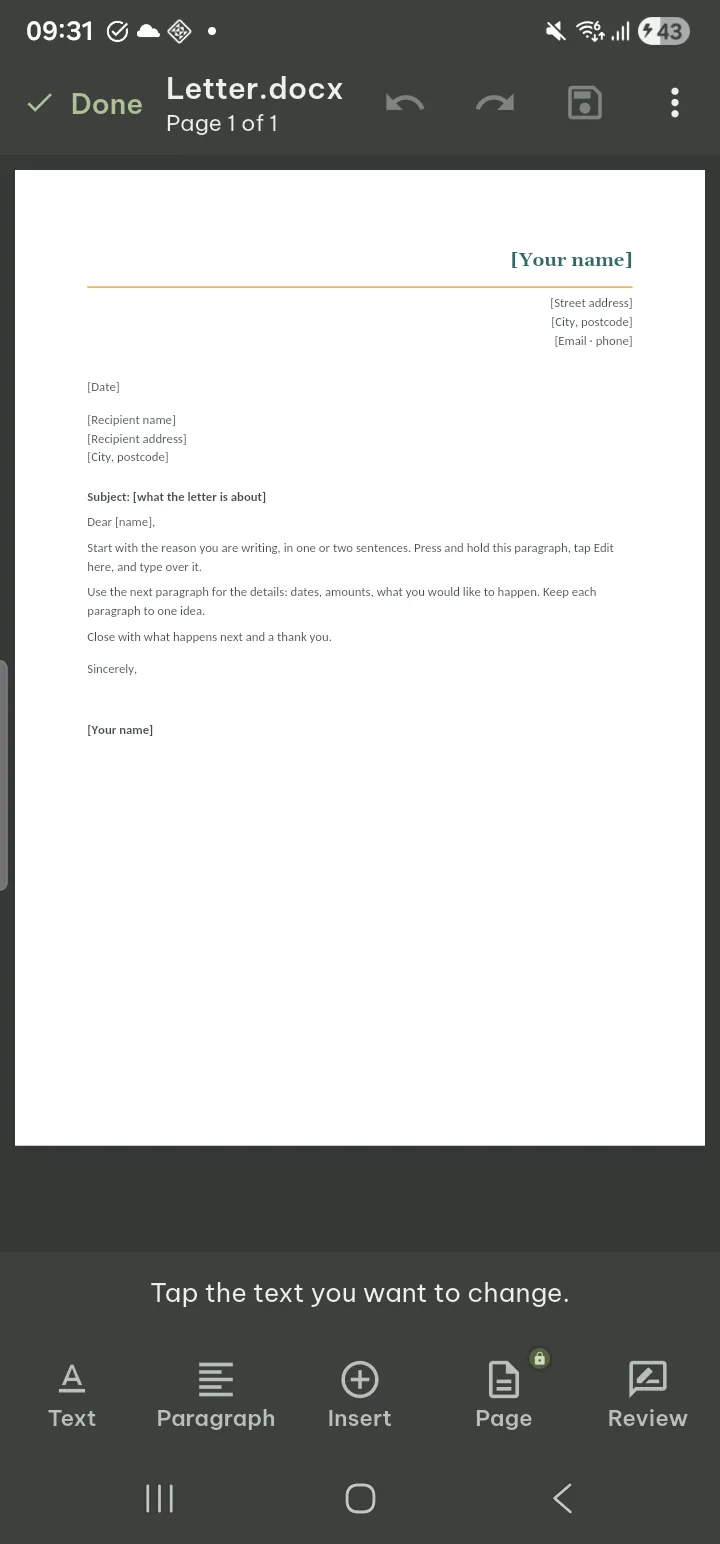
- Use the tabs of the editing bar (each shows its name; Undo and Redo are at the left):
- Text: Font, Font size, Bold, Italic, Underline, Strikethrough, superscript and subscript, Text color, Highlight, Change case, Copy format, Clear formatting.
- Paragraph: Paragraph style and headings, alignment, Bullets, Numbering, indents, Spacing, Border, Shading.
- Insert: Table Pro, Picture, Camera, Link, Page break, Symbol, Date, Page number.
- Page Pro: Margins, Orientation, Paper size, Columns, Header, Footer, Page number.
- Table Pro (when the cursor is in a table): add and delete rows and columns, merge and split cells, shading, borders, column width, header row, cell alignment.
- Review: word count, Find, replace, reading comments, Changes (go through tracked changes and Accept or Reject them, one by one or with Accept all / Reject all); a new Comment Pro and Track changes Pro (turning it off is free). A new table or comment is set up first; Pro is asked when you insert it.
- Tap Save (also on the Changes are not saved yet bar); you keep editing. Done ends editing; with unsaved changes it asks Save, Discard or Keep editing. The editor's ⋯ also has Find and replace… (free), Delete paragraph and Save a copy….
Tracked changes are free to see, accept and reject: while reading, the Review button shows how many there are, and in the editor they are under Review › Changes. A few kinds Pagiro cannot decide yet; it says so, and you can decide them on a computer. A paragraph that still holds tracked changes takes no typing until its changes are accepted or rejected. Recording your own edits as tracked changes needs Pro; in a file that tracks changes, without Pro your edits are saved as plain edits and Pagiro tells you so. A document with restricted editing, marked as final or digitally signed is not edited in place; Pagiro offers an editable copy. .doc, .rtf and .odt files open for reading only.
Page layout, Reading view and Edit
A .docx, .doc or .odt document has two views. In Page layout switch with View › Reading view; in Reading view use Page | Reading in the top bar (on a narrow screen, in ⋯), where the filled half is the view that is open. View › About these views (in Reading view, ⋯ › About these views) and Settings › Help & about explain them in the app too.
- Page layout shows the document as printed: pages, margins, headers and footers, columns and pictures in place. You can print it, save it as PDF and edit it. The text keeps the document's own fonts and sizes, so small print may need zooming; read aloud is in Reading view.
- Reading view fits the text to your screen in your font, size and theme, and can read it aloud. Page numbers are approximate and the look is simplified, so it does not match the printed pages.
- Edit opens the document in Page layout: tap where you want to type, then save. Only .docx files can be edited.
Settings › Open & edit documents › Open documents in Page layout chooses the view documents open in. A very long document that does not fit in the phone's memory in Page layout can still be read to the end in Reading view.
Spreadsheets (.xlsx)
Spreadsheets open in a grid. Sheets are tabs at the bottom.
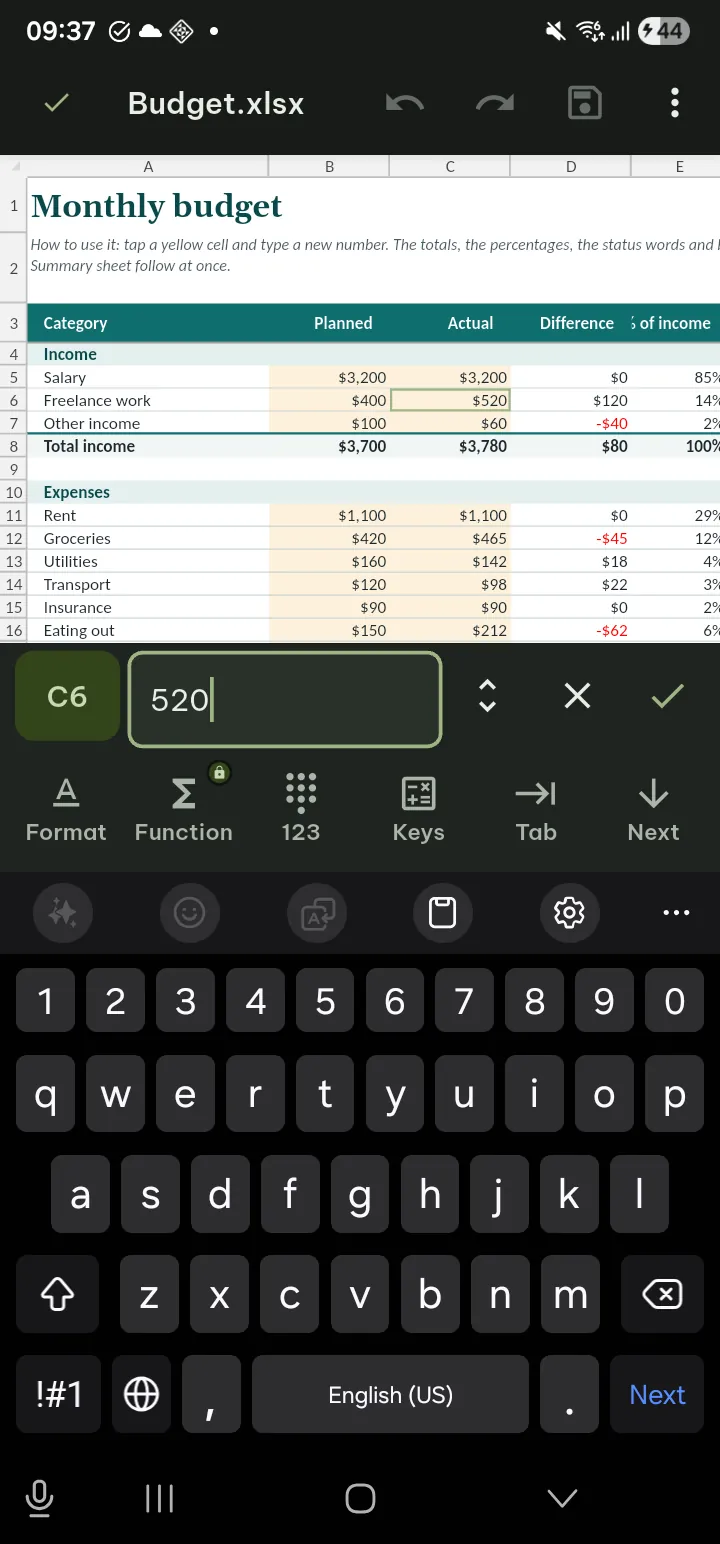
- Edit a cell: double-tap it, or select it and tap Edit in the bottom bar, then type in the cell bar; Next moves on. Formulas start with =; they are checked before they are accepted and recalculated.
- Free tools (in the editor's Tools, tabs Home, Insert, Data, View): cut, copy, paste (also values or formats only), Format cells, Merge cells, Wrap text, fill down and right, clear, find and replace, insert or delete one row or column, column width and row height, hide and show, and sheets: Add sheet, rename, Duplicate, delete, move, Tab color, hide.
- Pro tools Pro: Sort A to Z, Sort Z to A, Sort…, Filter, Remove duplicates…, Data validation…, Conditional formatting…, Chart, Freeze first row and other freeze panes, the function picker (fx), and inserting or deleting several rows or columns at once.
Undoing a Pro effect (show all rows, remove validation, clear rules, unfreeze) is always free. View › Reading view shows the rows as text, for reading aloud and small screens; Grid view in its top bar goes back. .xls, .xlsb and .ods open for reading only.
CSV and TSV files
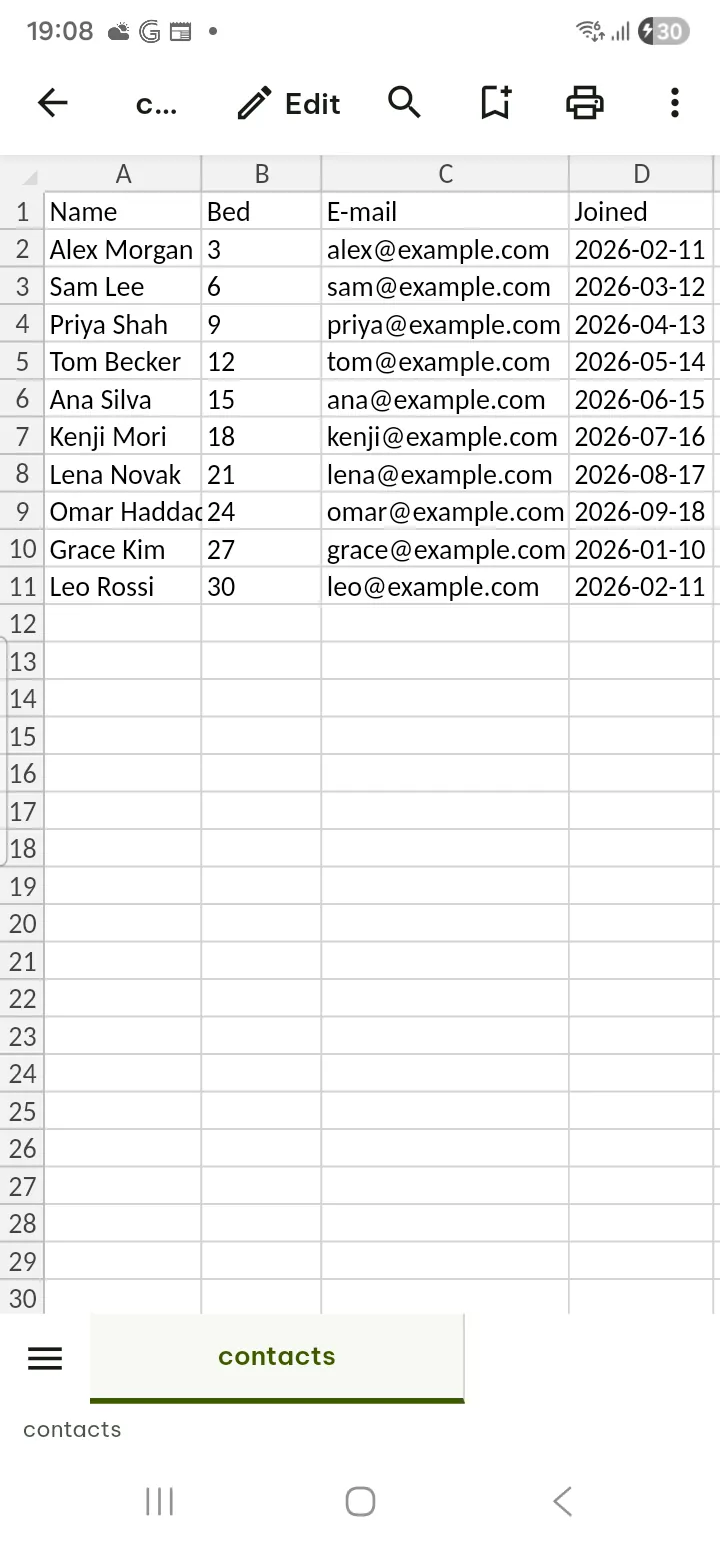
.csv and .tsv files open in the same grid. You edit the text of the cells with the Home tools (cut, copy, paste, fill, clear, find and replace); Undo is in the top bar. There are no formulas or formats in a CSV file, and only the cells you change are rewritten. Free, up to 24 MB.
Slides (.pptx)
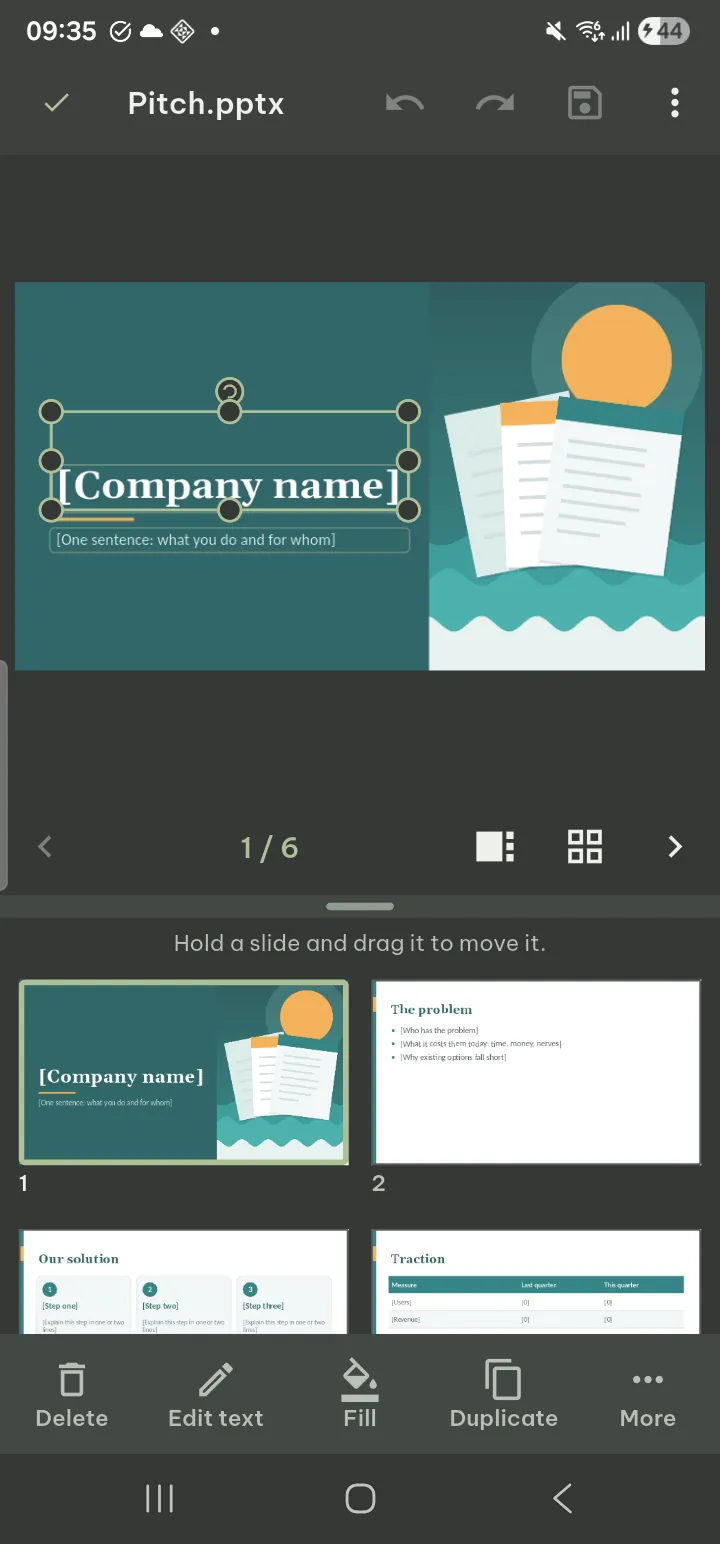
- Edit text: tap Edit, tap a text box to select it and tap it again to type (an empty placeholder types at once). A selected text box, shape or picture can be dragged to move it; its handles change its size. Format it with bold, italic, underline, font, size, color, alignment and bullets.
- Free: New slide, move slides up and down, Delete slide, Text box, Picture (crop, replace), Notes, changing existing shapes (fill, arrows, shadow, arrange, size and position, alt text), and in Design: Background, Color scheme, Slide size.
- Pro Pro: insert a Shape or a Table, Layout, Duplicate slide, Hide slide, Transition and Animation.
.ppt and .odp files open for viewing and presenting only.
Present
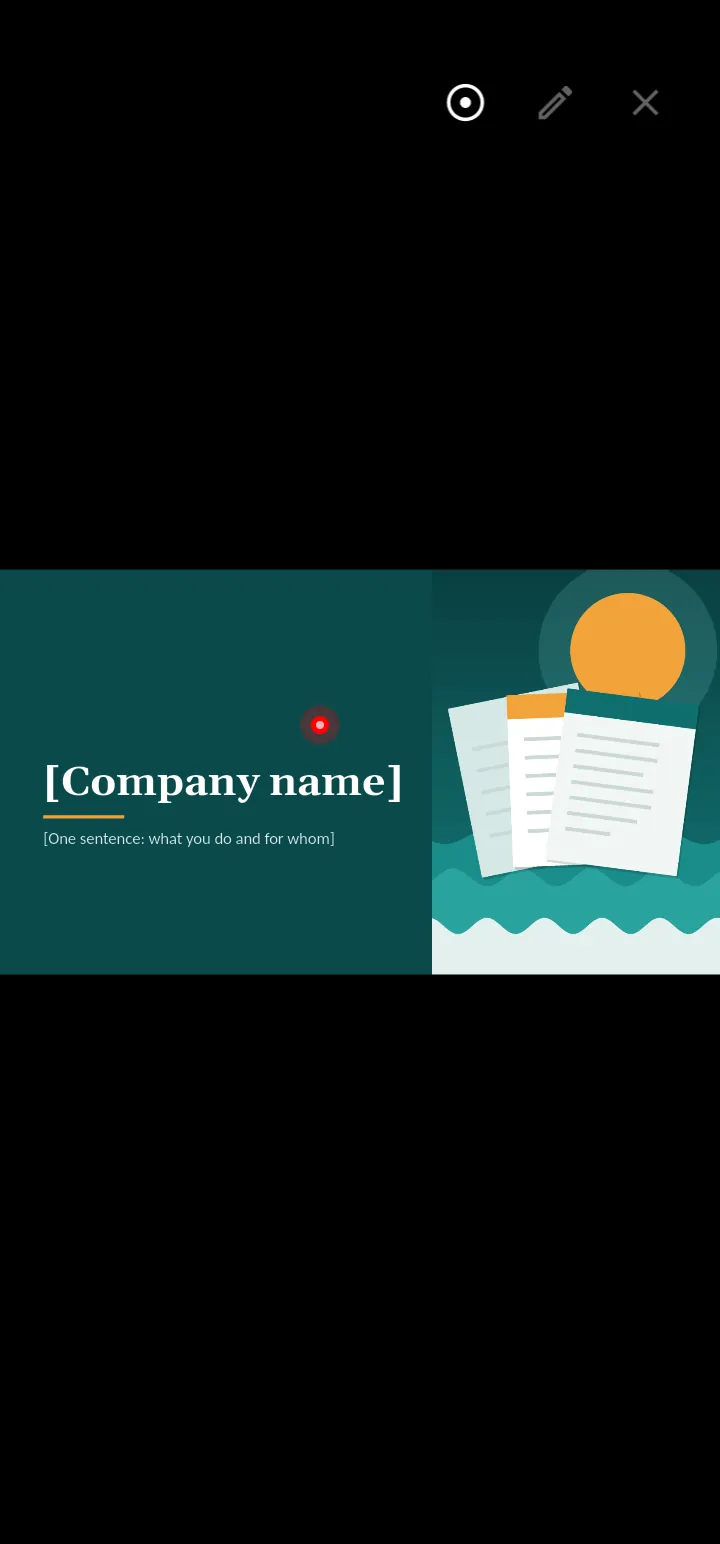
- While reading, tap View › Start slide show, or press and hold a slide thumbnail and choose Start slide show from this slide. In the editor, tap Present, or in Tools choose Present from start or Present from this slide.
- Swipe or tap to move. Use Laser pointer, Pen and Erase ink; Speaker notes shows your notes. Video and sound in the slides play with Play.
Free, also for .ppt and .odp.
Text, Markdown and HTML files
- .txt files and code or data files (.json, .xml, .log and many more) open as text, with syntax colors and line numbers for code. ⋯ › Encoding changes how the characters are read.
- Markdown and HTML files are shown formatted. ⋯ › View source shows the source.
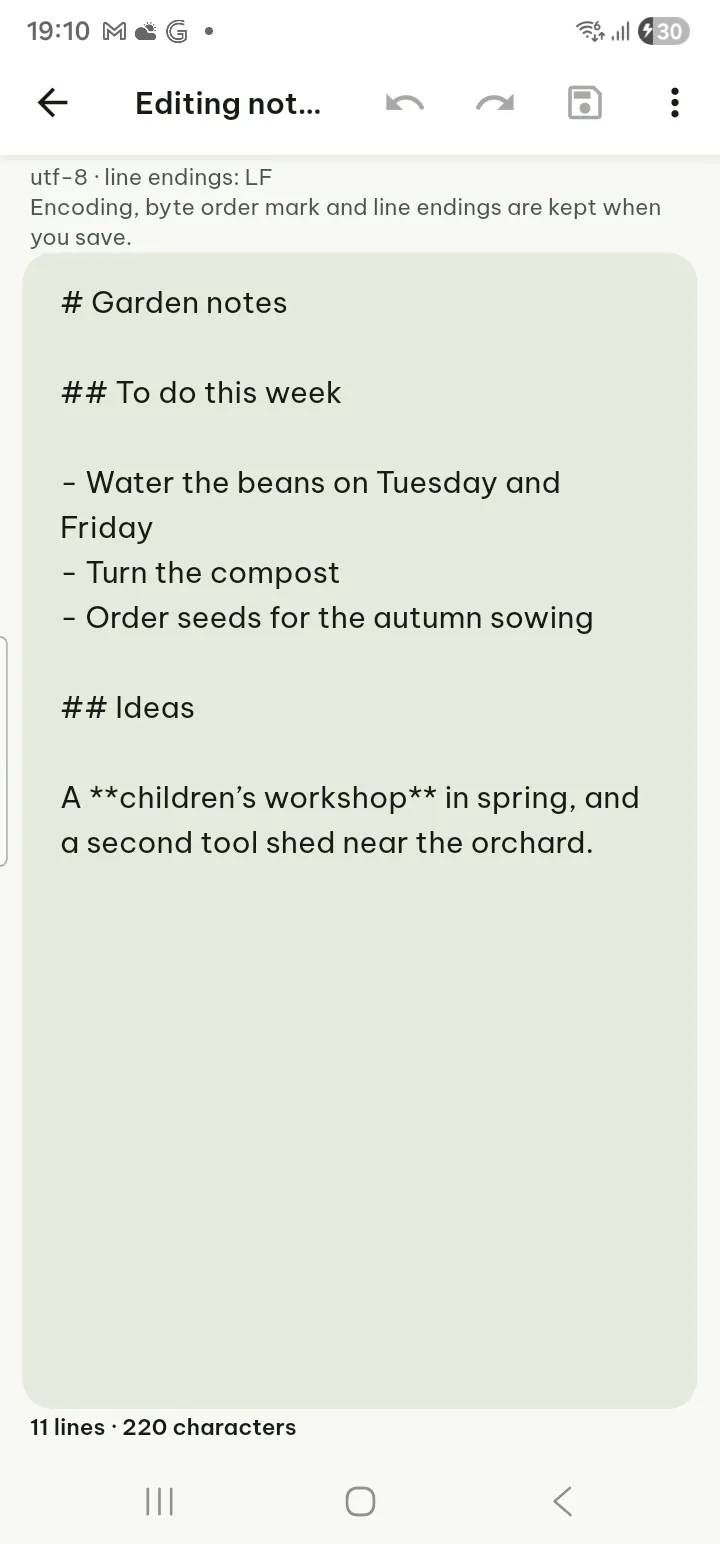
- Edit: tap Edit in the top bar. Encoding, byte order mark and line endings are kept when you save. Up to 3 MB. Free.
- Text settings sets the font, size, line spacing, margins and line length. Extra typefaces and narrower line lengths are Pro (reading style).
Print or save as PDF
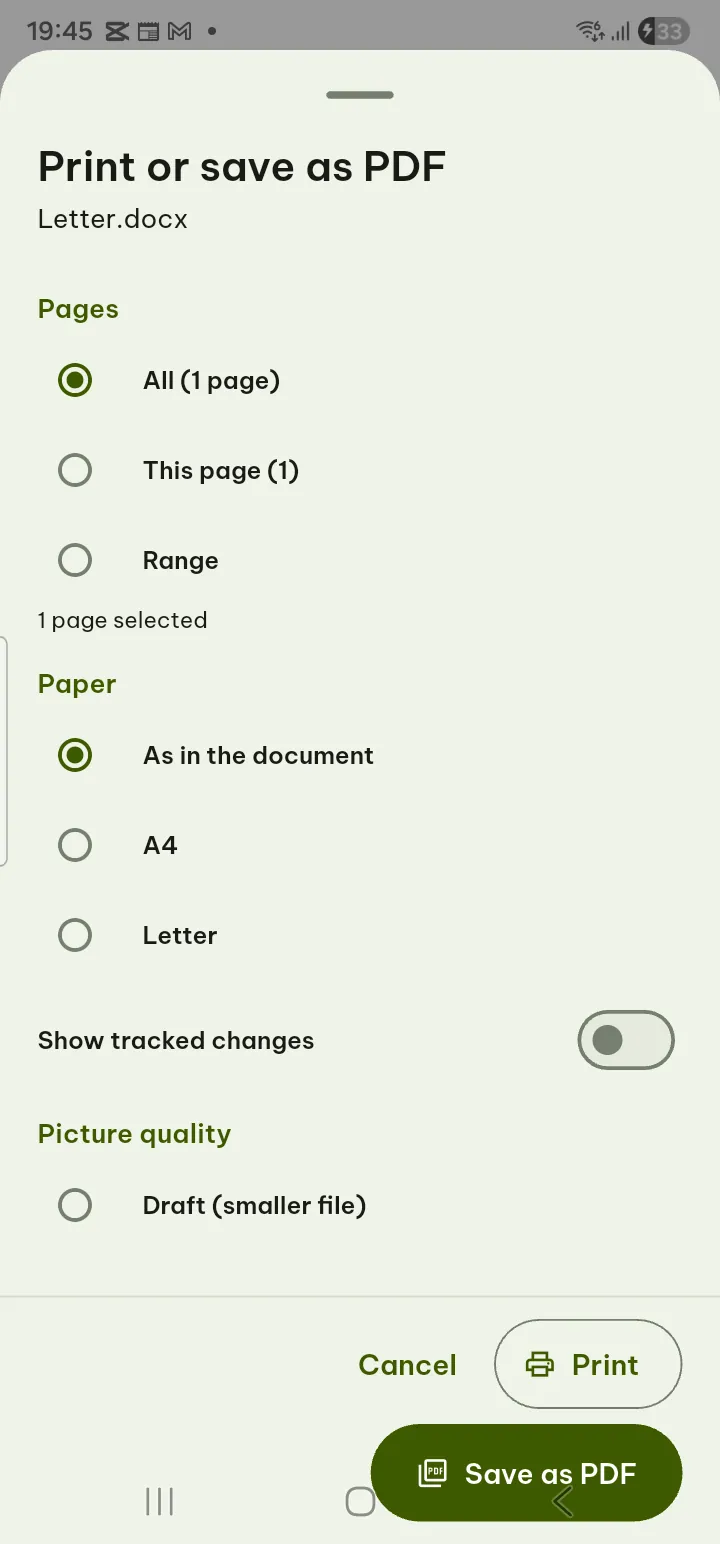
Printing belongs to the open document. Open it and tap Share › Print… or Save as PDF… (both also at the top of Tools). In Reading view, Markdown, HTML and text files they are in ⋯. In the PDF reader, Print is in Share and Tools. Free.
Saving and limits
- Pagiro saves back into the file you opened when the storage allows it; otherwise use Share › Save a copy to… (in the editor, ⋯ › Save a copy…).
- Parts of the file the app does not understand are kept as they were. Original font names are kept; fonts your phone does not have are shown with look-alikes.
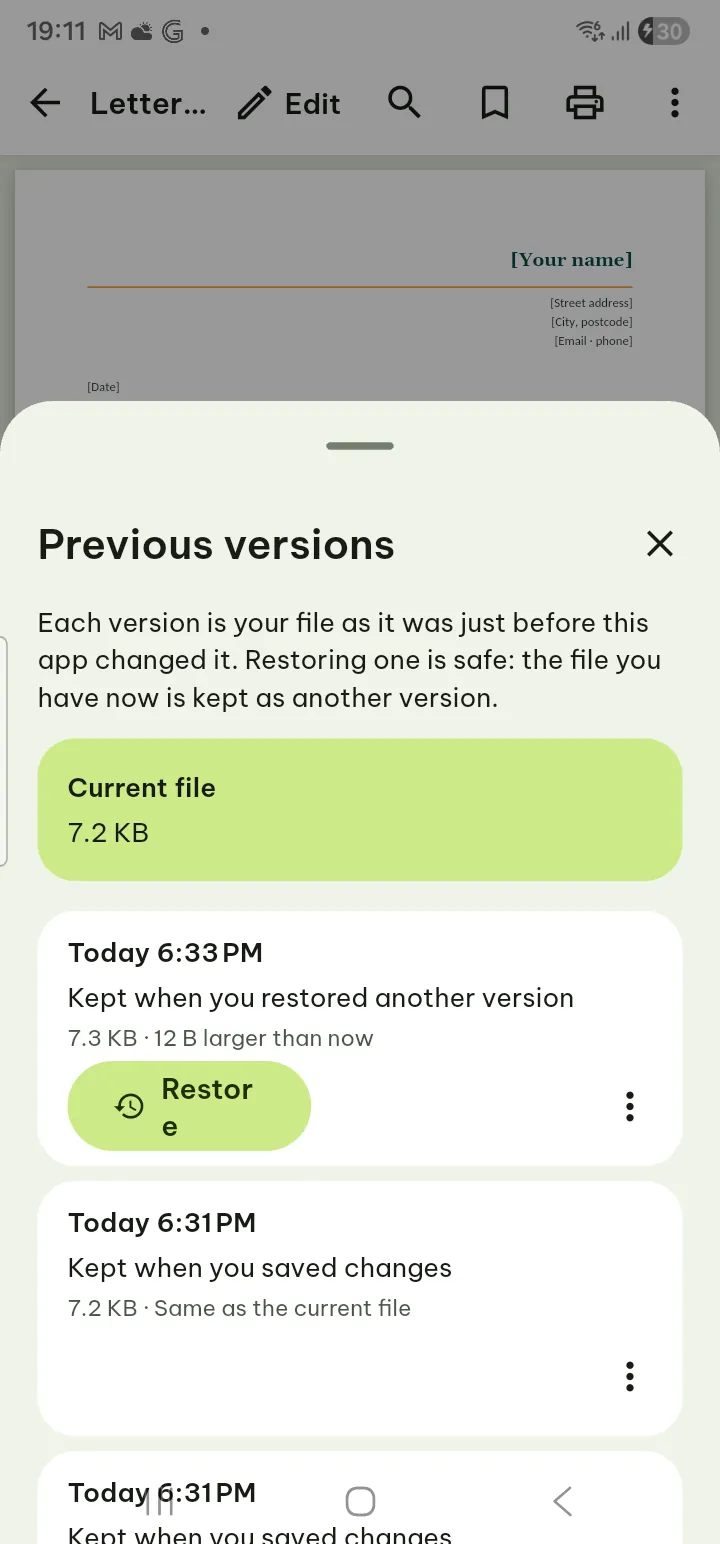
- The file as it was before each save is in Tools › Previous versions (in Reading view and text files, ⋯ › Previous versions), where you can Restore it or Save as a copy.
- Password-protected .docx, .xlsx and .pptx files open with your password but cannot be edited. Macros are never run.
- Print… and Save as PDF… work for every document type on this page.