User guide › Scan and tools
Scan and PDF tools
Everything in the Tools tab, which also has the tools of the + button and of Home. Tools never change your original file: each one makes a new file, which is added to your library.
- The Tools tab
- Scan to PDF
- Text from a picture
- Images to PDF
- Merge
- Extract, delete, reorder, rotate
- Split
- Compress PDF
- Crop
- Watermark
- Page numbers
- Convert to PDF
- PDF to images or text
- Scan or PDF to Docs, Sheets, Slides
- Fill in, sign, create form fields
- Password
- Flatten, metadata
- Redact
- Compare
- Batch
The Tools tab
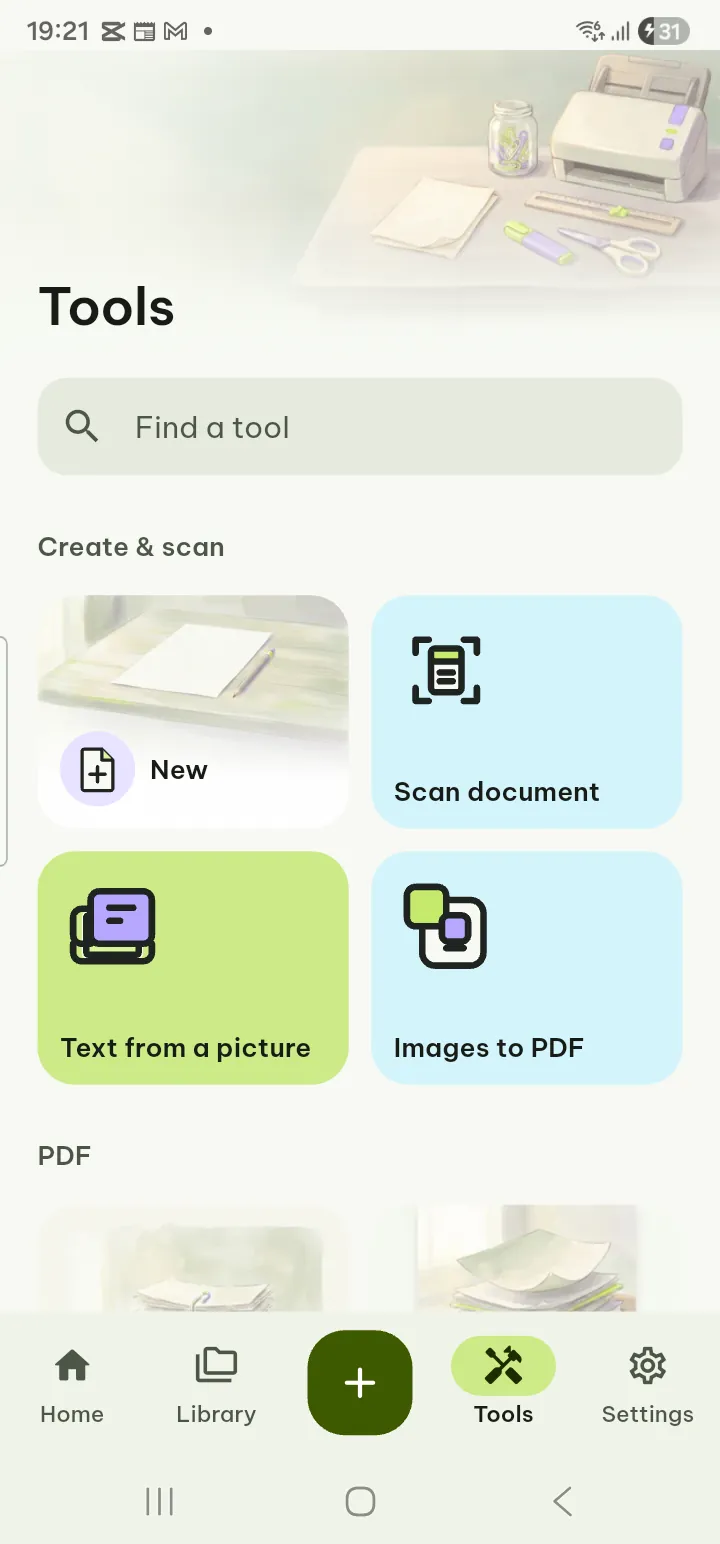
Tools are grouped in Create & scan, PDF, Convert, Forms & signature and Protect & privacy.
- Find a tool: type in the search field at the top. Every word you type must appear in the tool's name or description, in any order, with or without accents.
- Recent tools: the last five tools you started are shown as chips under the search field.
- Choosing a file: a tool that works on a PDF asks Choose a PDF. Pick one from your library or tap From this device….
- The result: every tool ends on the same sheet: 1 file saved to your library, the new file (tap it to open it), then Share, Save to device, Something wrong? and Done. Tools that make several files offer Share all and Save all as .zip.
Tools marked Pro open for everyone. You can choose the file, set the options and see the preview; Pagiro asks for Pro only when you tap the button that runs the tool, and runs it with your settings right after you buy. Redact works the same way: you draw or find the boxes first, and Pro is asked when you tap Redact….
Scan to PDF
Turn paper into a PDF with searchable text. Free.
- On Home tap Scan to PDF (the same in Tools and the + menu). Allow the camera the first time.
- Hold the phone over the page. When you see Page found, tap Take photo. Use the flash button if needed, or Pick images to use photos you already have.
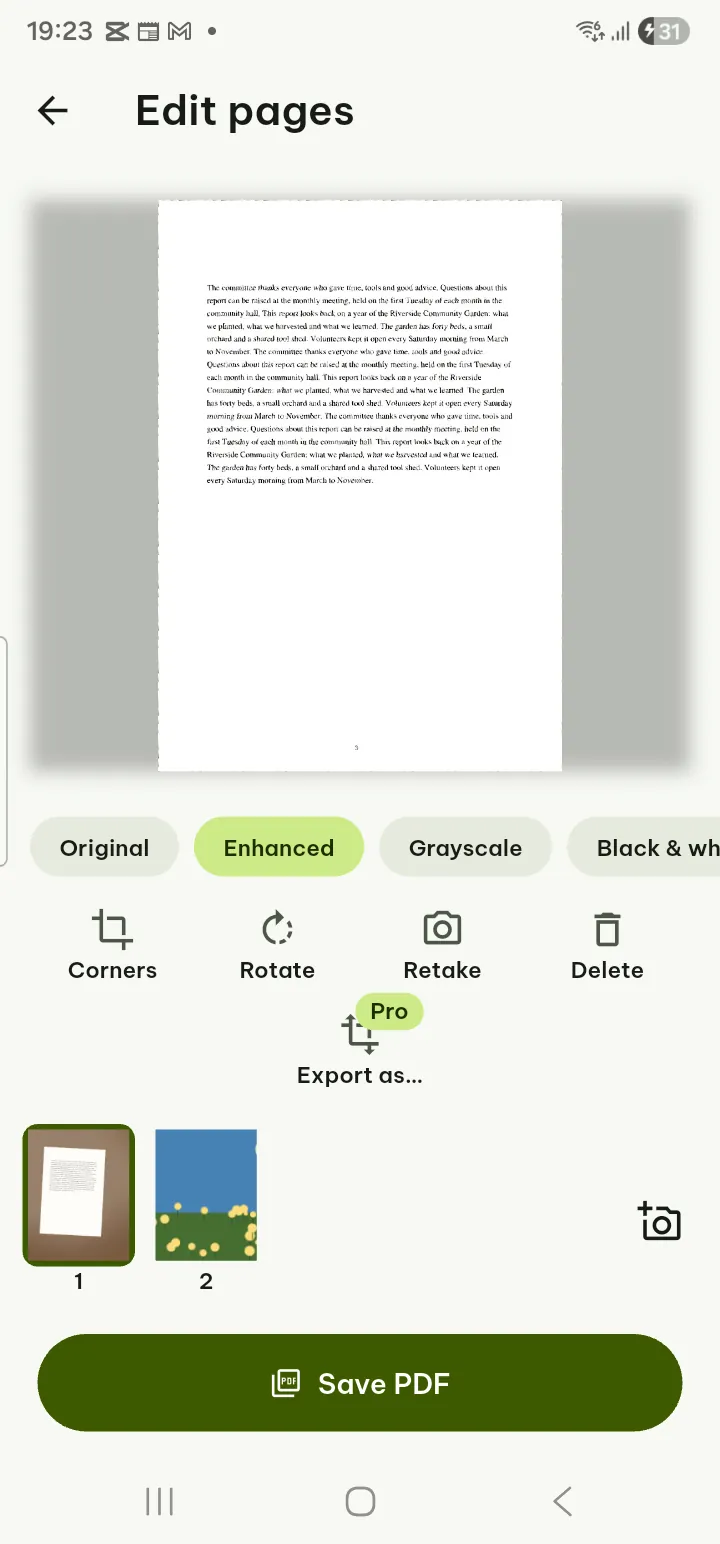
- In Edit pages each page is straightened automatically. Choose a filter (Original, Enhanced, Grayscale, Black & white; Use for all pages), adjust Corners, Rotate, Retake or Delete. Drag pages in the strip to reorder them, and tap Add pages for more.
- Tap Save PDF. Set the file name, Paper size (Auto, A4, Letter) and Quality (Small file, Balanced, High).
- Leave Make text searchable on to recognize the text, choose the language if needed, and tap Save PDF.
Text recognition runs on your phone with Google ML Kit; nothing is uploaded. It reads Latin-script languages (English, Spanish, French, German, Vietnamese and many more), Chinese, Japanese, Korean and Devanagari. Automatic tries the script of your app language first.
Export as… in Edit pages turns the scan into a .docx or .xlsx file instead Pro, see Scan to Docs.
Text from a picture
Copy the words in a photo or screenshot. Free.
- In Tools, or in the + menu, tap Text from a picture.
- Choose Take a photo or Choose a picture (you can pick several).
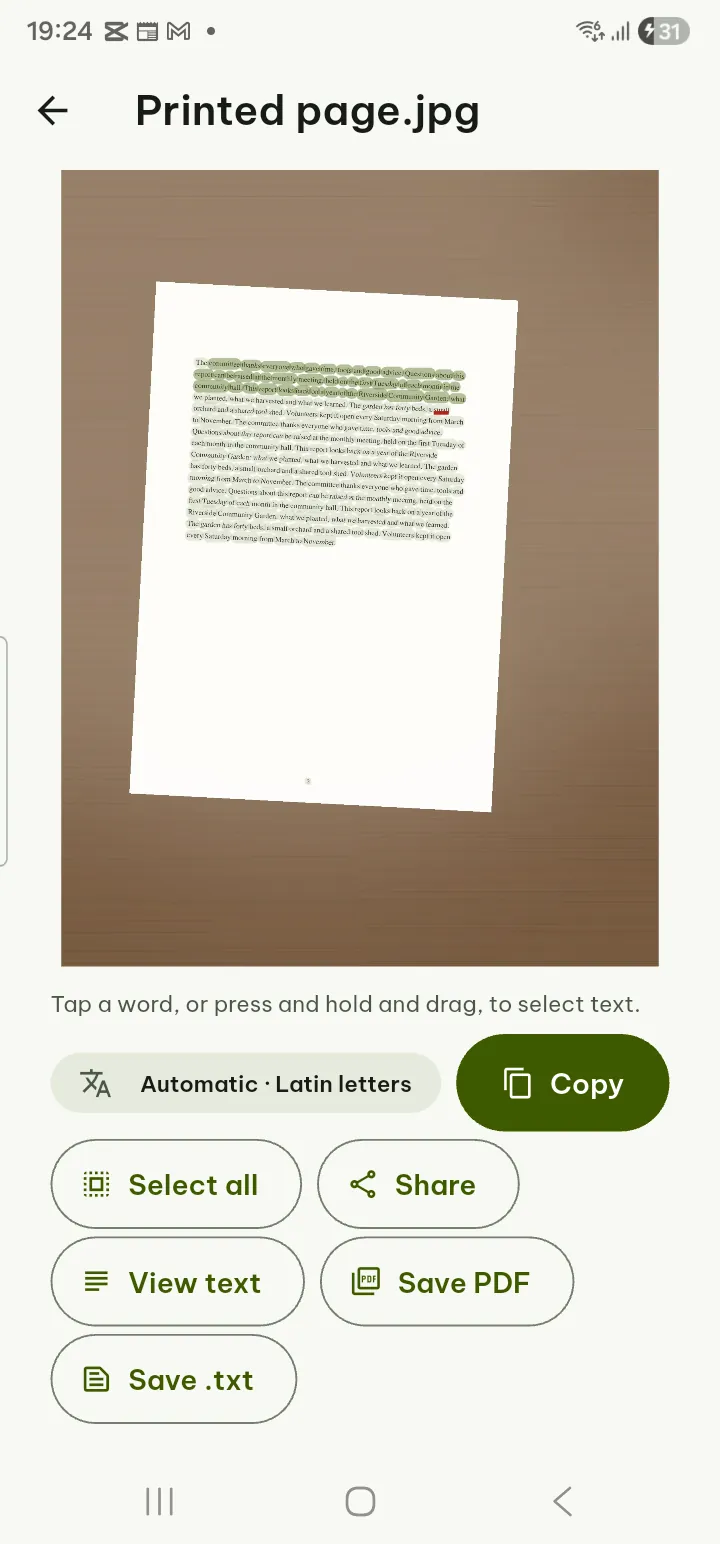
- Tap a word, or press and hold and drag to select. Change the language chip if the text looks wrong.
- Tap Copy all, Share or View text, or keep it with Save PDF (a searchable PDF in your library) or Save .txt.
An open picture has the same action in its ⋯ menu.
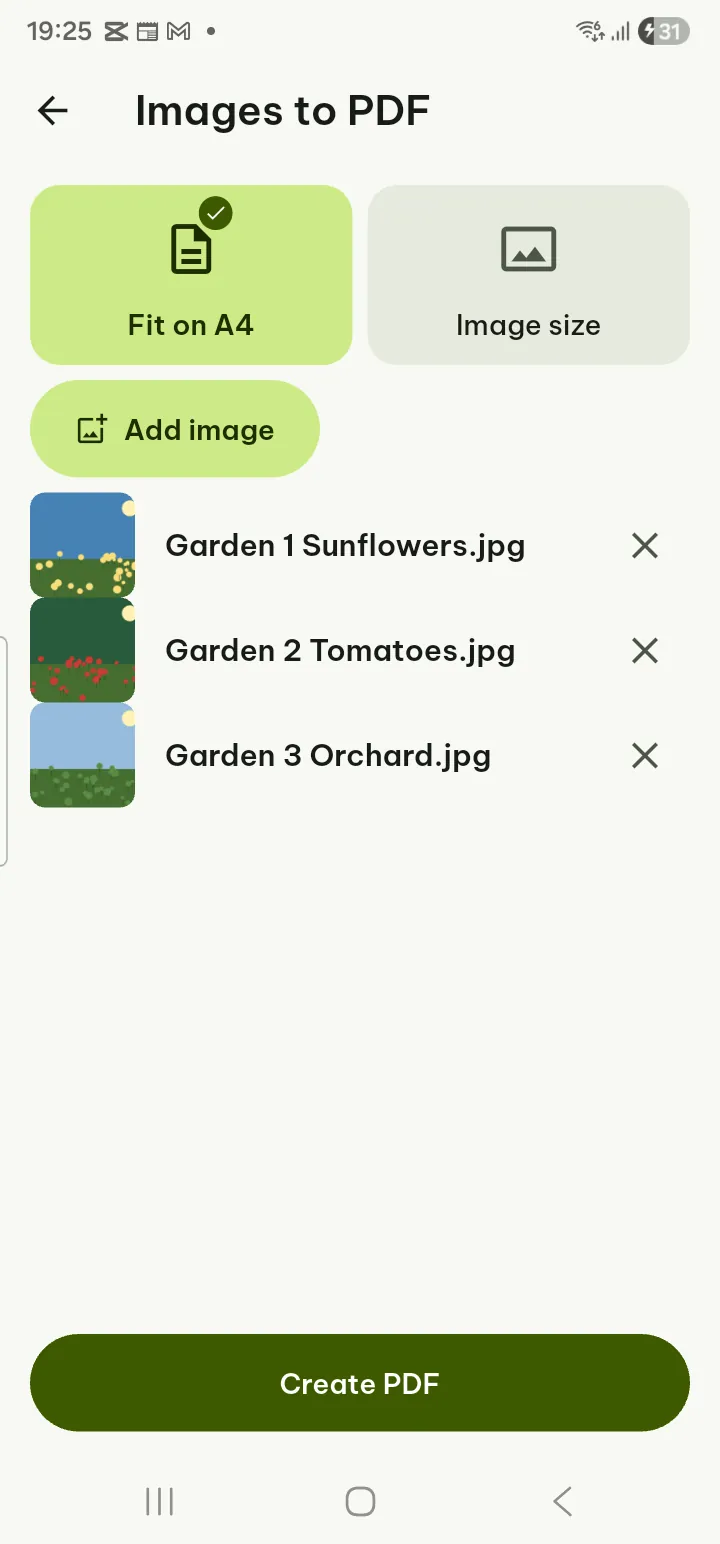
Images to PDF
One picture per page. Free.
- In Tools, or in the + menu, tap Images to PDF.
- Tap Add image and choose your pictures. Move them earlier or later, or remove one.
- Choose Fit on A4 or Image size.
- Tap Create PDF.
Photos are reduced to print quality (300 dpi on an A4 page), so the PDF stays small. To keep every pixel, turn on Full resolution; the PDF can then be much larger.
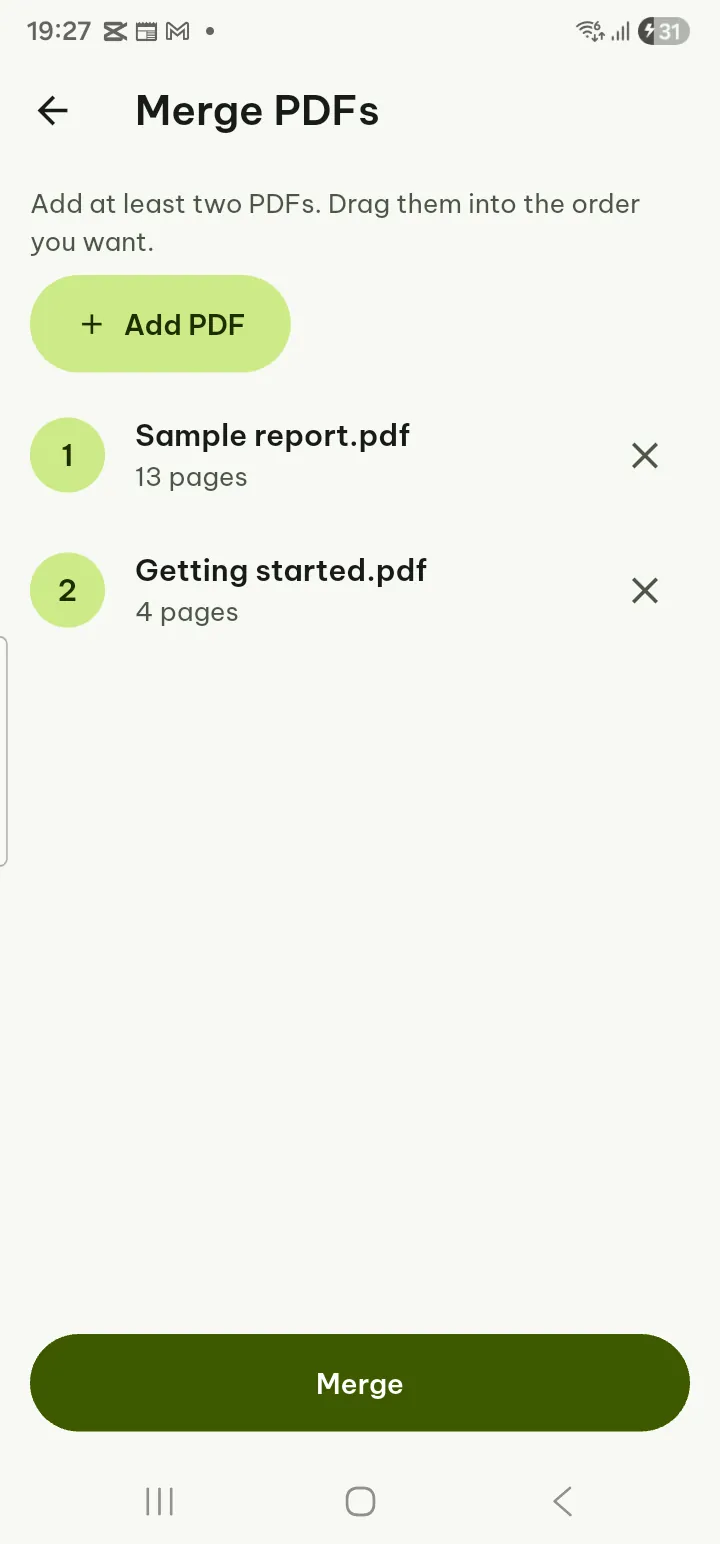
Merge PDFs
- Tools › Merge PDFs.
- Tap Add PDF for each file (at least two). Drag them into the order you want; × removes one.
- Tap Merge. If bookmarks, form fields or signatures cannot be carried over, Pagiro tells you and offers Merge anyway.
Up to 400 MB of PDFs can be merged at once; for more, merge them in smaller groups.
Free. The same tool is in the PDF reader under Edit › Pages.
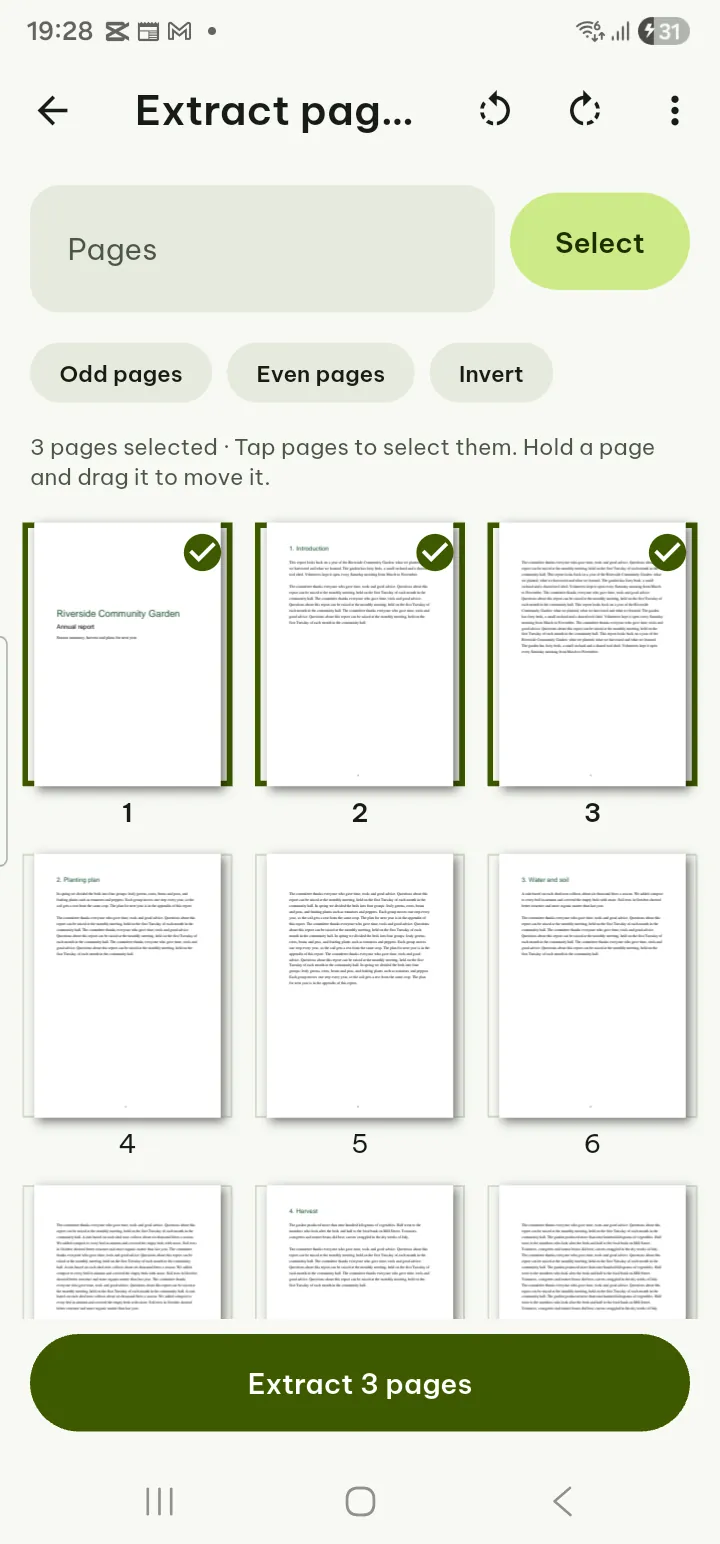
Extract, delete, organize and rotate pages
Four tools share one page grid. All free.
- Select pages: tap them, or type pages such as
1-3, 7, 10-12and tap Select. Chips: Odd pages, Even pages, Invert. - Extract pages: select the pages you want and tap Extract N pages.
- Delete pages: select the pages to leave out and tap Delete N pages. The new file keeps the others.
- Organize pages: hold a page and drag it; turn the selected pages (or all of them) with the buttons at the bottom; tap Save as new PDF.
- Rotate pages: select pages (or none for all pages), tap Rotate left, Rotate right or Turn 180°, then Save as new PDF.
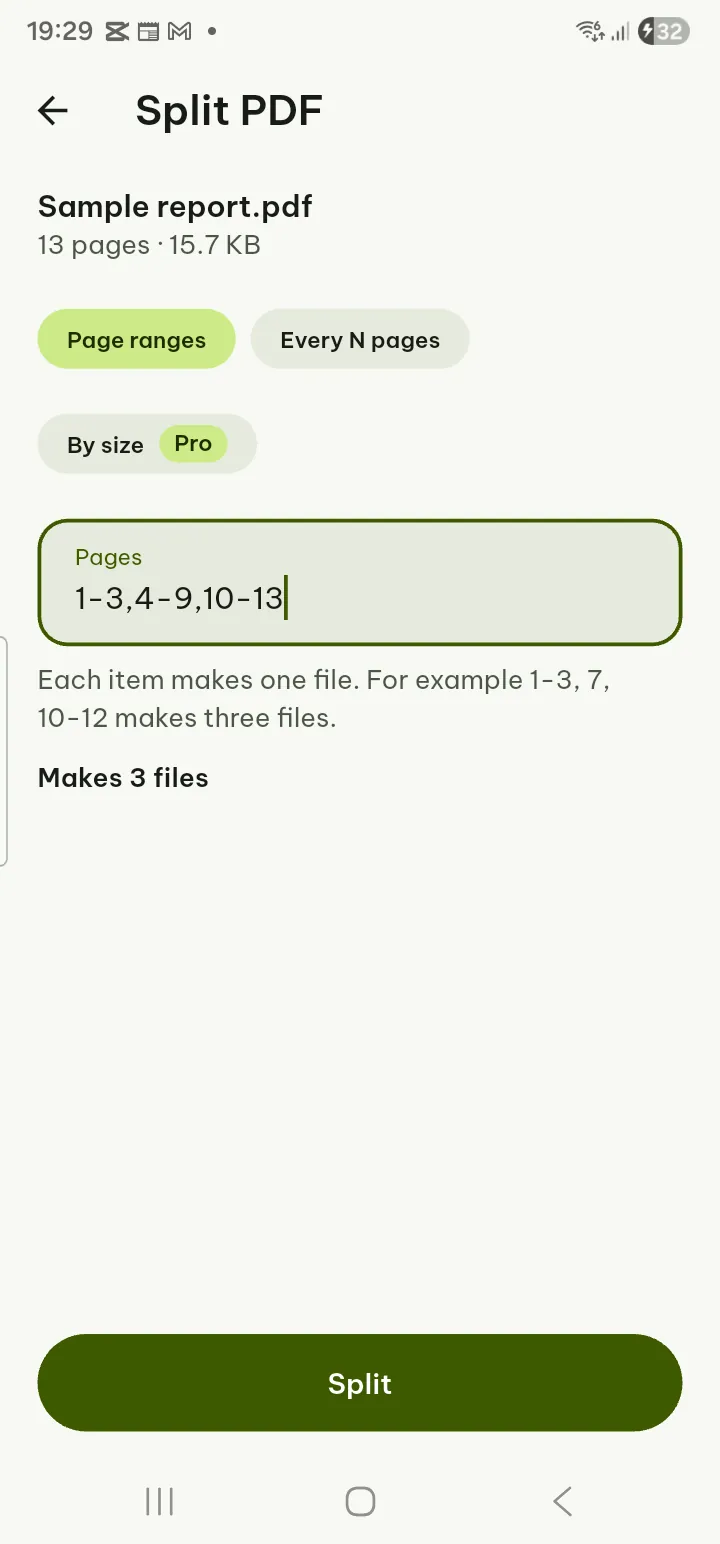
Split PDF
- Tools › Split PDF and choose the file.
- Choose Page ranges (each range becomes a file), Every N pages, or By size Pro with the largest file size in MB.
- Check Makes N files and tap Split.
Splitting by ranges and every N pages is free.
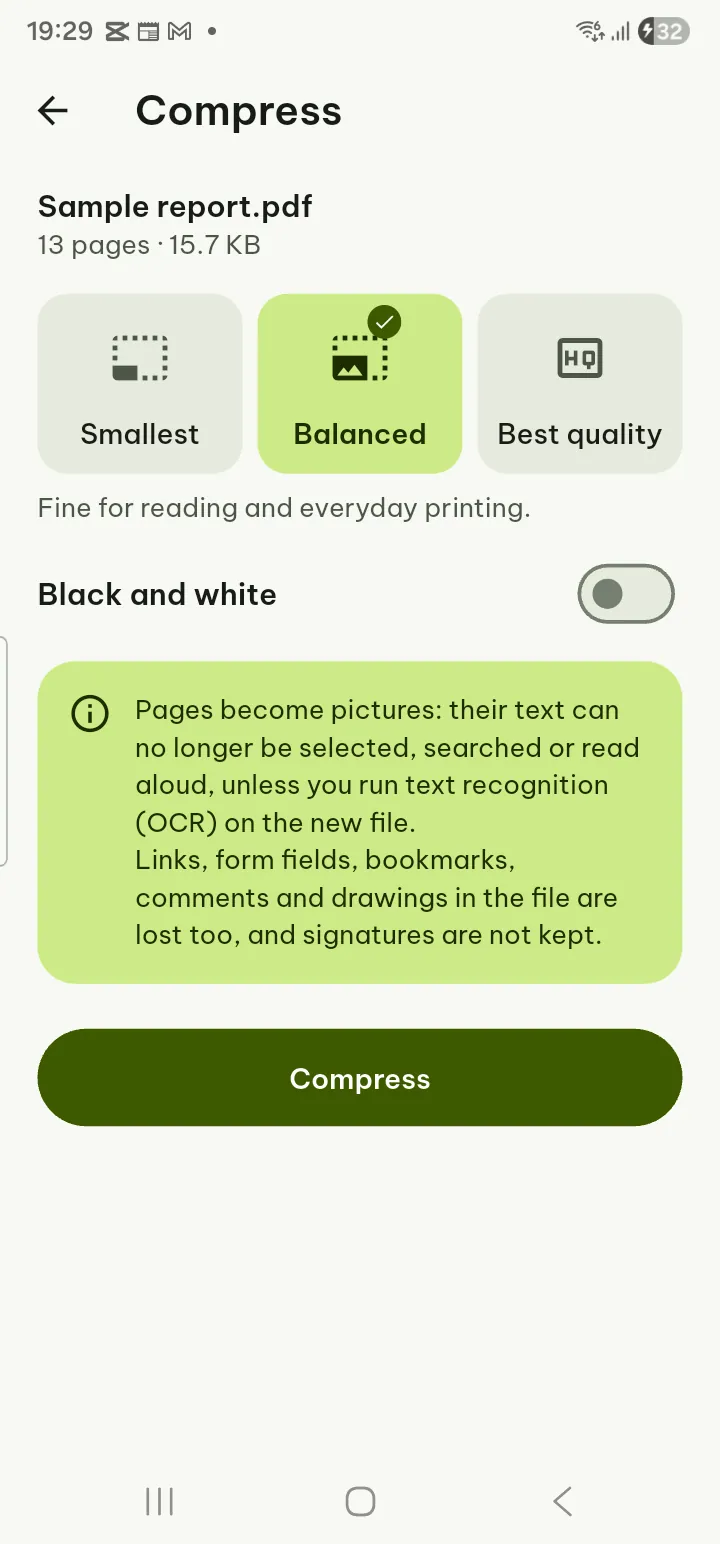
Compress PDF
- Tools › Compress PDF and choose the PDF.
- Choose Smallest, Balanced or Best quality, and Black and white if you like.
- Tap Compress.
Pages are turned into pictures, so the text of the new file can no longer be selected or searched. If the result would not be smaller, nothing is saved. Free.
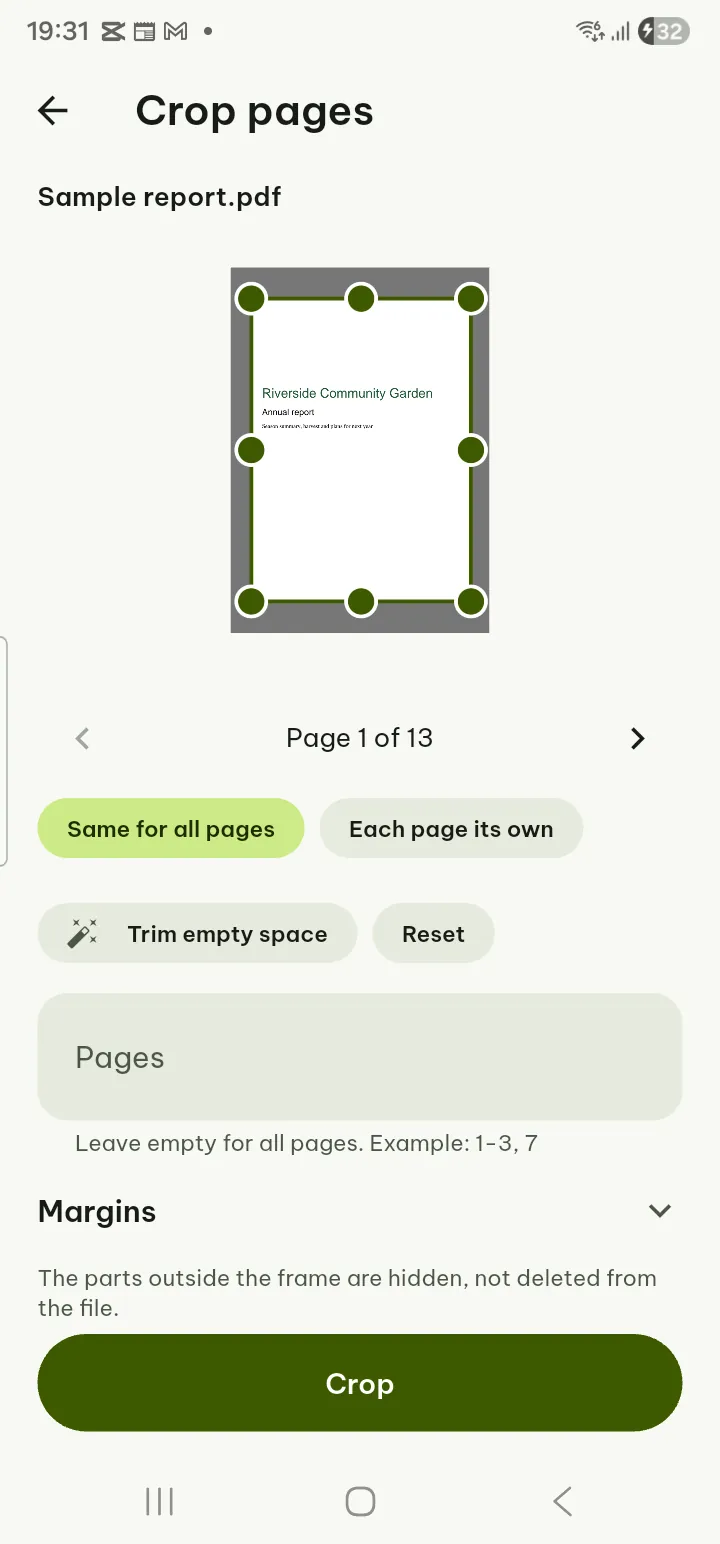
Crop pages Pro
- Tools › Crop pages and choose the PDF.
- Choose Same for all pages or Each page its own.
- Drag the frame, use the Margins sliders, or tap Trim empty space.
- Tap Crop.
The parts outside the frame are hidden, not deleted from the file.
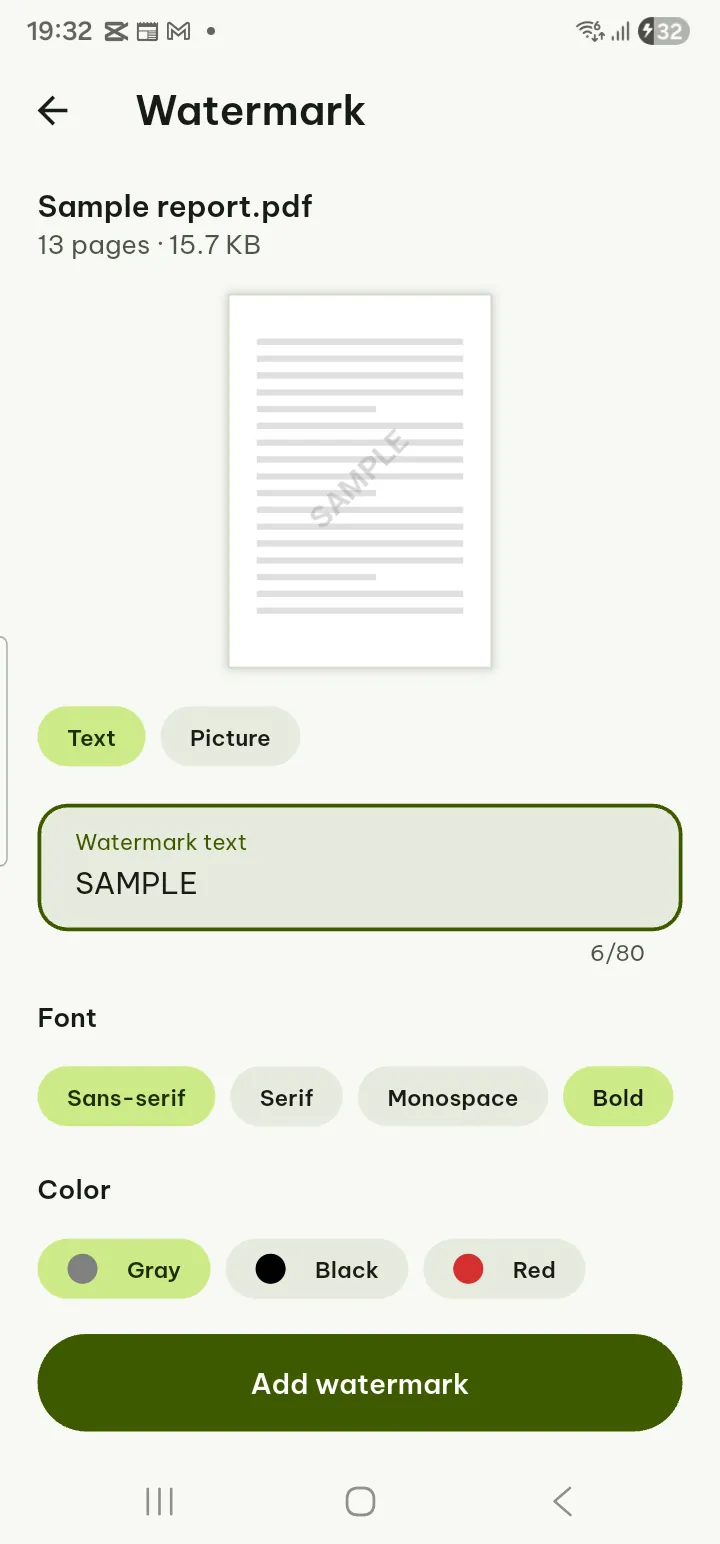
Watermark Pro
- Tools › Watermark and choose the PDF. A preview shows the result.
- Choose Text (type it, pick font, bold and color) or Picture (Choose a picture).
- Set Position, size, Opacity, rotation (Straight, Diagonal), Over the page or Behind the page, and the pages (empty means all).
- Tap Add watermark.
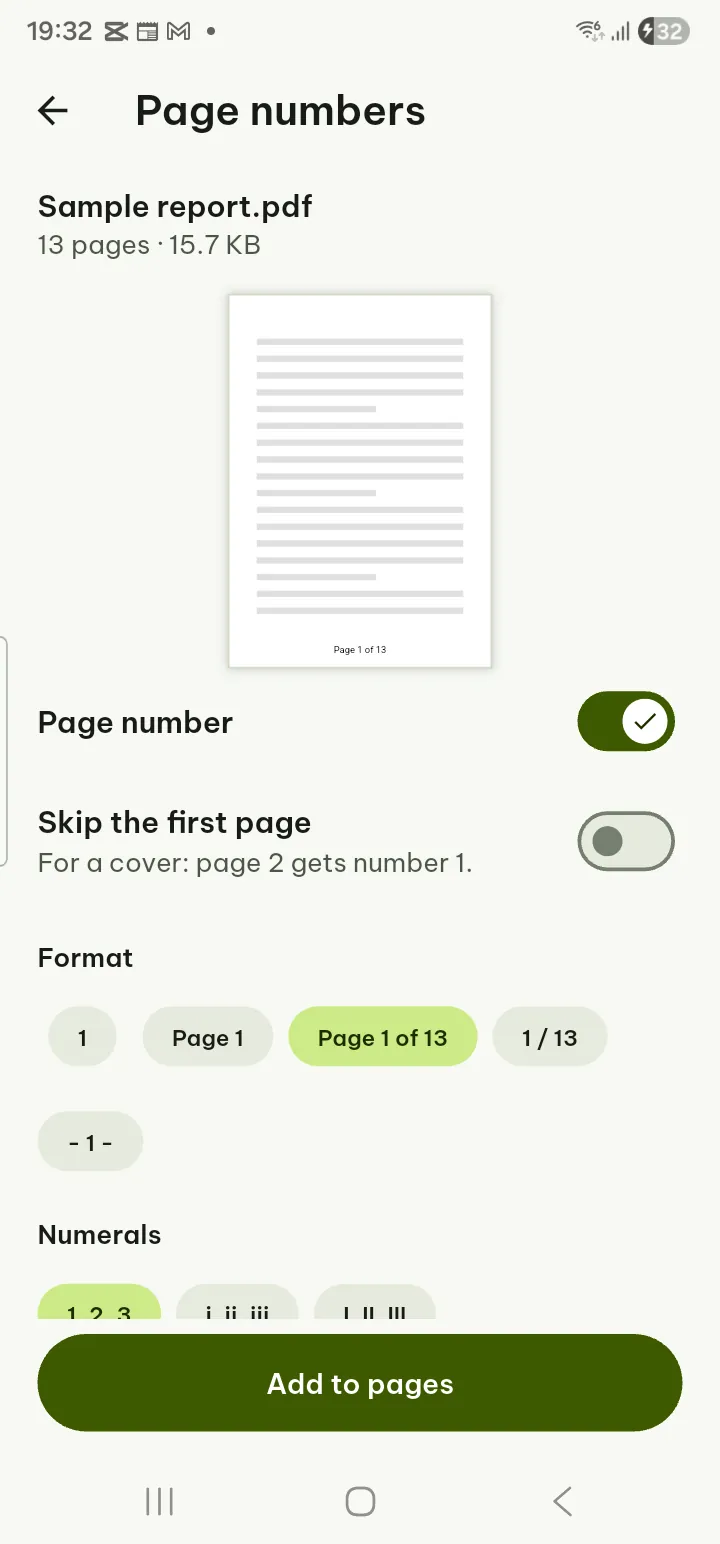
Page numbers, headers and footers Pro
- Tools › Page numbers and choose the PDF.
- Turn Page number on, choose the Format (1, Page 1, Page 1 of N, 1 / N, - 1 -), Numerals (1, i, I), Position and First number. Skip the first page if it is a cover.
- Optional: type header or footer text and insert Page number, Total pages or Date.
- Set size, font and color, then tap Add to pages.
Convert to PDF
- Tools › Convert to PDF.
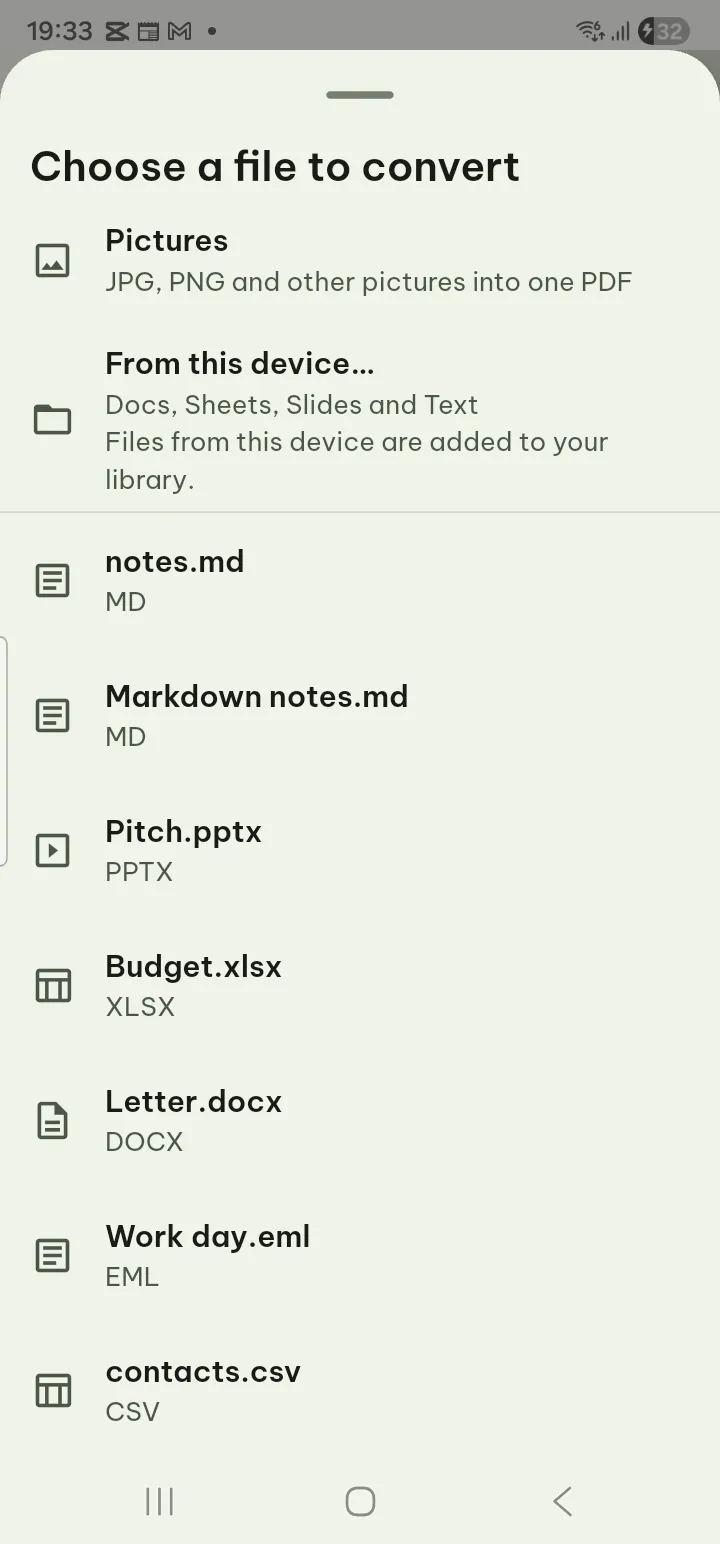
- Choose a document from your library, From this device…, or Pictures.
- Check the options in the Print or save as PDF sheet and save.
Works with .docx, .doc, .odt, .xlsx, .xls, .csv, .ods, .pptx, .ppt, .odp, .txt, Markdown, HTML, FB2, MOBI, e-mail and notebooks. Free.
PDF to images, PDF to text Pro
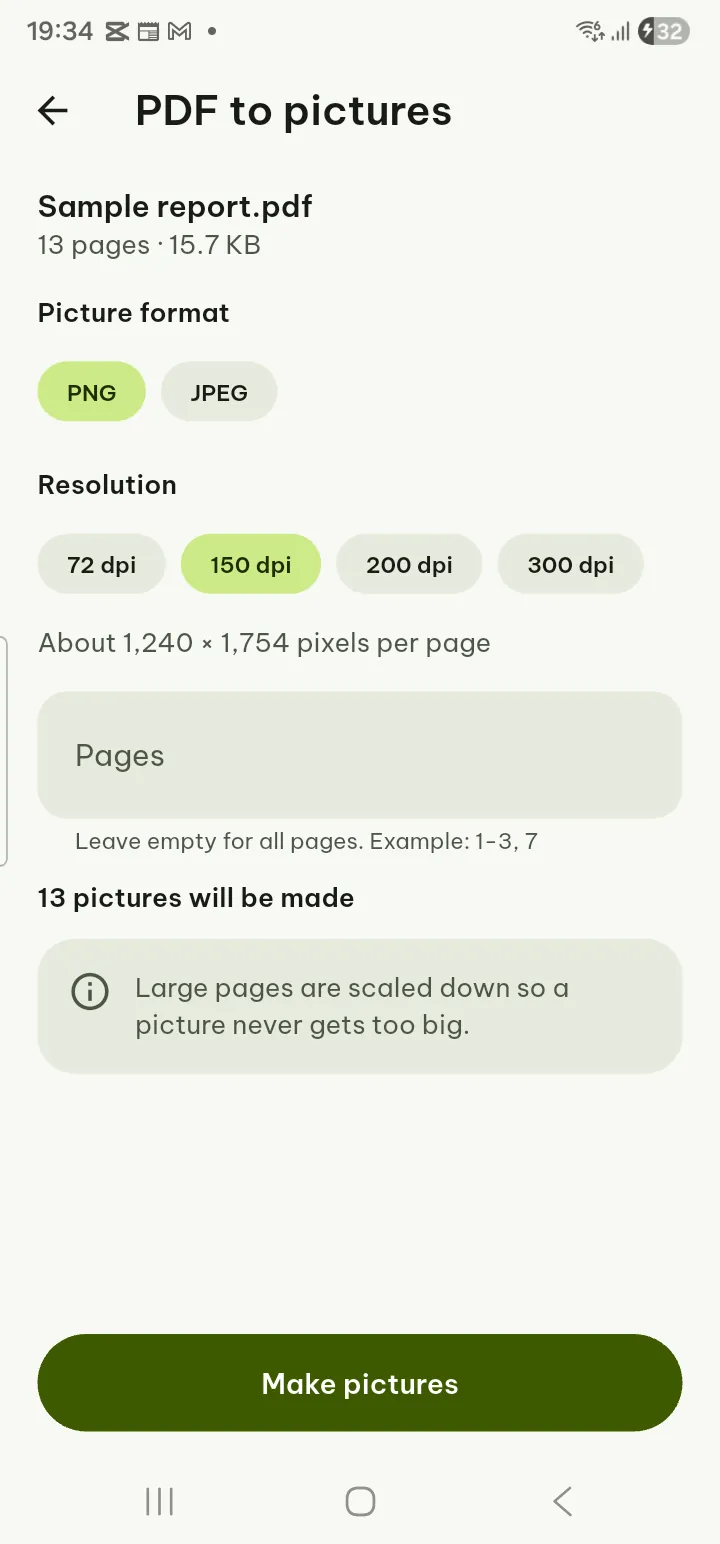
- PDF to images: choose the PDF, Picture format PNG or JPEG, Resolution 72 to 300 dpi and the pages, then Make pictures. Share them or Save all as .zip.
- PDF to text: choose the PDF, keep Mark where each page starts if you like, then Make text file. A .txt file is added to the library. Scanned pages need text recognition first.
Scan or PDF to Docs, Sheets and Slides Pro
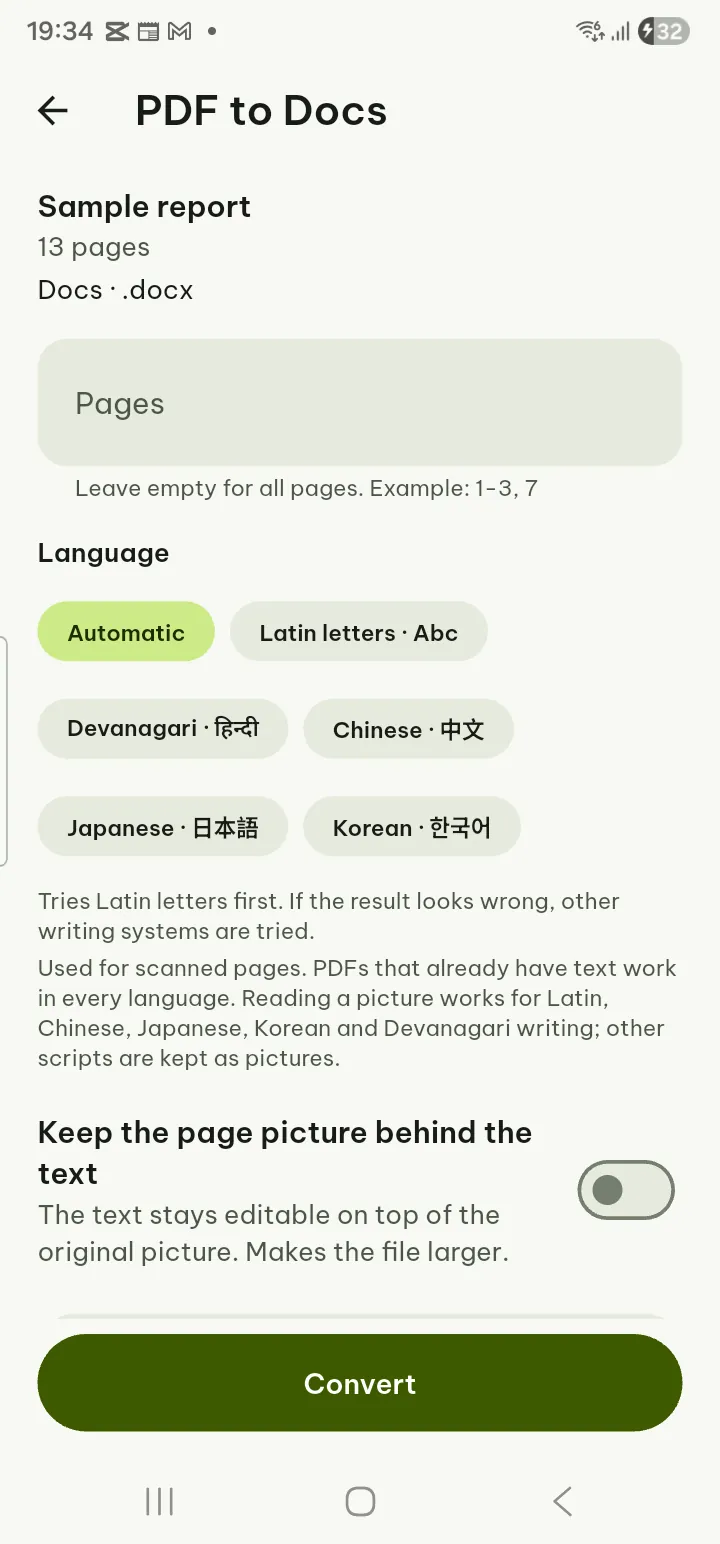
Five tools in Convert: Scan to Docs (.docx), Scan to Sheets (.xlsx), PDF to Docs (.docx), PDF to Sheets (.xlsx, each table on its own sheet) and PDF to Slides (.pptx, one slide per page).
- Tap the tool. For a scan, choose Take photos, Choose pictures or a PDF.
- Set the pages and the Language of the text. For Docs you can Keep the page picture behind the text; for Slides choose Widescreen slides (16:9).
- Tap Convert. From a scan to Sheets, Check the table lets you add or remove column and row lines before Make the spreadsheet.
From a PDF that is open: Tools › Convert to document (.docx), Convert to spreadsheet (.xlsx) or Convert to slides (.pptx), then Convert. When it is done, Open puts the new file in its editor. The document keeps the PDF's fonts by name, bold and italic, colours and line spacing; the spreadsheet keeps the widths of the columns.
The layout may need some adjusting; check numbers and names in text that was recognized from a picture.
Fill in form, Add signature, Create form fields
- Fill in form (free): choose the PDF; it opens and filling starts. Tap a field to type or pick, then Save. See forms in the PDF guide.
- Add signature (free): choose the PDF, draw your signature once, place it and tap Place. See signatures.
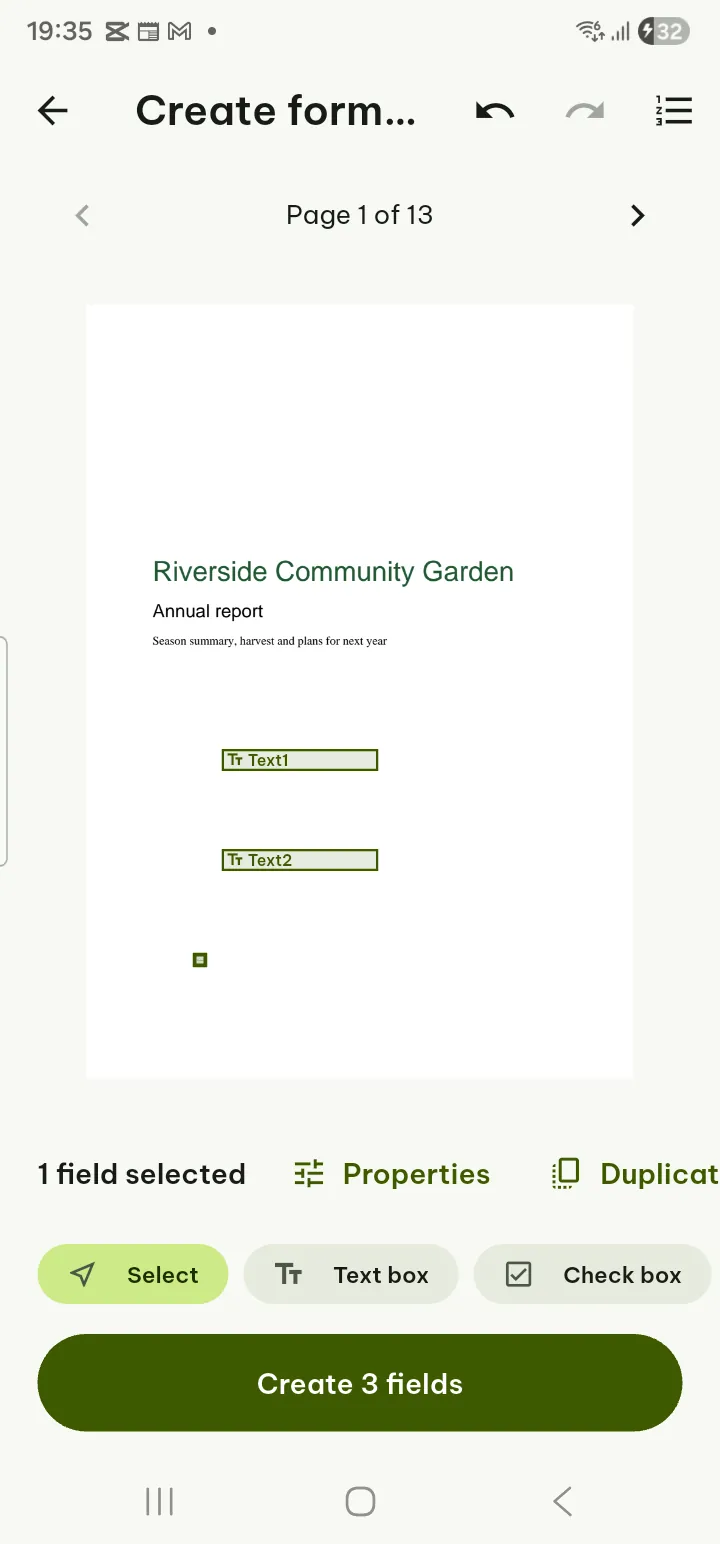
- Create form fields Pro: choose a PDF without a password. Pick a field type at the bottom (Text box, Check box, Radio button, Drop-down, List box, Signature field, Button), then tap the page or drag to draw it. Use Properties, Duplicate, Align and Tab order, then Create N fields.
Add password, Remove password Pro
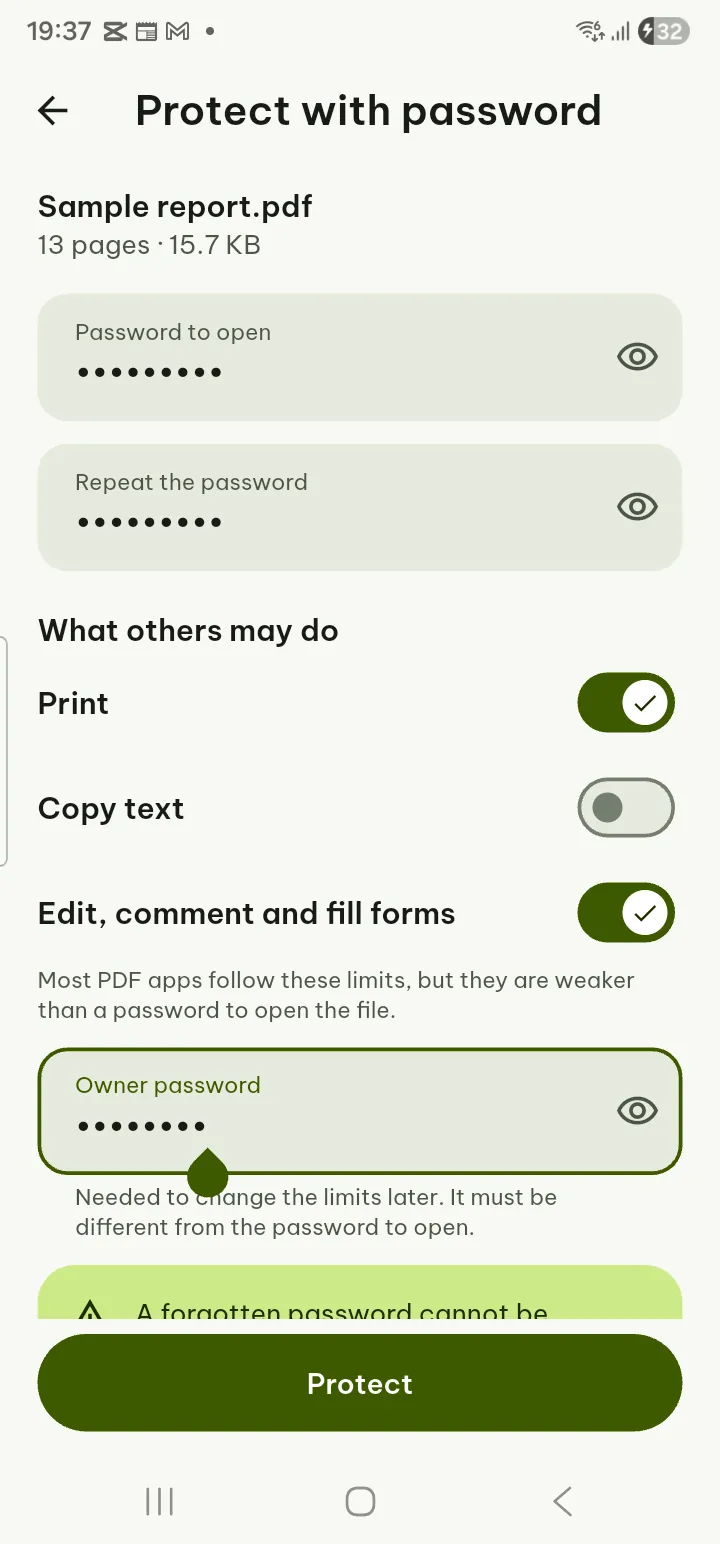
- Add password: choose a PDF, type the Password to open twice, choose under What others may do (Print, Copy text, edit), add an owner password when you set limits, then Protect. A forgotten password cannot be recovered.
- Remove password: choose a protected PDF, type the Current password and tap Remove password. Only do this with files you have the right to change.
Flatten, Remove metadata Pro
- Flatten: choose the PDF, tick form fields and/or comments and drawings, tap Flatten. They become part of the page and can no longer be edited.
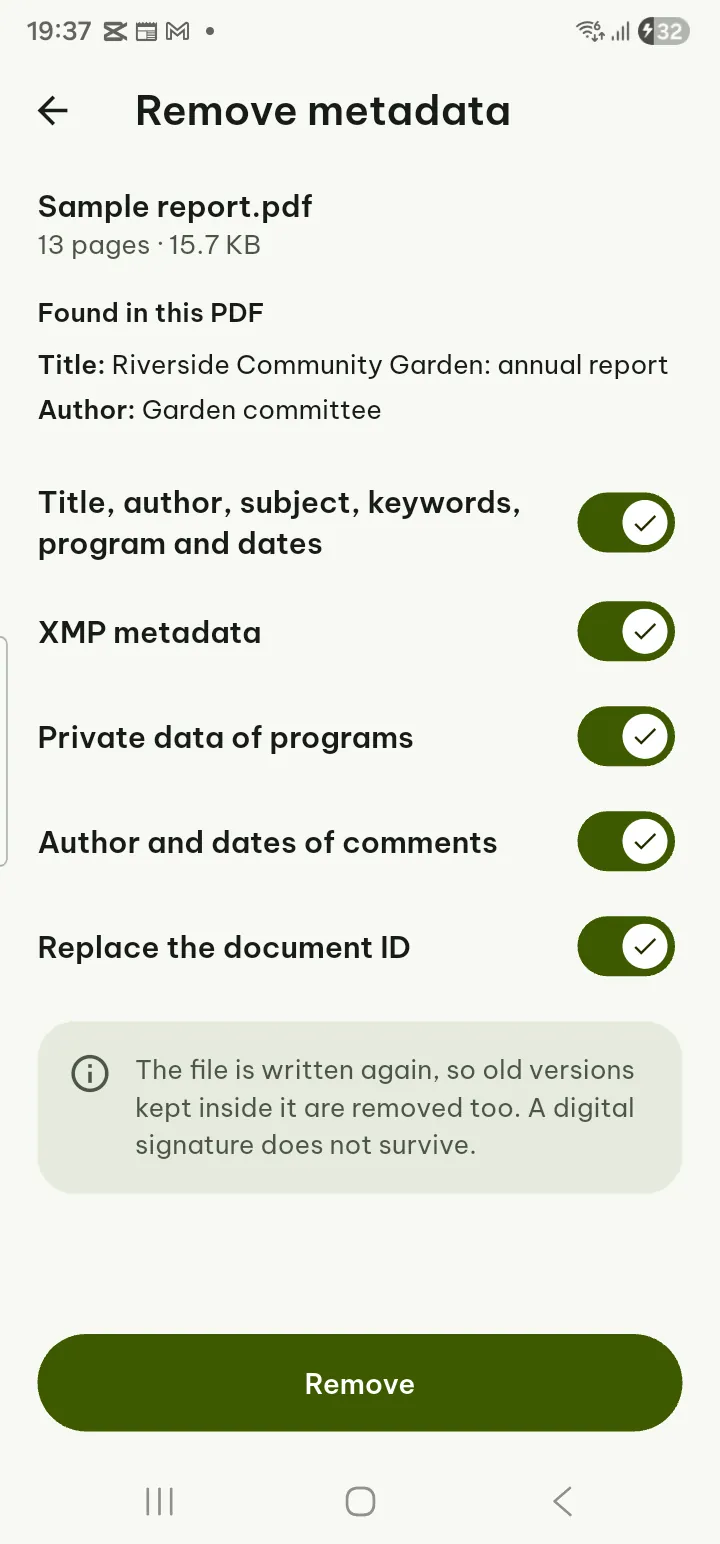
- Remove metadata: choose the PDF, tick what to remove (title, author and dates, XMP, private data of programs, comment authors, document ID), tap Remove.
Redact Pro
Remove text, pictures and hidden data under boxes for good. The original is kept; the redacted copy is a new file.
- Tools › Redact (or Edit › Pages › Redact in the PDF reader) and choose a PDF without a password.
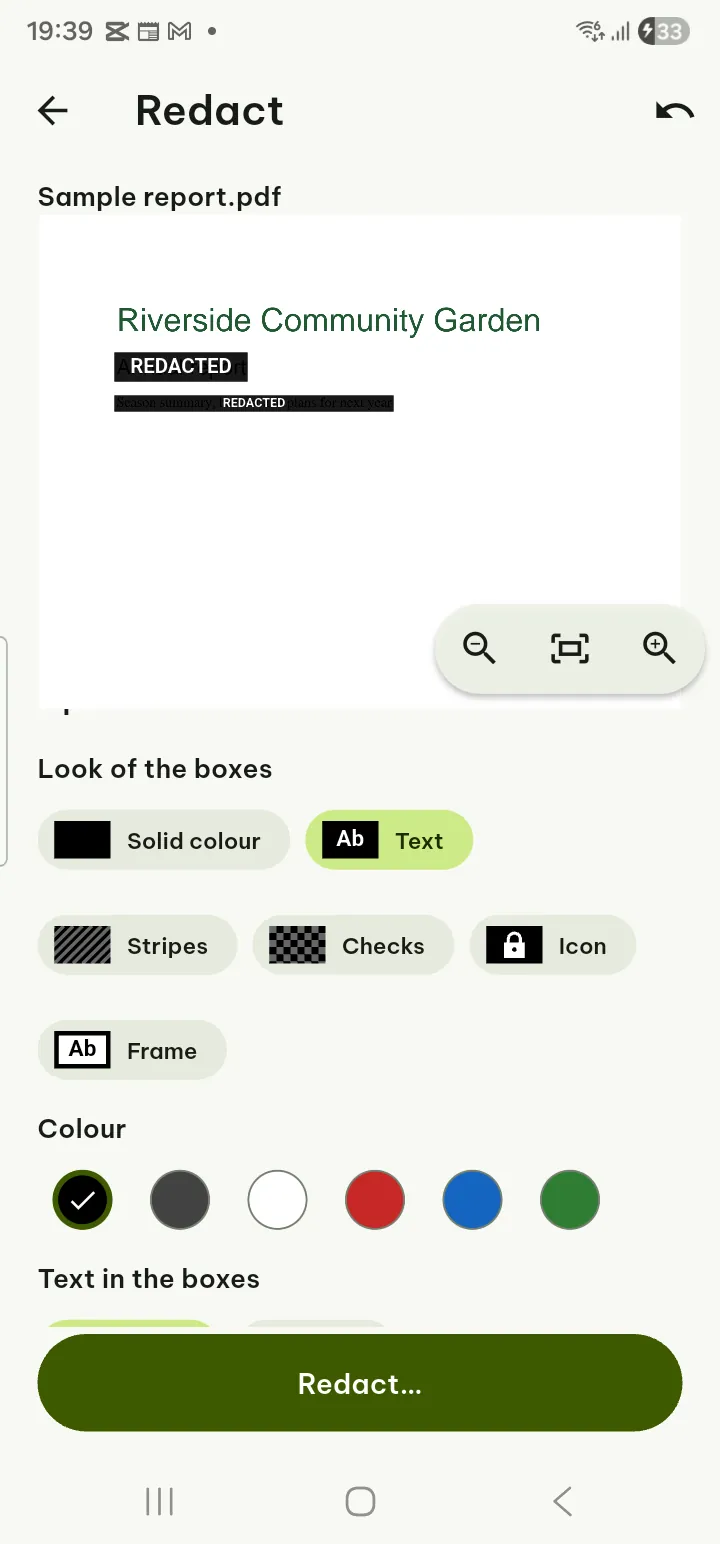
- Draw boxes: drag one finger over what to hide. Pinch or use Zoom in, Zoom out and Fit page to mark small text precisely; two fingers move the page. Copy to all pages repeats a box on every page.
- Or Find text: search a word or a pattern, or use Ready-made searches (e-mail addresses, phone numbers, long numbers, card numbers), then Mark all matches.
- In Options choose the Look of the boxes: Solid color, Text (REDACTED or your own words), Stripes, Checks, Icon or Frame, and the color. Only the look changes; the content is always removed.
- Tap Redact… and confirm. Without Pro, this is where Pagiro asks for it; your boxes stay if you close that screen.
Compare documents Pro
- Tools › Compare documents.
- Choose the Original and the Revised file (PDF, .docx, .doc, .pptx, .ppt, .xlsx, .xls, .csv, .txt, .md).
- Under What counts as a difference choose to ignore spaces, case, number formats or page numbers, and whether to find moved paragraphs.
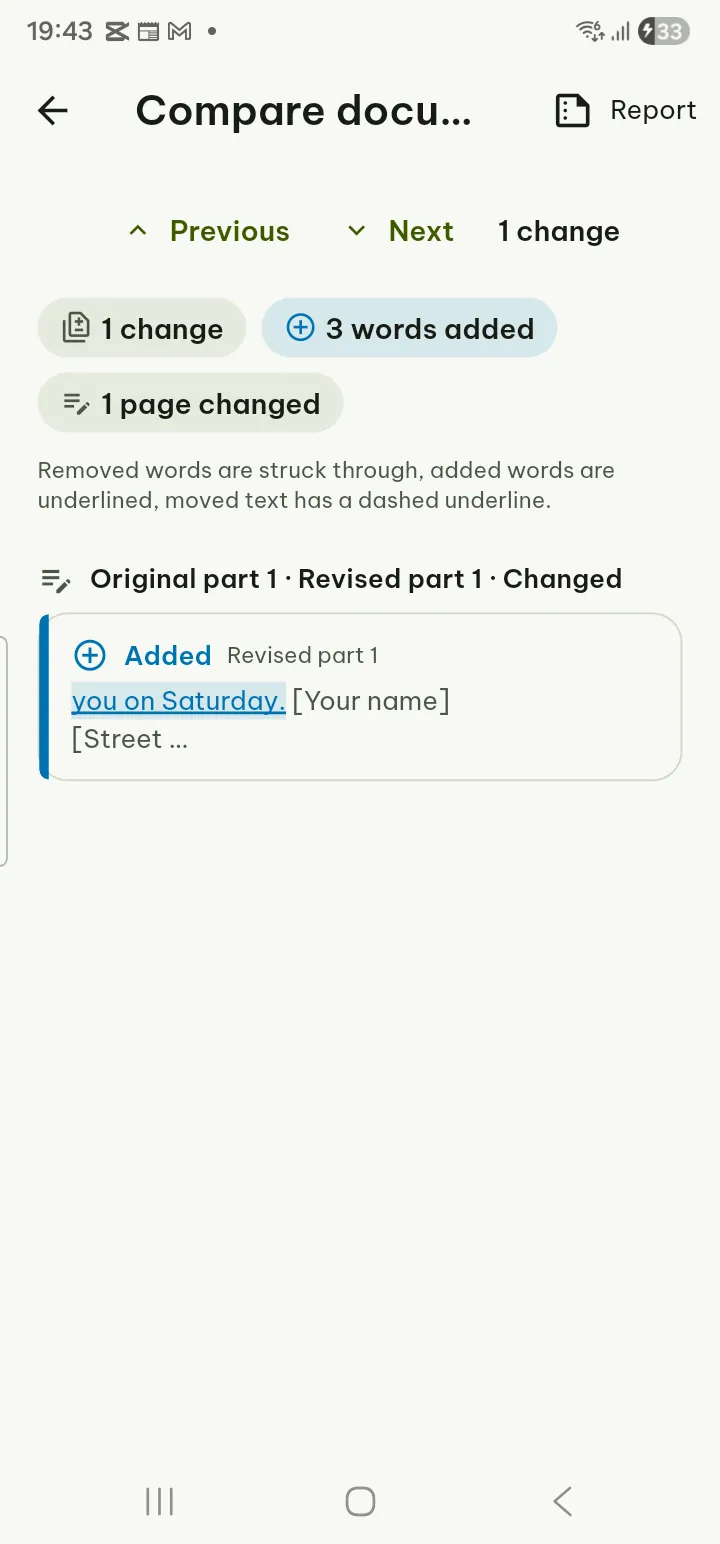
- Tap Compare. The Text tab marks added, removed, changed and moved words; for two PDFs the Pages tab compares the pages as pictures.
- Report › Save report as PDF or share it.
Batch Pro
- Tools › Batch › Choose a tool: Convert to PDF, Compress PDF, Watermark, Page numbers, Remove metadata, Flatten, Add password, Merge PDFs, Searchable PDF (text recognition), PDF to images or PDF to text.
- Add from library or Add from this device (up to 300 files) and set the options.
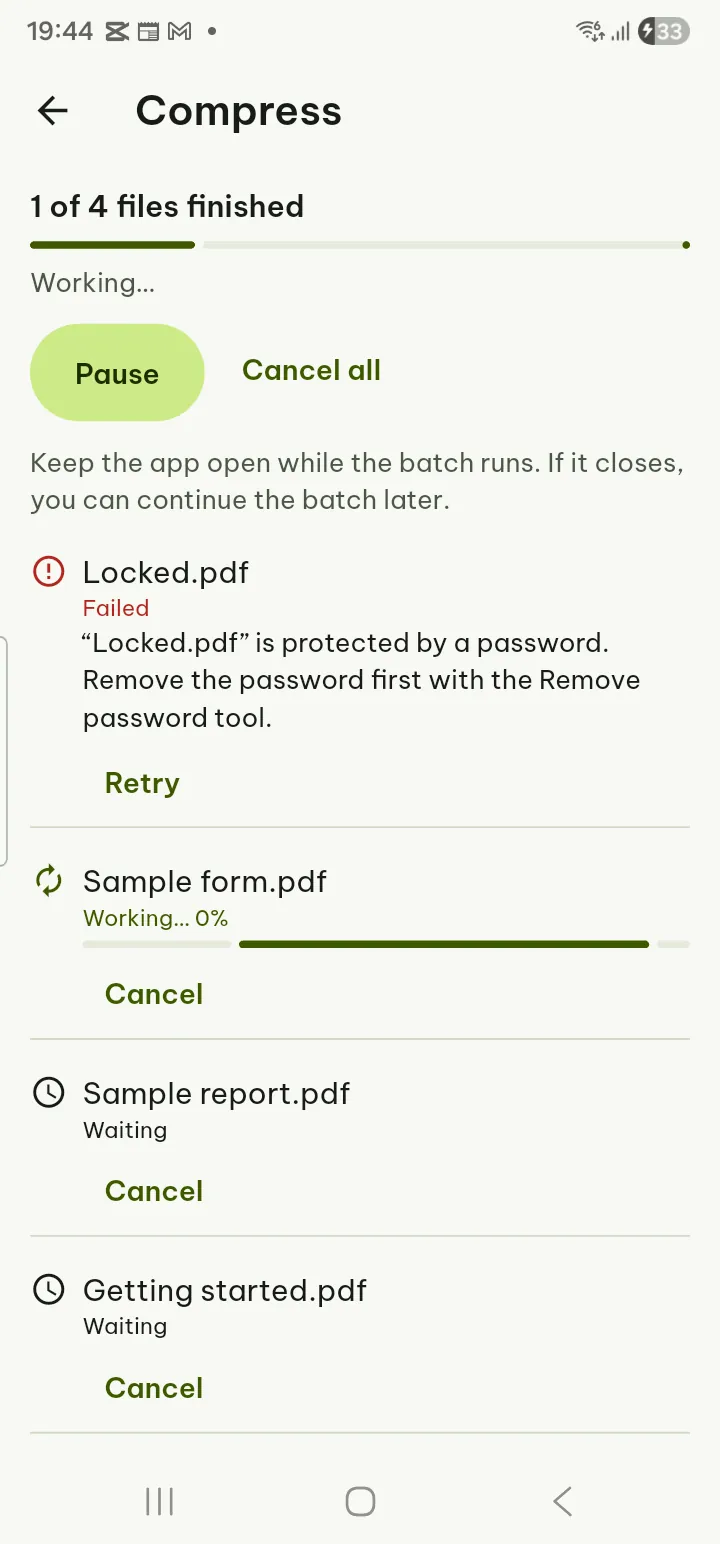
- Tap Start batch. You can Pause, Resume or Cancel all; keep the app open while it runs.
- When it is done, share the files or Retry failed files. If the app was closed, the Tools tab offers Continue the batch or Discard the batch.