User guide › Home, Library and opening files
Home, Library and opening files
The bar at the bottom has Home, Library, the round + button, Tools and Settings. Every file you open joins your library on this phone.
- Opening files
- The + menu
- Home
- Library
- Search inside documents
- Document menu
- Previous versions
- ZIP and other archives
Opening files
- From Pagiro: tap + › Open file (or Open file on an empty Home) and pick the file in the system file picker.
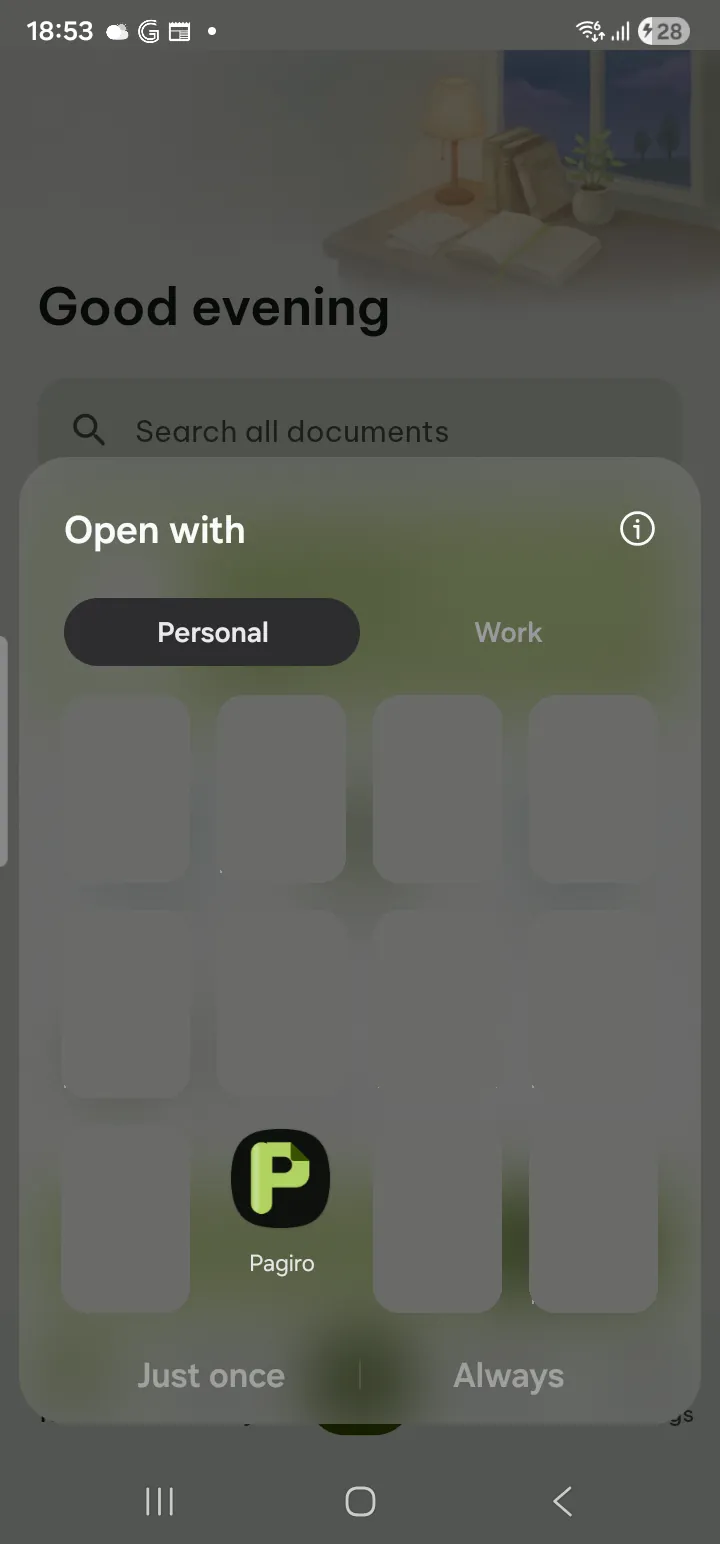
- From another app: in a file manager, e-mail or chat app, tap the file and choose Pagiro under Open with, or use Share and pick Pagiro.
- Which app opens PDFs: Settings › Help & about › Default PDF reader shows which app opens PDF files. If another app is the default, tap the row and use Open that app's settings to clear that app's default (Open by default); the next PDF you open then lets you choose Pagiro.
Password-protected files ask for the password. See the list of formats.
The + menu
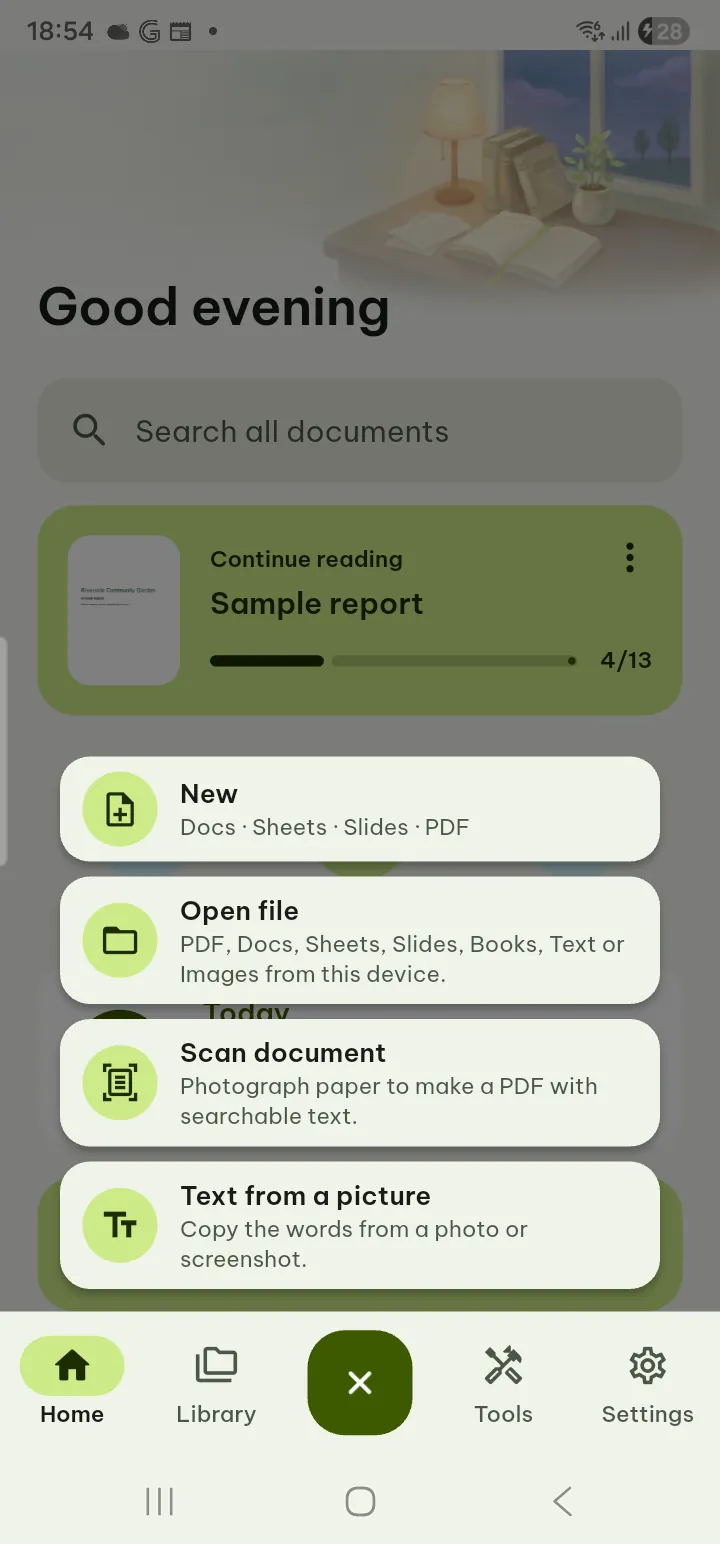
The round + in the middle of the bottom bar has New (a blank file or a template, see New document), Open file, Scan to PDF, Text from a picture and Images to PDF.
Home
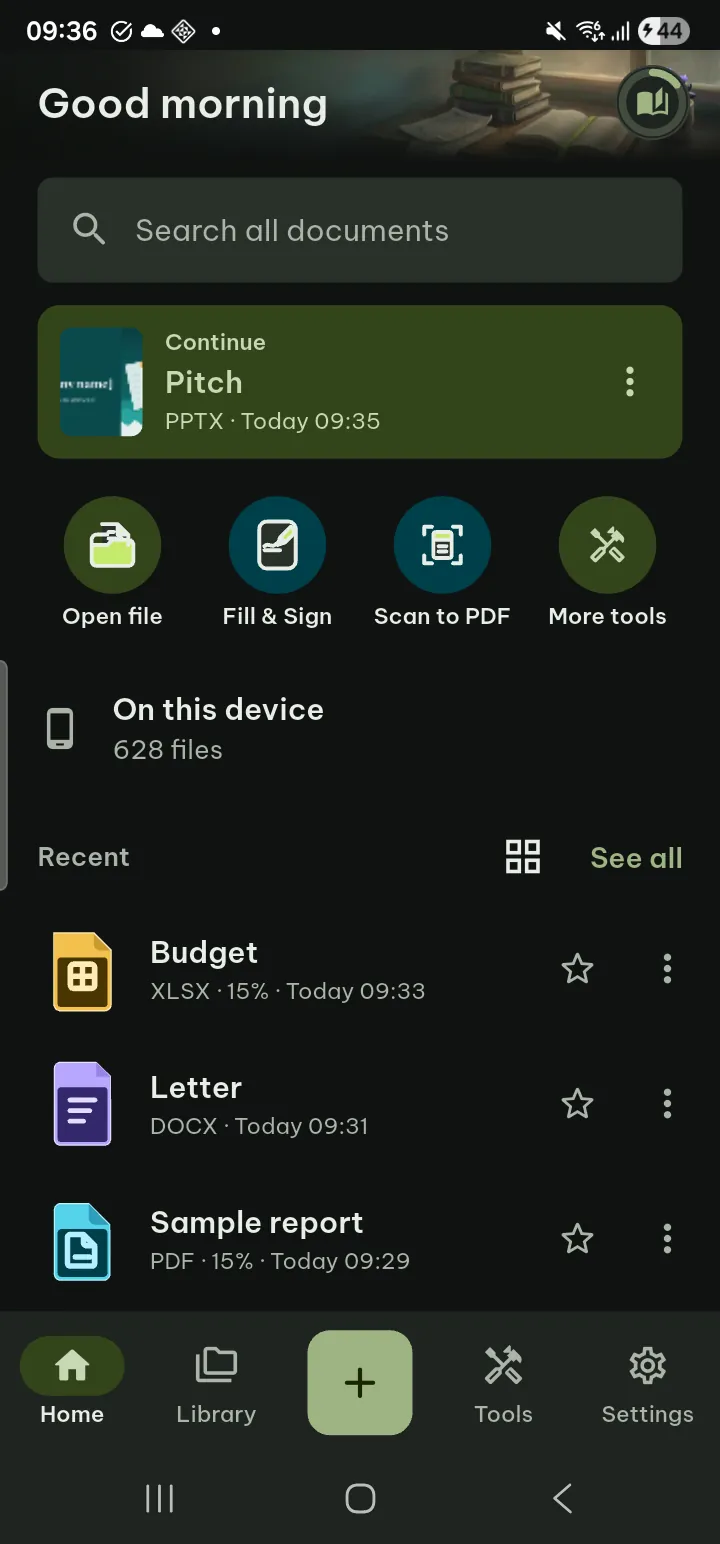
- Search all documents under the greeting searches the text of every document (see below).
- Continue: a card with the document you were reading; tap it to carry on.
- Four buttons: Open file, Fill & Sign (choose a PDF to fill in and sign), Scan to PDF and More tools (the Tools tab). Press and hold one to see what it does.
- Recent lists your latest documents with how far you got, a star and the ⋮ menu. The grid button next to See all switches to covers and back; Home remembers your choice (the Library keeps its own). Favorites follow when you have some. See all opens the Library.
- Your reading: the round button in the top corner of the banner shows, as a ring, how far you are in the document you were reading, and a small dot when flashcards are due. Press and hold it to see the facts (for example 31% · 13 min); tap it to open a panel with Continue reading (tap to carry on), Today (tap for statistics) and Flashcards due today. Tap outside the panel, swipe it away or press Back to close it. The button appears only when there is something to show.
Library
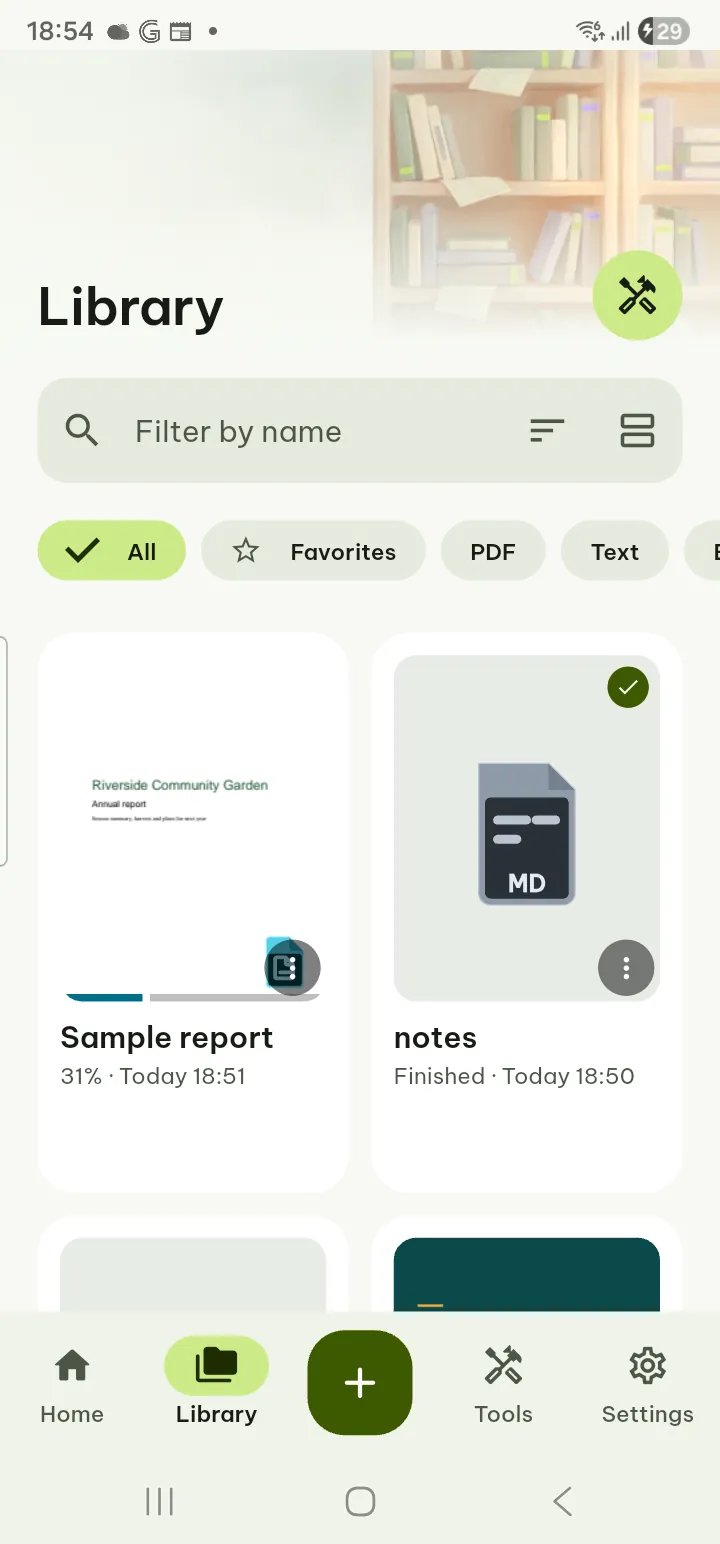
- Filter: the chips show All, Favorites, PDF, Text, Books, Docs, Slides, Sheets and Images.
- Find by name: type in Filter by name.
- Sort: Sort by Recently opened, Name A–Z or Size.
- Grid or list: the Grid view / List view button switches the layout (with very large text the list is always used).
- PDF tools at the top opens the PDF tools.
On this device
The On this device row in the Library lists the documents, pictures and other files already on your phone that Pagiro can open, from Download, Documents, chat apps, your photos and the rest of the phone (Android 11 and later).
- Tap On this device. The first time, Pagiro explains what it needs: tap Allow, turn on access for Pagiro on the settings page that opens, and come back. With Not now the rest of the app works as before, and you open files with Open file.
- Find a file: type in Search by file name, tap a type chip, or sort Newest first or By folder.
- Tap a file to open it. It joins your library; when you save your edits, Pagiro asks before it writes back to the original.
Look again checks the phone for new files. Manage access in the ⋮ menu opens the settings page where you turn the access off or on. Pagiro asks for this access only here, or when a search finds nothing in your library, never at start; it reads a file only when you open it and uploads nothing.
Search inside documents
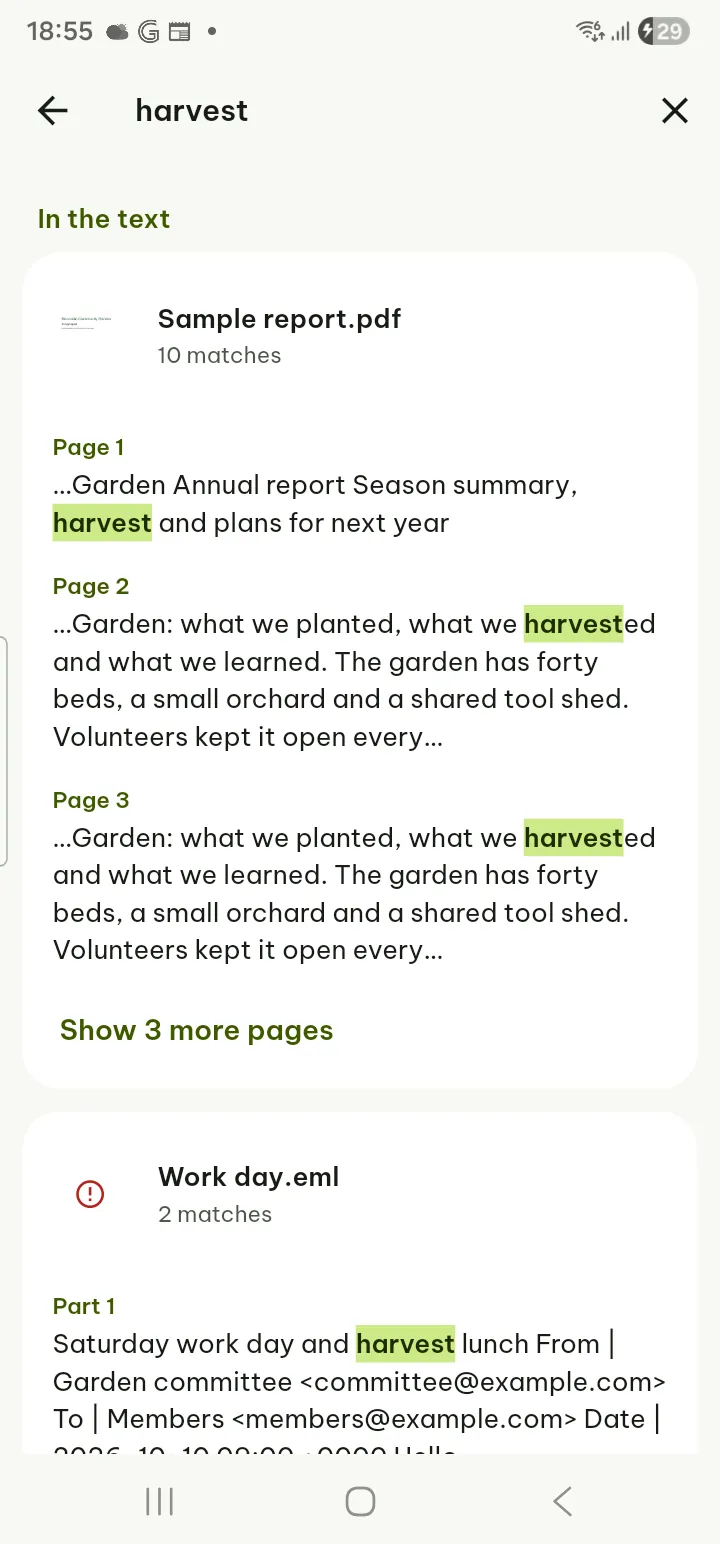
- On Home tap Search all documents, or in the Library type a word and tap Search "…" inside documents.
- Type a word or phrase. Results are grouped in Document names and In the text; tap one to open the document at that place.
The first search builds an index on your phone. Settings › Open & edit documents has Ignore accents when searching and Search index › Rebuild.
Document menu
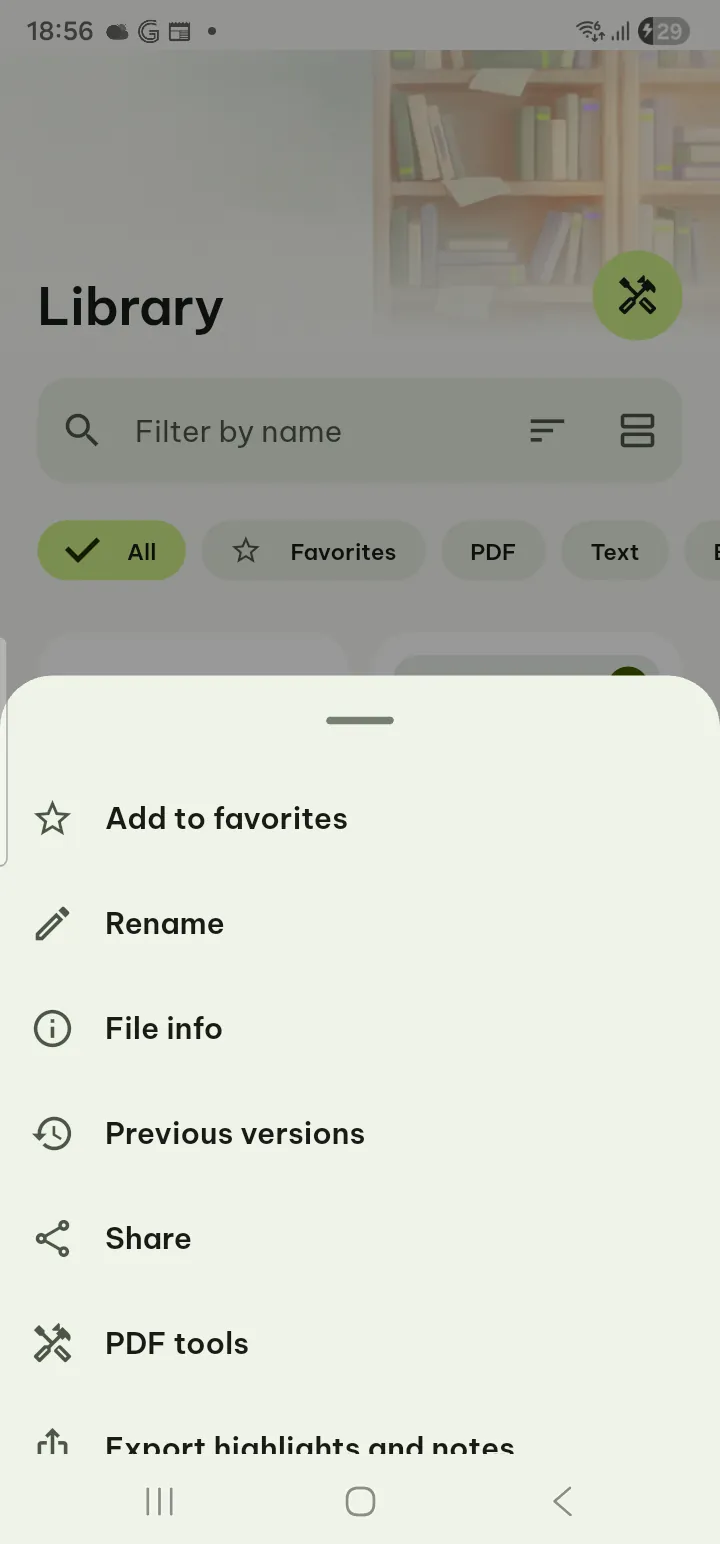
Tap a document's ⋯ (on Home, pressing and holding a document opens it too):
- Add to favorites / Remove from favorites
- Rename (the name shown in the app)
- File info and Previous versions
- Share, and PDF tools for a PDF
- Export highlights and notes (PDF with highlights, .docx, Markdown, HTML or plain text)
- Move to the Vault Pro
- Select (in the Library) starts choosing several documents
- Remove from list takes it out of the library, with Undo. The file itself stays on your phone.
Several at once: in the Library, press and hold a document (or use Select), then tap the others. The bar at the top stars them, shares them or removes them from the list (with Undo). Back or ✕ ends the choosing. Moving to the Vault stays one document at a time.
Previous versions
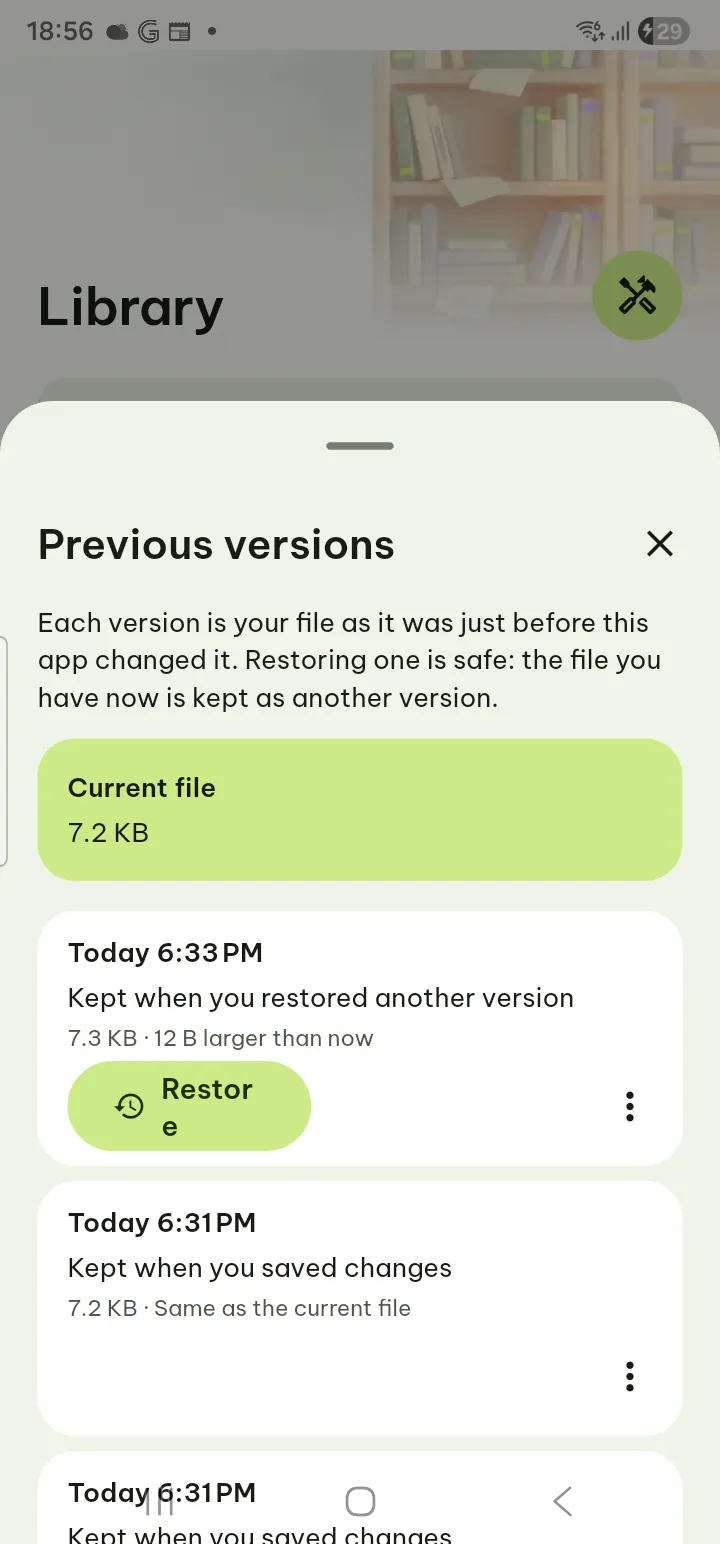
Every time Pagiro saves a change, it keeps the file as it was just before. Open Previous versions from the document menu or a reader's ⋯, then Restore, Save as a copy, Share or Delete this version. Restoring is safe: the current file is kept as another version.
How many versions, for how long and how much space: Settings › Storage & backup › Manage.
ZIP and other archives
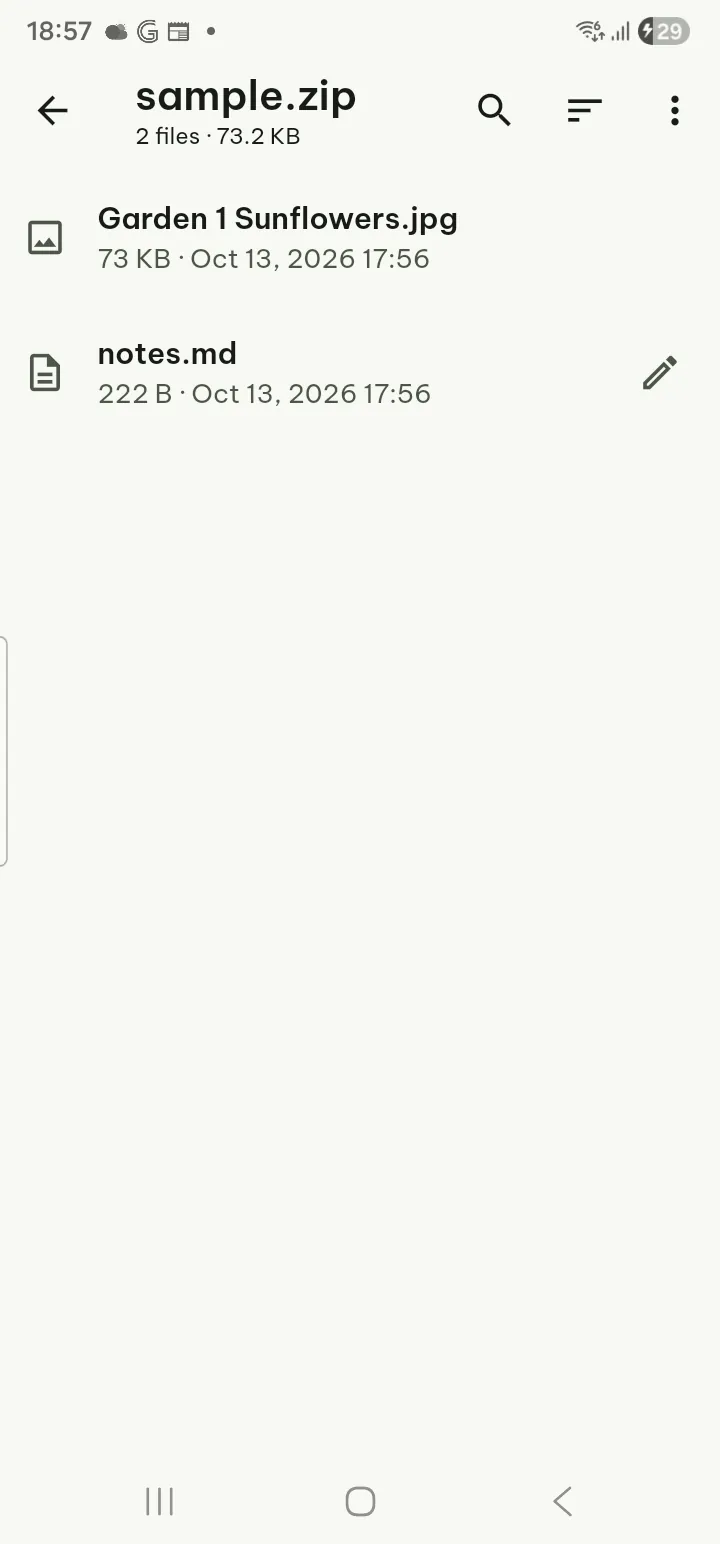
- .zip, .7z, .tar, .tgz and .gz files open in an archive browser. Tap an item to open it; Search names and Sort help in big archives.
- Select, then Save… or Share to take files out. Save all as ZIP… saves everything as one .zip. File name encoding fixes garbled names.
- Password-protected archives ask for the password, which is used only once and not saved.
Edit a text file inside a ZIP
- Tap the pencil next to a text file (text, code, Markdown, HTML, CSV…): Edit text.
- Make your changes and tap Save.
- Choose Update the file inside the ZIP (every other file stays exactly as it was, and the old ZIP is kept as a previous version) or Save as a separate file.
Only ZIP files can be updated, and not when the ZIP is inside another archive, opened read-only, damaged or very large; then only a separate file is offered, and Pagiro says why. RAR files are not supported. Free.