
User guide › Vault, backup, settings and Pro
Vault, backup, settings and Pro
Keep private documents locked, back up your library data, adjust the app, and see what Pagiro Pro adds.
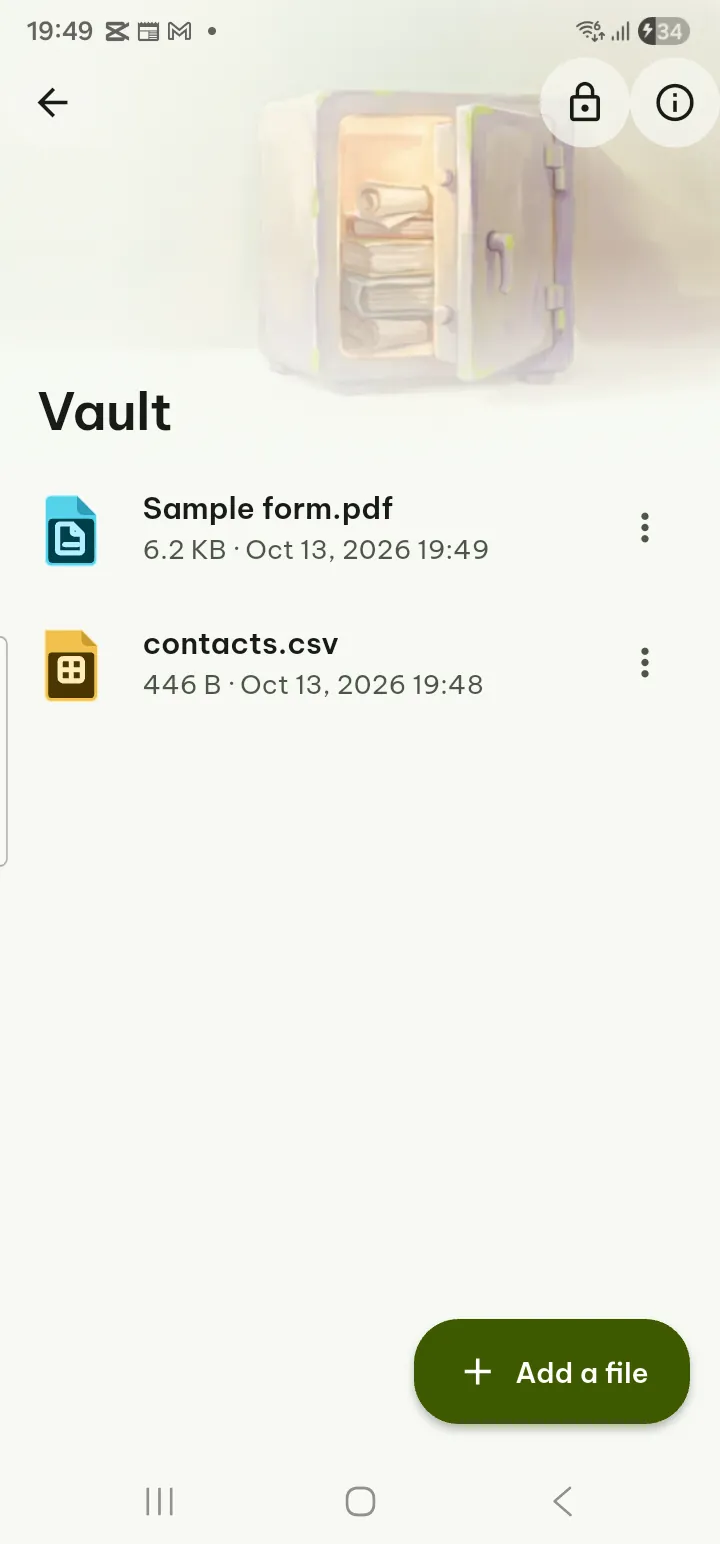
Vault Pro
Documents in the Vault are stored encrypted and open only with your fingerprint, face, screen lock or PIN.
- Open Tools › Vault (or Settings › Security › Vault) and tap Set up the Vault.
- Choose how it opens: Fingerprint, face or screen lock, or PIN, or PIN only, and set the PIN.
- Make a recovery key and keep it somewhere safe. Vault screens and the recovery key are never captured in screenshots or screen recordings, and text you copy from a Vault document is marked as sensitive. There is no other way back in: nobody, including us, can reset the Vault.
- Add documents with Add a file, or Move to the Vault from the Library's document menu (you can keep or delete the original).
Each item has Move out of the Vault, Export a decrypted copy, Earlier versions, rename and Delete for good. Lock the Vault locks it at once. Tools used on a Vault document save their result in the Vault. If Pro ends, you can still open, move out and export everything; only adding needs Pro. The Vault is never in backups.
Printing a Vault document or the recovery key hands a PDF copy to your phone's print service, which keeps it outside the Vault until the print job is finished or canceled. The app says so before you print.
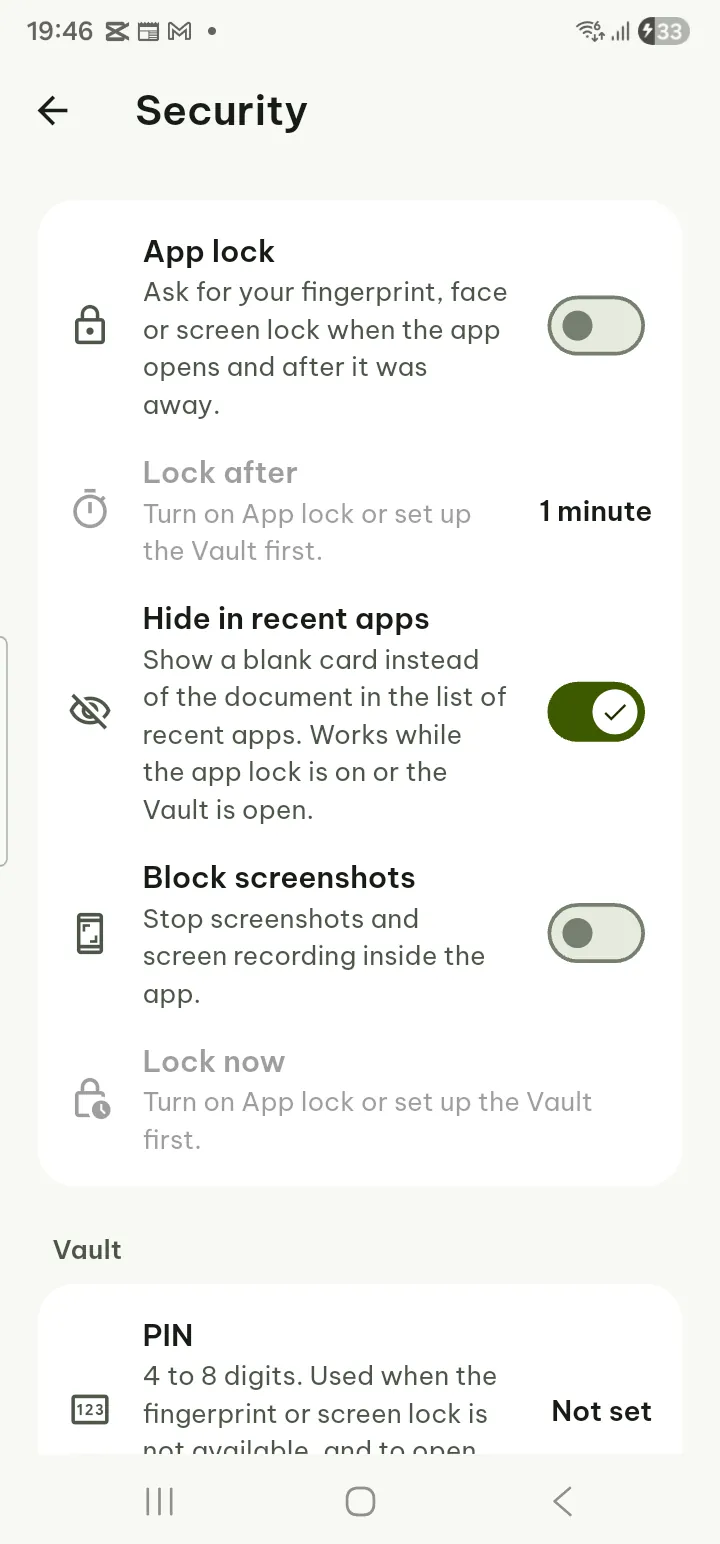
App lock
In Settings › Security:
- App lock Pro asks for your fingerprint, face, screen lock or PIN when Pagiro opens. Lock after sets when (Immediately, 30 seconds, 1 or 5 minutes); Lock now locks at once.
- Block screenshots Pro stops screenshots and screen recording of the app.
- Hide in recent apps hides the app's content in the list of recent apps.
- PIN: Set a PIN Pro, Change PIN, Remove PIN. A new PIN has 6 to 8 digits. After many wrong tries the wait grows (restarting the phone or changing its clock does not shorten it); after 20 the PIN stops working where you have another way in, such as the recovery key or the phone's screen lock.
Turning the lock or screenshot blocking off is always free.
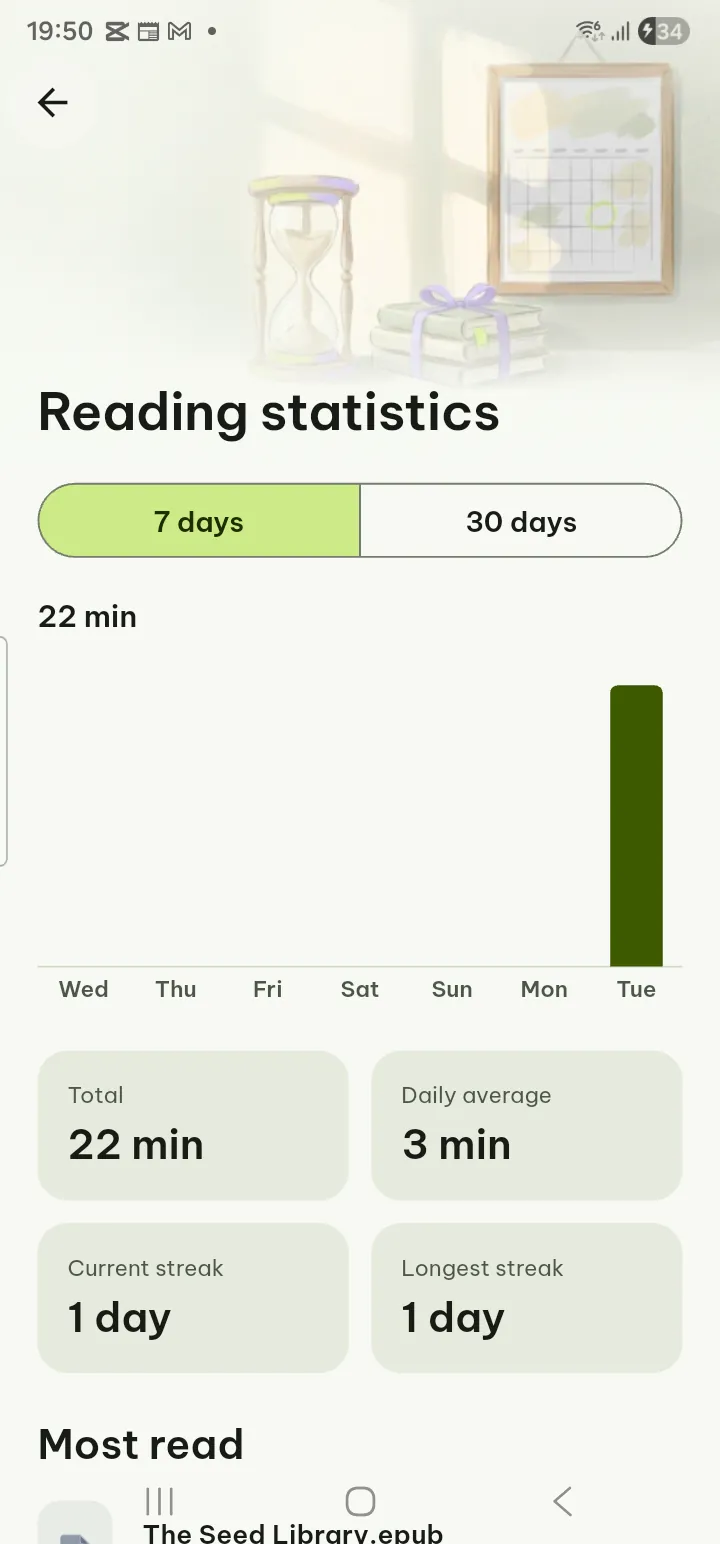
Reading statistics
Tap the Today card in the Your reading panel on Home (open it with the round button in the top corner; it appears after you have read for a while) to open Reading statistics: minutes per day for 7 days or 30 days, Total, Daily average, Current streak, Longest streak and Most read. Set a Daily reading goal under Reading habits. Statistics stay on your phone.
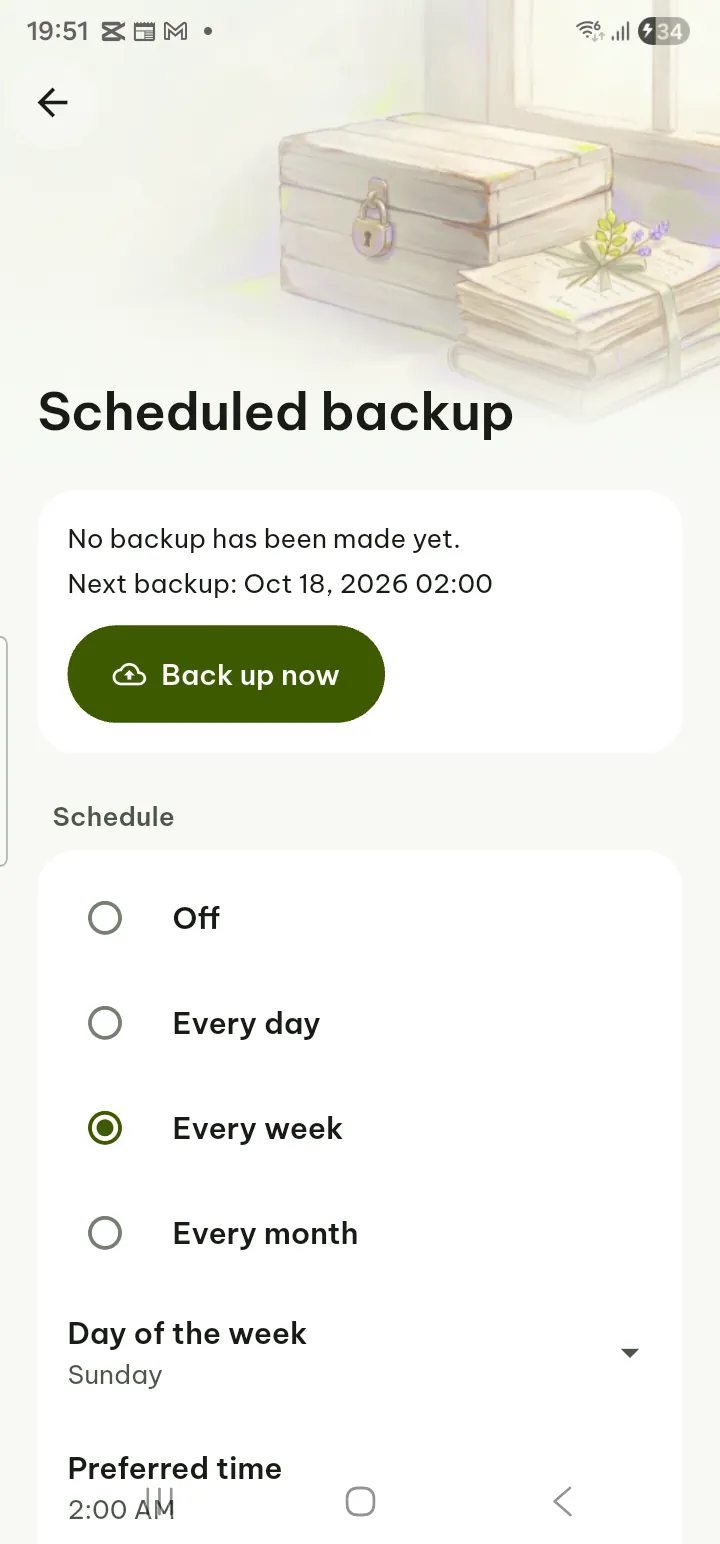
Backup and restore
Open Settings › Storage & backup.
- Export data (free) saves your reading positions, bookmarks, highlights and settings in one file; tick Include OCR results or Include previous versions if you want them. Choose Save to device or Send via….
- Import data (free): pick the file, choose Merge (recommended) or Replace everything, and Import.
- Scheduled backup Pro: choose a folder on the phone (Choose a folder), a Schedule (every day, week or month), what to include (settings, copies of documents you edited, previous versions, recognized text) and how many backups to keep. Encrypt with a passphrase protects them and is on for a new setup: turning on the schedule or the first Back up now asks for the passphrase; a lost passphrase cannot be recovered. Back up now runs one at once. Backups run while the app is open.
- Restore from backup (free): choose a backup in your folder, Merge or Replace, then Restore. Undo the last restore puts things back.
Never in a backup: the Vault, the app lock and the PIN.
Settings
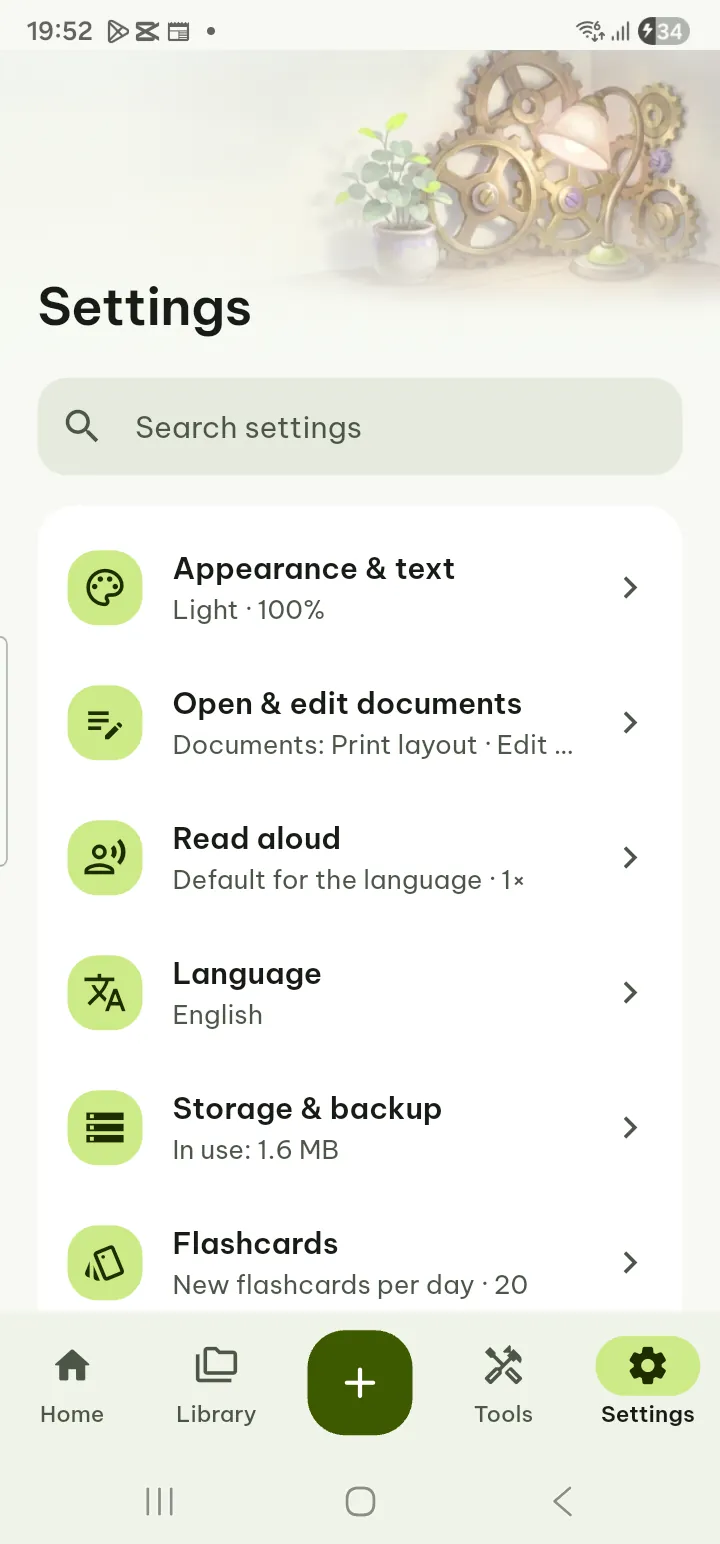
Use Search settings at the top to find any option.
- Appearance & text: App theme (Light, Dark, System), Page color, Screen rotation, Keep screen on while reading, Default scroll mode, Night colors on a schedule. Under Personalize: Color theme (Lumen is free; Ocean, Forest, Ember, Rose, Violet, Graphite and Sand are Pro), Pure black in dark mode Pro and Warm filter Pro. Under TXT reading: font, size, line spacing, margins and line length.
- Open & edit documents: open .docx in Page layout or Reading view, how spreadsheets and presentations open, Open documents in edit mode, Edit gesture, Ignore accents when searching, Search index, Recognize text in scanned documents automatically (short scans when they open, longer ones while the phone is charging; on the phone, the file is not changed), Recalculate formulas, Slide show animations.
- Read aloud: Voice, Speed, Skip headers, footers and page numbers, Voice settings.
- Language: the app interface in 20 languages, or Device language.
- Storage & backup: space used, Manage (file copies, thumbnails, margin cache, recognized text, previous versions, each with its own clear button), the backup options above, Restore sample documents and Empty the library (removes every document from the library with its reading history and previous versions; documents kept only in the app are deleted too; files on your phone, backups, the Vault, settings and dictionaries stay).
- Flashcards: see Study.
- Security: app lock, Vault, recovery key and privacy.
- Help & about: feedback, diagnostics, default PDF reader, Replay welcome, About with the version and open-source licenses.
Privacy and anonymous statistics
Your documents are read, edited, scanned and recognized on your phone. There is no account and no ads.
Anonymous usage statistics are off until you allow them. To change your choice, open Settings › Security › Privacy and switch Share anonymous usage data. Turning it off stops sending at once and deletes the anonymous ID. While it is on, Anonymous ID can be copied, so you can ask us to delete the data sent with it. Details are in the privacy policy.
Help and feedback
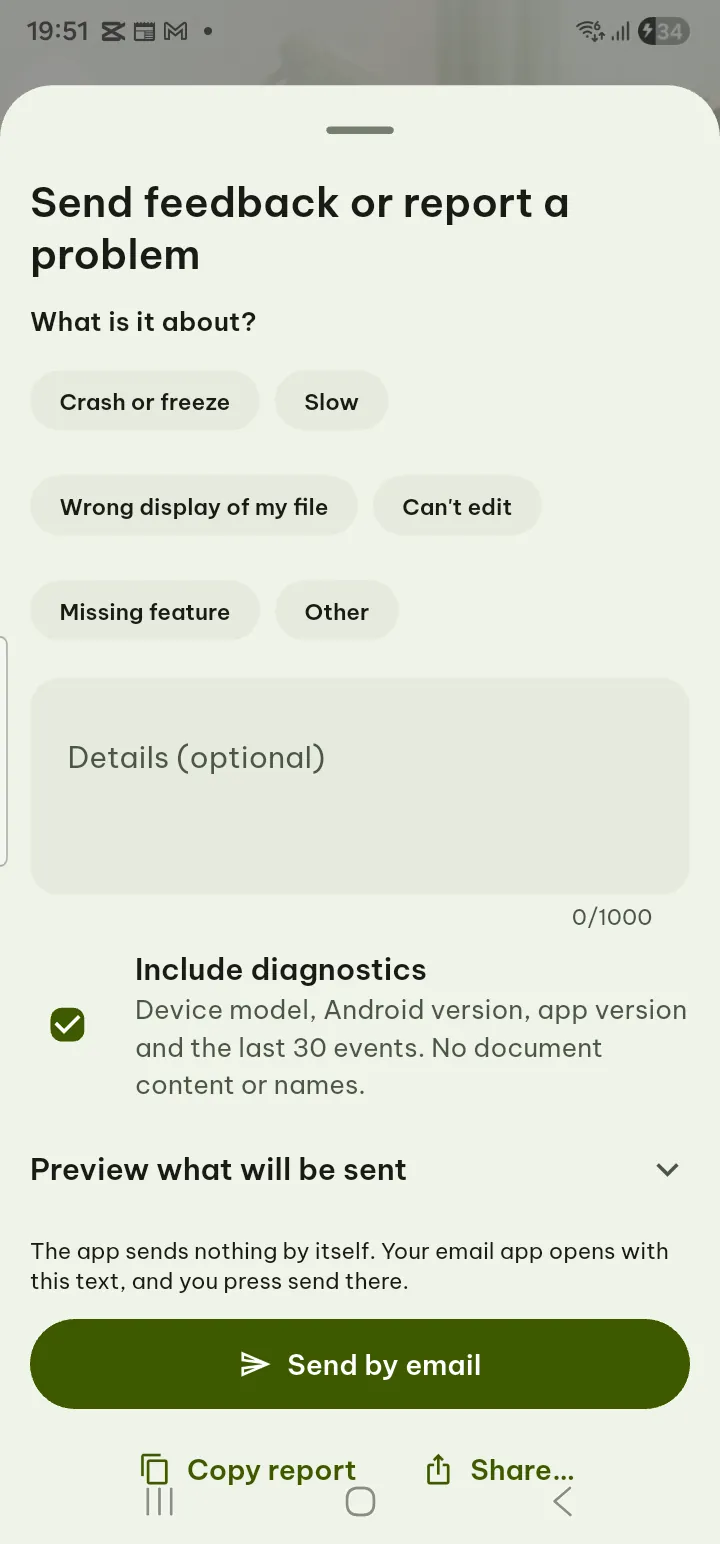
- Settings › Help & about › Send feedback: say what it is about, tick Include diagnostics if you want, then Send by email, Share… or Copy report. You see everything that would be sent.
- Diagnostics shows problems from the last 3 days (the log is kept on your phone for at most 3 days). Keep a diagnostics log on this device and Offer a report after an unexpected close are optional; the log is sent nowhere unless you send it.
- More answers on the support page.
Pagiro Pro
- Open Settings › Pagiro Pro, or tap any item marked Pro.
- Under Choose how to pay pick Yearly (new subscribers can start with a 7-day free trial), Monthly or Lifetime (pay once). All three unlock the same Pro.
- Tap the button under the plans and confirm in Google Play.
- Restore purchases brings back Pro on a new phone or after reinstalling (same Google Play account).
- Manage subscription opens Google Play to cancel a monthly or yearly plan. Pro stays on until the end of the period you paid for; canceling during the trial costs nothing.
- When you start a Pro tool without Pro, your settings are kept: after buying you go back and it runs.
The full list is on the Pro page. Prices are shown in Google Play and in the app.