
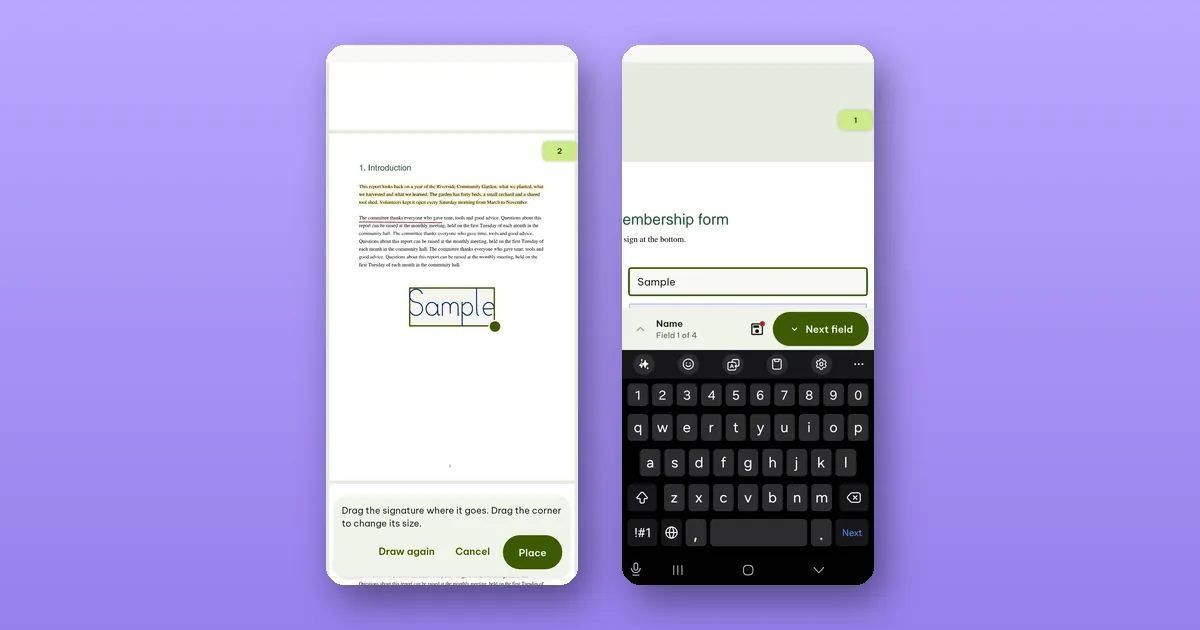
Open the PDF, tap Edit, then Add signature. Sign once with your finger, tap where it goes, drag it into place and tap Place. That is the whole job, and it is free.
The rest of this post covers the details that trip people up: the first time you sign, getting the size right, forms, and what kind of signature this actually is.
The first signature
The first time, Pagiro opens a full-screen pad. At the top you choose how to make the signature:
- Draw: sign in the box with your finger (or a stylus). This is what most people use.
- Type: type your name and Pagiro writes it in a handwriting style. Handy if your finger signature looks nothing like your pen one.
- Photo: sign on white paper, take a photo of it or choose one, and Pagiro takes the paper away and keeps only the ink. This one needs Pro.
Tap Save. The signature is kept on your phone for next time, so from then on signing is the tap on the page and the tap on Place. If you want to redo it, Draw again replaces it.
Your initials are kept separately, and one signature plus your initials are always free. Keeping several signatures to switch between is a Pro feature.
Where does a photo signature go? Nowhere. The privacy policy says it plainly: for a signature from a photo, only the ink is kept, on your device, and the photo itself is not kept.
Placing it and getting the size right
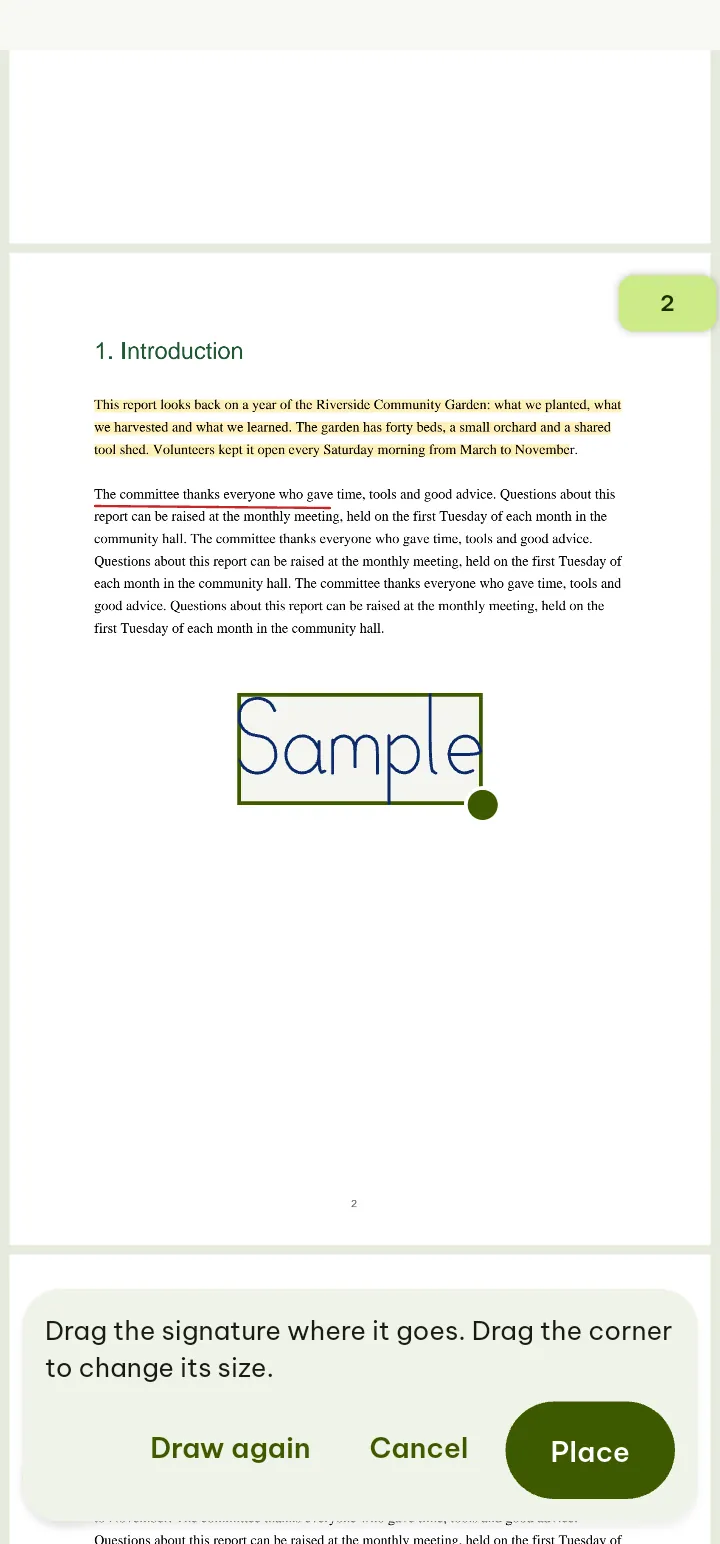
After you tap the page, the signature appears there with a frame. Drag it to move it. Drag the corner to make it bigger or smaller.
Pinch to zoom in on the signature line first if the line is small; it is easier to judge the size against the printed text around it. If you need to fix it later, that is fine. Tap the signature again to select it, then move it, resize it, or use Duplicate or Delete this mark in the bar at the bottom. Undo takes a change back.
When it looks right, tap Save. Each save keeps the file as it was under Tools › Previous versions, so a signature in the wrong place is never a disaster.
Signing a form
If the PDF is a form with fields, the first button of the bottom bar is Fill & Sign instead of Edit. Tap it and the bar shows Next, Sign, Date, Tick and Send. Fill in the fields, tap Sign, tap the signature line, and place it as above. Date puts today's date where you tap next, which saves typing it on most forms.
There is a separate post on filling in PDF forms, including forms that have no fields at all.
You can also start from the other end: Tools › Add signature, choose the PDF, and you go straight to placing.
What this signature is, and what it is not
This is the part we want to be clear about. A signature you add in Pagiro is a picture of your signature on the page. It looks like ink on paper and, for many everyday uses (a delivery note, a permission slip, a lease your landlord asked you to sign and send back), that is what the other side wants.
It is not a digital signature. A digital signature uses a certificate to prove who signed and to show whether the file was changed afterwards. Pagiro does not create those. To keep that clear for whoever receives the file, Pagiro writes a short note on the signature in the saved PDF: "Signature added on screen, not a digital signature".
So if someone asks you for a "digitally signed" or "certificate-signed" PDF, a drawn signature is not what they mean. Ask them which tool they expect, or use the signing service they name.
When the PDF is already digitally signed
Some PDFs arrive already signed with a certificate, for example a contract the other party signed first. Any change to such a file, including adding your own drawn signature, means PDF viewers will report the existing signature as no longer valid. Pagiro checks for this before you change the file and warns you first. The previous version stays under Previous versions.
If the other party's digital signature has to stay valid, do not add marks to that file in any app. Ask them how they want you to sign.
Free and Pro, in one place
- Free: drawing or typing your signature, your initials, placing, moving, resizing, signing forms.
- Pro: a signature from a photo, and keeping more than one saved signature.
The steps with every button name are in the user guide under Sign.