
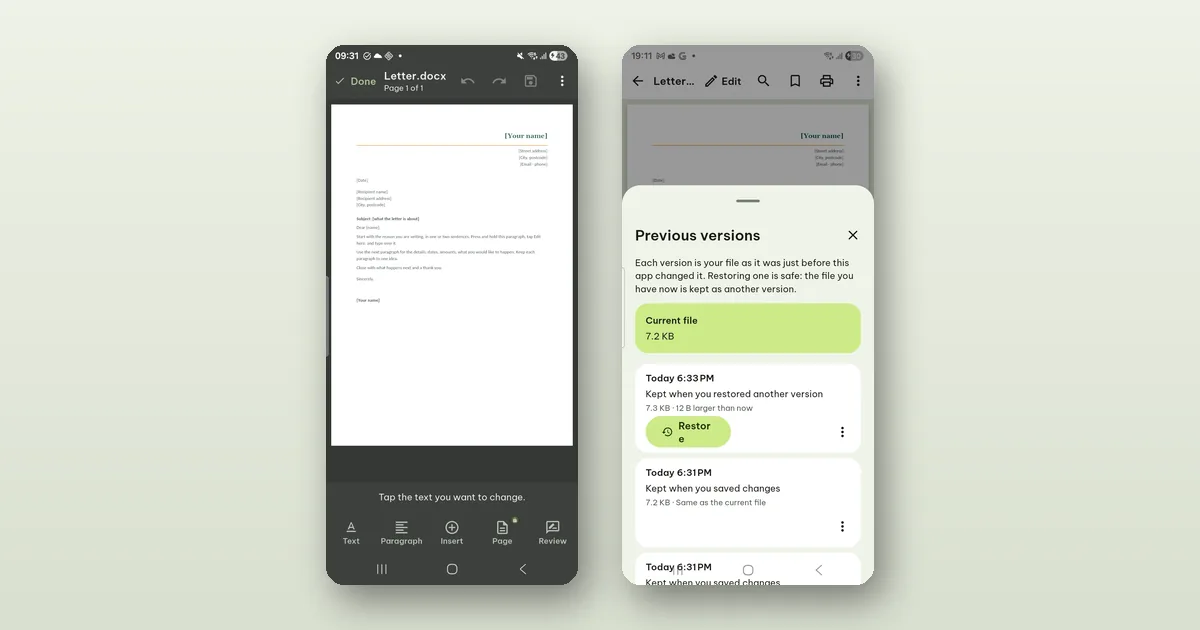
When you edit a text document (.docx) in Pagiro, the edit is saved into the same file you opened, in the same format. Parts of the file the app does not understand are kept as they were, and the file as it was before the save is kept as a previous version. That is what we mean by "without breaking it".
The rest of this post is how to do it, and where Pagiro says no.
Open the document in Page layout
A .docx has two views in Pagiro. Page layout shows the document as printed: pages, margins, headers and footers, columns and pictures in place. Reading view reflows the text to your screen in your own font, size and theme, and can read it aloud.
Editing happens in Page layout. If you are in Reading view, switch with Page | Reading in the top bar (on a narrow screen it is in the ⋯ menu). If you always want documents to open as printed, there is a setting for it: Settings › Open & edit documents › Open documents in Page layout.
Start typing in one or two taps
There are two ways in:
- Double tap the word you want to change. It is selected and the keyboard opens, so you can type over it.
- Or tap Edit in the bottom bar. The cursor is placed in the paragraph you were reading.
Enter starts a new paragraph, as you would expect.
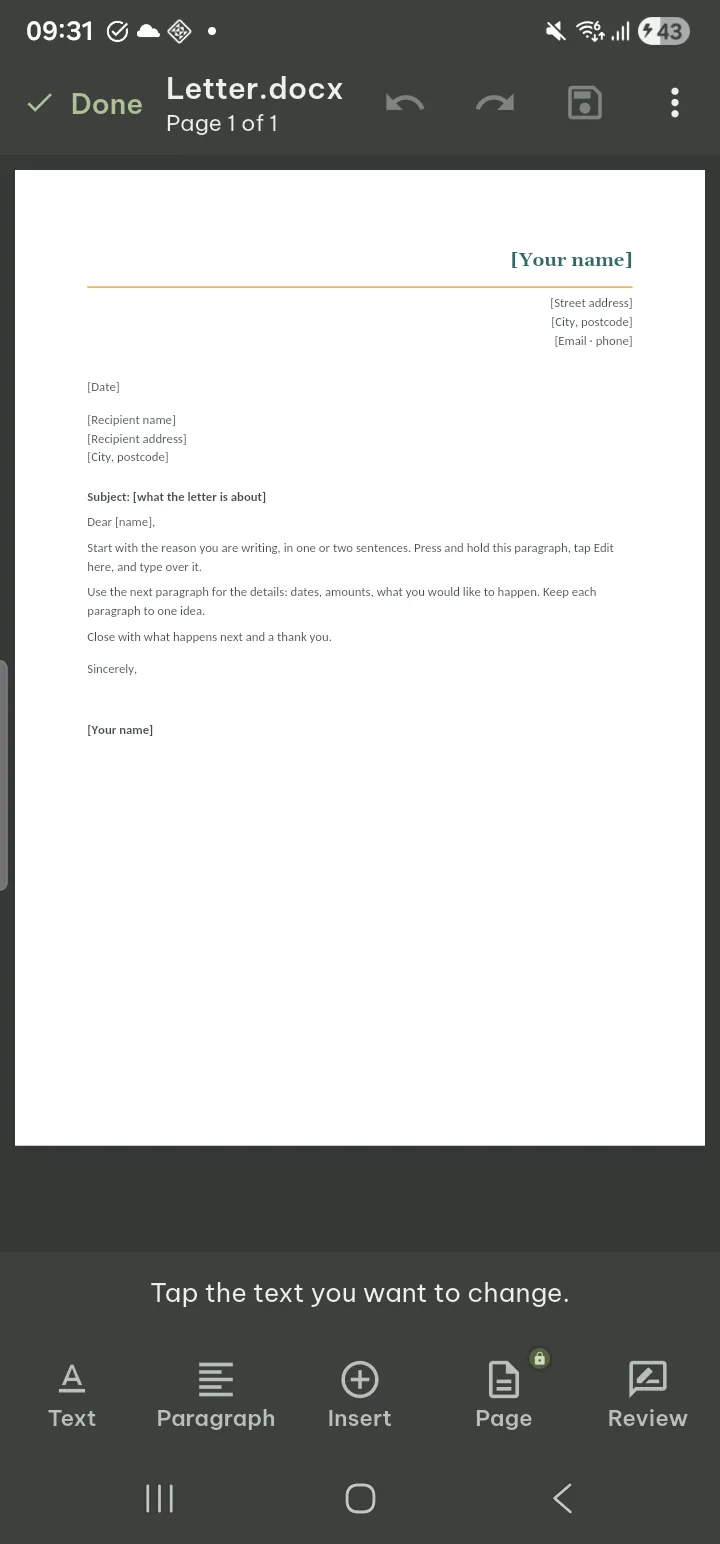
The editing bar
We gave every tab of the editing bar a name instead of a row of bare icons, because a phone screen has no room for guessing. Undo and Redo sit at the left.
- Text: font, size, bold, italic, underline, strikethrough, superscript and subscript, text color, highlight, change case, copy format, clear formatting.
- Paragraph: paragraph style and headings, alignment, bullets, numbering, indents, spacing, border, shading.
- Insert: picture, camera, link, page break, symbol, date, page number. Inserting a table needs Pro.
- Page (Pro): margins, orientation, paper size, columns, header, footer.
- Table (Pro, when the cursor is in a table): rows, columns, merging and splitting cells, borders and more.
- Review: word count, find and replace, reading comments. Adding a new comment needs Pro.
The Text and Paragraph tabs are free. When a tool needs Pro, you can still set it up first; Pro is asked when you insert it.
Saving
Tap Save at the top, or on the Changes are not saved yet bar, and keep editing. Done ends editing; if something is unsaved it asks whether to Save, Discard or Keep editing.
Pagiro saves back into the file you opened when the storage allows it. When it does not, use ⋯ › Save a copy… in the editor and choose where the copy goes.
What "keeps the file intact" covers
A .docx is a package of many parts: text, styles, numbering, pictures, settings, sometimes things written by tools we have never seen. Here is what Pagiro does with them when you save:
- Nothing is converted to another format. A .docx stays a .docx.
- Parts of the file the app does not understand are kept as they were.
- Original font names are kept. If your phone does not have a font, a look-alike is used on screen, but the file still names the original font, so it looks right again on a computer that has it.
- Macros are never run.
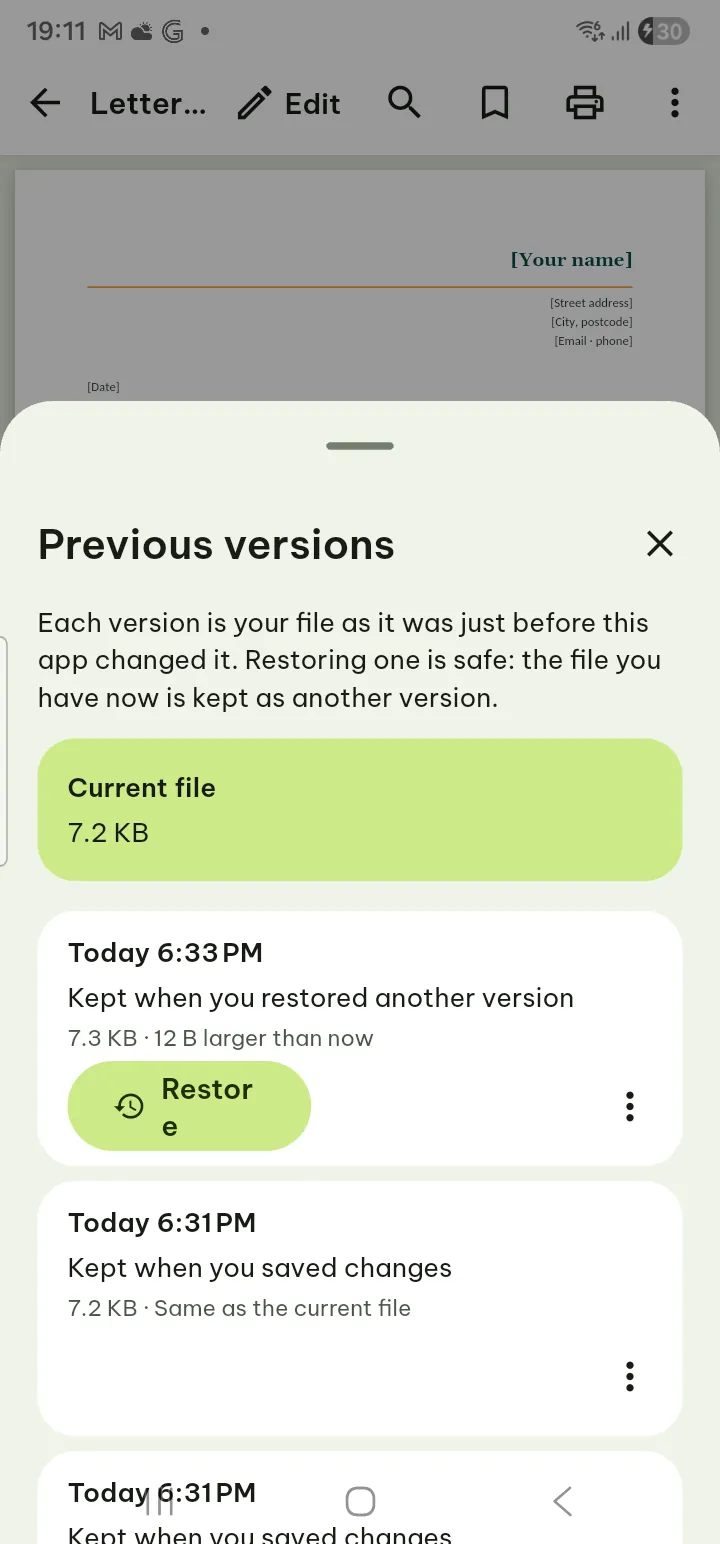
And if an edit was a mistake after all, the file as it was before each save is in Tools › Previous versions. From there you can Restore it, or Save as a copy to keep both.
Where Pagiro does not edit in place
Some files are better left alone, and Pagiro says so instead of guessing:
- Password-protected .docx files open with your password, but cannot be edited.
- A document with restricted editing, marked as final or digitally signed is not edited in place. Pagiro offers an editable copy, so the original (and its signature) stays as it was.
- .doc, .rtf and .odt files open for reading only. You can still print them or save them as PDF.
Documents with tracked changes have their own post: reviewing tracked changes and comments on a phone.
When a computer is still the better tool
Fixing a date, a name, a paragraph or a heading on the way to a meeting is what the phone editor is for. Rebuilding the layout of a long report, with new sections and many tables, is still easier on a big screen. Pagiro's job there is to make sure the small edits you make on the phone do not cost you anything when the file goes back to a computer.
Full steps are in the guide: Text documents (.docx) and Saving and limits.