
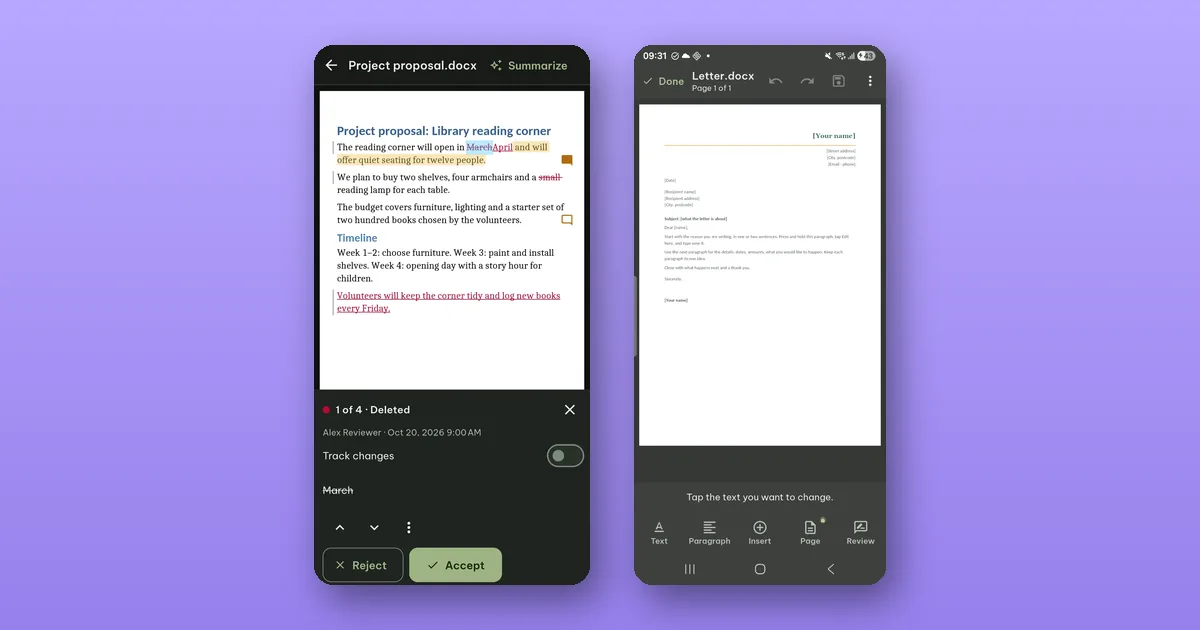
A contract or a report comes back with tracked changes and a few comments, and you are not at a computer. In Pagiro you can see every change with its author and time, accept or reject them one by one or all at once, and read the comments. All of that is free. Recording your own edits as tracked changes needs Pro.
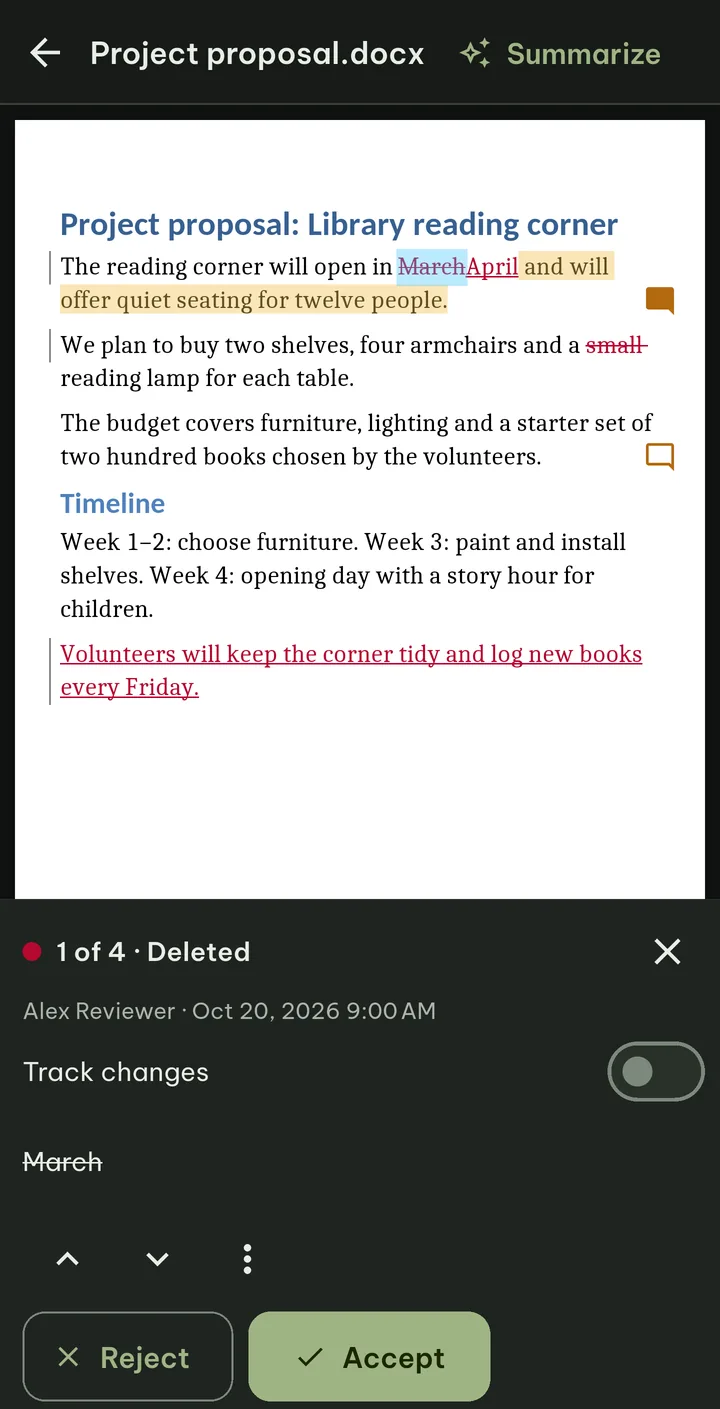
Open the changes
When a .docx has tracked changes, Pagiro shows how many there are with a Review button. Other ways in: View › Review changes while reading, or the Review tab of the editor, then Changes. You can also tap a change on the page to open the bar on that change.
The page shows the changes the way you know them: inserted text underlined in color, deleted text struck through, and a bar in the margin beside each changed line.
Go through them
The Review bar shows one change at a time:
- Where you are and what kind of change it is, for example "3 of 12 · Inserted". Other kinds include Deleted, Moved, Formatted, New paragraph, Row added and Page setup changed.
- Who made it and when, as the file records it ("Unknown author" if the file has no name).
- The text that changed, or for a formatting change, what changed ("Bold, Font size").
Then Accept or Reject. Either one moves on to the next change by itself, so a long document is a row of single taps. The arrows go to the previous or next change without deciding. After the last one the bar says No tracked changes left.
Under the bar's menu (⋮) are Accept all and Reject all. There is no "are you sure" question. Instead, one Undo takes the whole step back.
Three ways to look at the document
The same menu has Show, with three views:
- All markup: changes in color, deleted text struck through.
- Original: the document as it was before the changes.
- No markup: the document as it will be with every change accepted.
No markup is the one to read before you accept everything. Original is useful when you want to know what a sentence said before three people edited it.
What Pagiro cannot decide yet
Some changes are stored in ways we do not handle yet. For those the bar says Pagiro can't decide this change yet and suggests opening the file on a computer to accept or reject it. They stay in the file untouched, and a count tells you how many are left.
In the editor, a paragraph that still has tracked changes in it cannot be typed into until its changes are accepted or rejected. Tap it, and the Review bar opens on its first change.
Comments
Comment markers appear in the margin next to the text they belong to. The Comments list shows each comment with its author, the number of replies, and Resolved when the authors marked it done. Show in document takes you to the commented text, and the Show comments switch hides the markers when you want a clean page. Reading comments is free.
A new comment is added from the editor's Review tab with Comment, and needs Pro.
Recording your own changes (Pro)
If you want the other person to see what you changed, turn on Track changes in the Review bar. Your edits are then kept as tracked changes that they can accept or reject on their side. The first time, Pagiro asks for Your name, which is shown with your tracked changes and comments; you can change it later in Settings.
Without Pro, you can still edit a file that has tracking turned on, but your edits are plain edits, not marked as changes, and a note in the app says so.
Turning tracking off keeps what was already recorded.
Send it back
Save as usual. The file stays a .docx, and the version before your save is kept in Tools › Previous versions, in case you accepted one change too many. If you need a printout with the markup on it, the print sheet has a Show tracked changes switch.
More on editing .docx files: How to edit a .docx on your phone without breaking it.