
Someone sends back "the same contract, just a couple of small fixes". Compare documents tells you which words those fixes were, and whether anything else moved while they were at it.
It works on two PDFs, and also on .docx, .doc, .pptx, .ppt, .xlsx, .xls, .csv, .txt and .md files. The comparison runs on your phone; the files are not uploaded anywhere. It is a Pro tool, but you can set everything up and look at the options first: Pagiro asks for Pro only when you tap Compare.
Running a comparison
- Open Tools › Compare documents. If you already have one of the files open, use Tools › Compare documents in the reader instead: that file is put in the first slot for you.
- Choose the Original and the Revised file. Picked them the wrong way round? Swap files.
- Look at What counts as a difference (below), then tap Compare.
Deciding what counts
The options are there so that the result lists the changes you care about and not a hundred you do not:
- Ignore spaces and line breaks: a paragraph that was re-wrapped is not a change.
- Ignore upper and lower case.
- Ignore how numbers are written: 1,000.50, 1.000,50 and 1000.5 count as the same. Useful when one copy went through a computer set to another country's number style.
- Ignore page numbers: a number standing alone in the top or bottom margin of a PDF page is skipped, so one added page does not mark every page after it as changed.
- Find moved paragraphs: text that was cut and pasted elsewhere shows as moved, not as removed in one place and added in another.
The Text tab
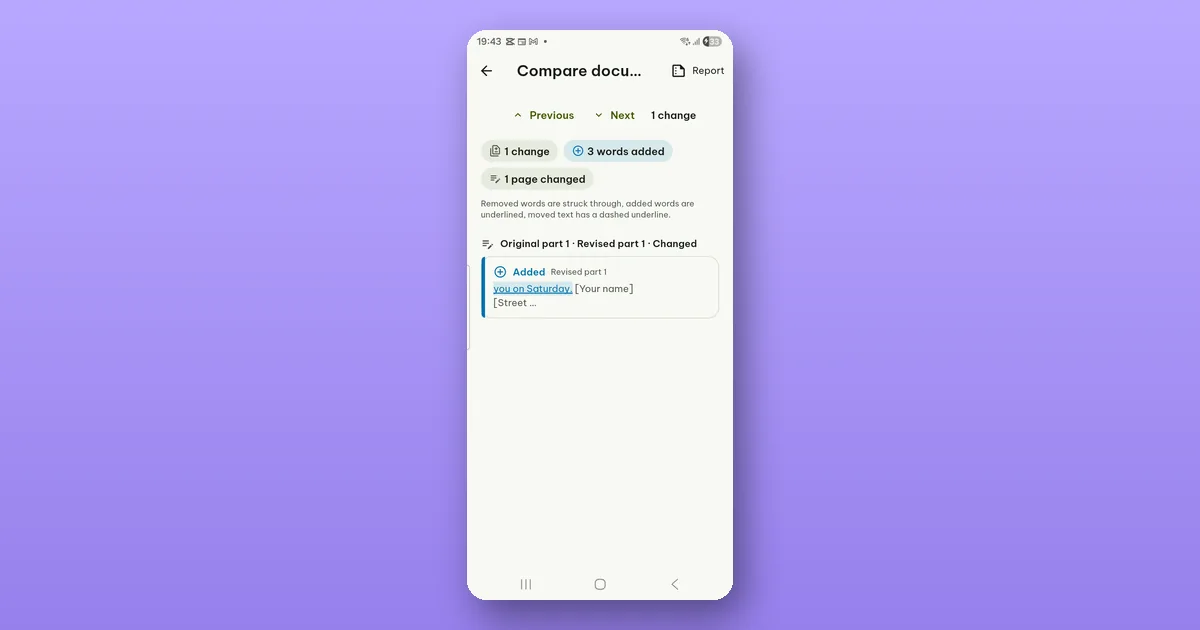
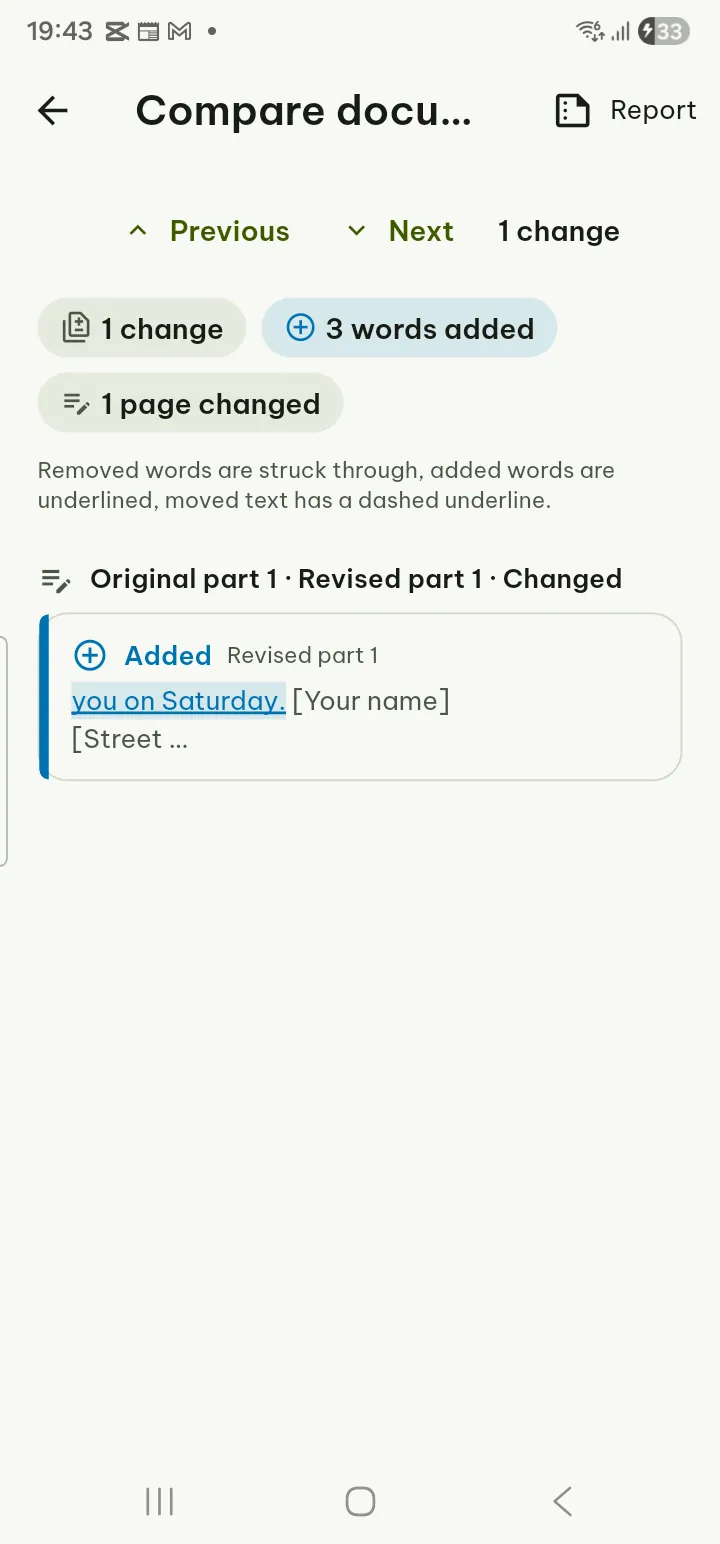
This is where most answers are. At the top, a count: changes, words added, words removed, blocks moved, pages changed. Below, each change with the page (or part) it is on in both files. Previous and Next step through them one at a time.
The marks follow the usual habit of paper editing: removed words are struck through, added words are underlined, moved text has a dashed underline. Each change is labelled Added, Removed, Changed, Moved away or Moved here.
If the two files have the same words in the same order, you get No differences found. Note what that does and does not say: the words match. A changed font, colour or picture is not a word.
The Pages tab, for two PDFs
When both files are PDFs, there is a second tab that ignores the words and compares the pages as pictures. It catches what the Text tab cannot: a swapped logo, a moved signature line, a stamp, a table whose lines changed.
Each page pair is laid over each other. Areas only in the revised page are blue, areas only in the original are orange, and numbered boxes outline them, with a line such as "3 areas differ" and how much of the page changed. You can switch the view between Differences, Original and Revised, and set the Sensitivity between Low and High.
Pages that are the same are hidden unless you tap Show unchanged pages. A page that is only in one file is marked Page added or Page removed.
Scans
A scanned page is a picture with no words, so the Text tab has nothing to compare there, and Pagiro tells you how many pages that applies to. The Pages tab still works on scans, so for two scanned PDFs it is the tab to use.
Keeping a record
Report › Save report as PDF writes a "Comparison report" with both file names, the date, which options were on ("Ignored: ...") and the changes. You can also share it straight away. A very long list is cut short in the report, with a line saying how many more changes are not listed.
Comparing with your own earlier copy
You do not always need two files from someone else. Pagiro keeps your file as it was before each save, and Save as a copy in Previous versions turns one of those into a separate file. Compare that copy with the current file and you see exactly what your last edit changed. How versions work is in How to get back an earlier version of a document.
The steps in short are in the user guide under Compare documents.