
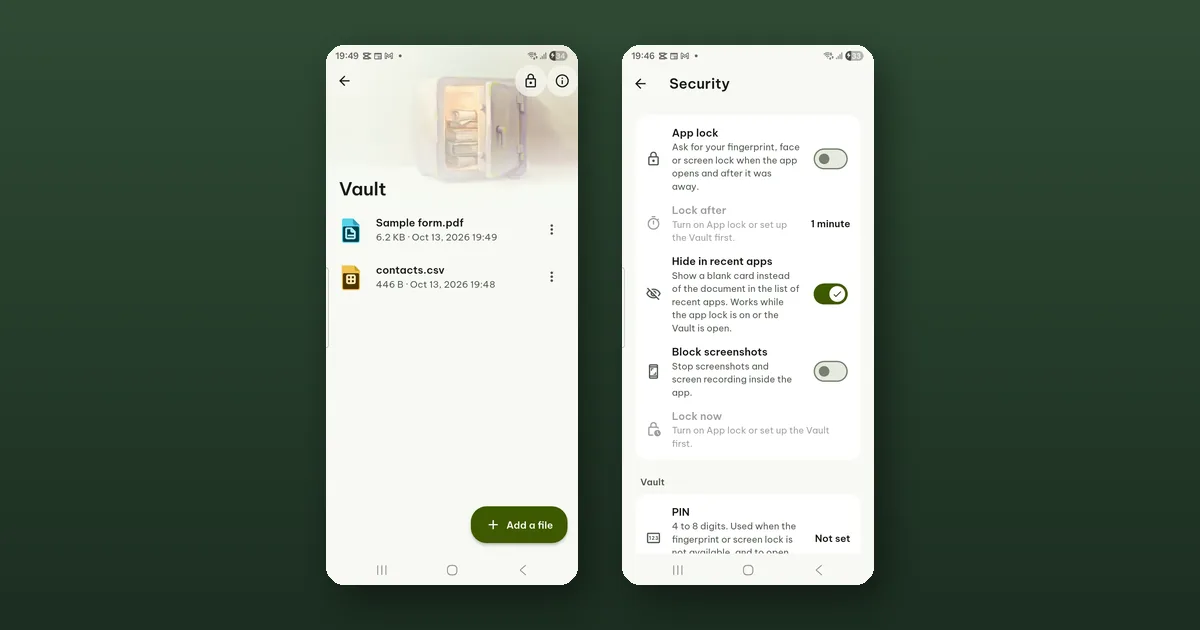
The Vault is a locked room inside Pagiro. A document you move there is stored encrypted on your phone and opens only with your fingerprint, face, screen lock or a PIN. It is part of Pagiro Pro.
It is meant for the few files you would not want someone to find by scrolling through your library: a scan of your passport, a medical letter, a contract with your salary in it.
Setting it up
- Open Tools › Vault (or Settings › Security › Vault) and tap Set up the Vault.
- Choose how it opens: Fingerprint, face or screen lock, or PIN, or PIN only. Then set the PIN.
- Make a recovery key and keep it away from the phone.
The choice in step 2 matters more than it looks. The first option is quick, but anyone who knows your phone's lock code can open the Vault with it. PIN only asks for the Vault's own PIN every time, which is the safer choice if someone else in your home knows how to unlock your phone. If the phone has no screen lock at all, the Vault opens with a PIN.
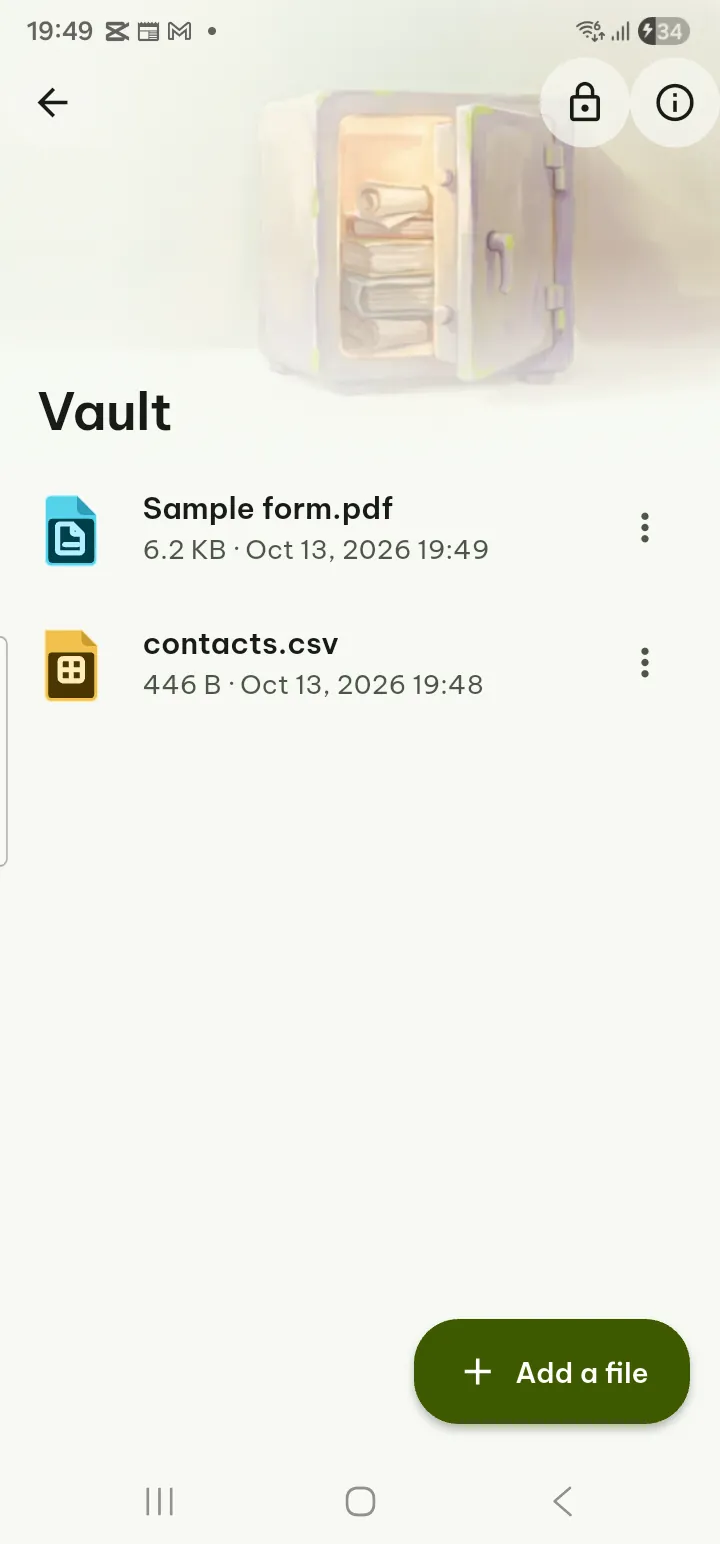
Putting documents in
There are two ways. Inside the Vault, tap Add a file. Or, in the Library, open a document's menu and choose Move to the Vault.
When you move a document from the library, Pagiro encrypts it and takes it out of the library, search, recent files and Home. The original file on your phone is not touched at that point; the next step asks whether to Keep it or Delete original. Think about that question. The Vault protects what is inside Pagiro. A copy left in your Download folder can still be opened by any other app on the phone.
Moving to the Vault works one document at a time.
Using what is inside
A Vault document opens in the same reader as everything else. If you run a tool on it, the result is saved in the Vault too, next to the document it was made from.
Each item's menu has Move out of the Vault, Export a decrypted copy, Earlier versions, rename and Delete for good. Lock the Vault locks it at once, for example before you hand your phone to someone.
A few things happen without you asking. Vault screens are never captured in screenshots or screen recordings. Text you copy from a Vault document is marked as sensitive. And if you have allowed anonymous usage statistics, nothing is recorded while a Vault document is open or while the Vault is unlocked.
What the encryption covers, and what it does not
The app's own explanation (the info button on the Vault screen) is plain about this, so we will be too.
Protected: the content, the name, the type and the reading data of every document, encrypted with AES-256. The key is kept by your phone's secure hardware where it has one, and is released only after you unlock.
Not protected: the fact that a Vault exists, how many files it holds and roughly how big they are. While a document is open, a readable copy exists inside the app until you close it or the Vault locks. Someone with full control of a running, unlocked phone can read what you read.
Printing is the other gap. Printing a Vault document hands a PDF copy to your phone's print service, which keeps it outside the Vault until the job is finished or canceled. The app tells you before you print.
If you forget the PIN
This is the part to read before you set anything up.
There is no reset. If you forget the PIN and have no recovery key, nobody can open the Vault, including us. We do not hold a copy of your key, and there is no account to recover it through.
The recovery key is your way back. It is 14 groups of letters, shown once, with a QR code and a Print or save as PDF button. Write it down or print it, and keep it somewhere that is not this phone. It opens the Vault if you forget the PIN or move to a new phone; after it works, you choose a new PIN.
You can skip the recovery key. The button says what that means: Skip, I accept there is no way back.
Wrong PINs are slowed down: after many wrong tries the wait grows, and restarting the phone or changing its clock does not shorten it. After 20 wrong tries the PIN stops working where you have another way in, such as the recovery key or the phone's screen lock.
Backups
The Vault is never in backups. Not in the phone's backup, not in Pagiro's Export data, and not in a scheduled backup. That is on purpose: a backup file sitting in a folder is exactly the kind of copy the Vault is there to avoid.
So the Vault has no safety net of its own. If a document in it matters, keep the recovery key safe, and if you need a copy elsewhere, make one yourself with Export a decrypted copy and store it where you trust.
If Pro ends
Setting up the Vault and adding documents need Pro. Everything else stays free: if your plan ends, you can still open, move out and export everything that is already inside. Only adding more needs Pro again.
The Vault and the app lock
They do different jobs. The app lock (also Pro) asks for your fingerprint, face, screen lock or PIN when Pagiro opens, and covers the whole app. The Vault protects a few chosen documents even while the app is open and unlocked. You can use either one, or both.
The steps are also in the user guide.