
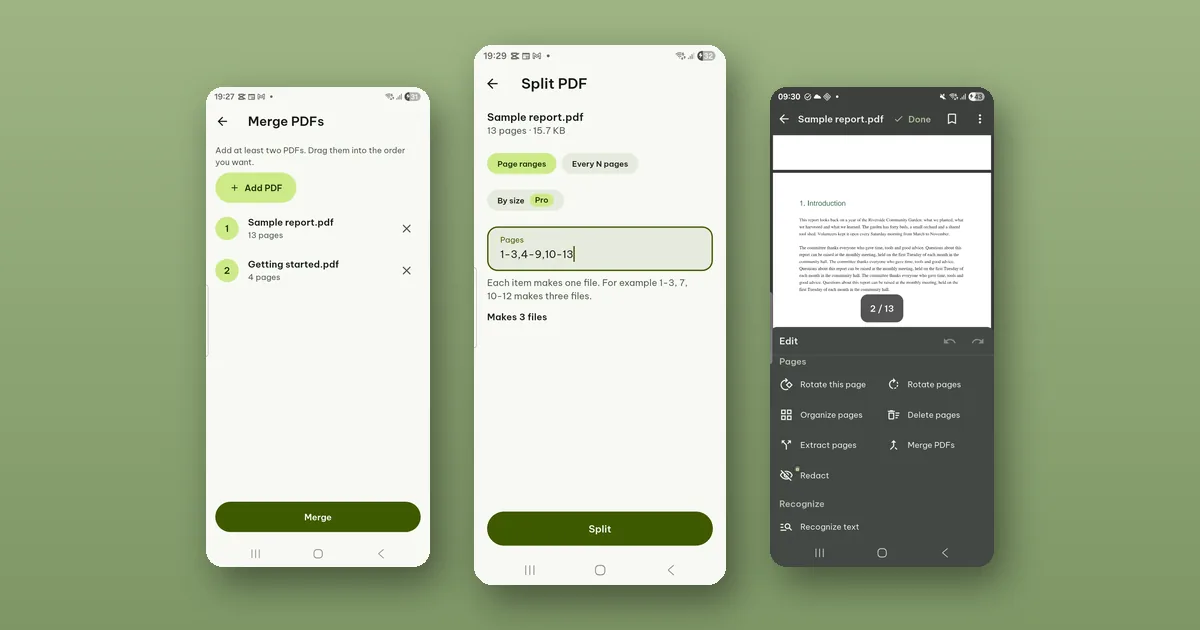
Every page tool in Pagiro makes a new file and leaves the original alone. That is the one thing worth knowing before you start, because it means you can try a merge or a split, look at the result, and simply delete it if it is wrong.
All of these tools are in the Tools tab, and the page ones are also in an open PDF under Edit › Pages. Each one ends on the same sheet: the new file (tap it to open it), then Share, Save to device and Done.
Merge several PDFs into one
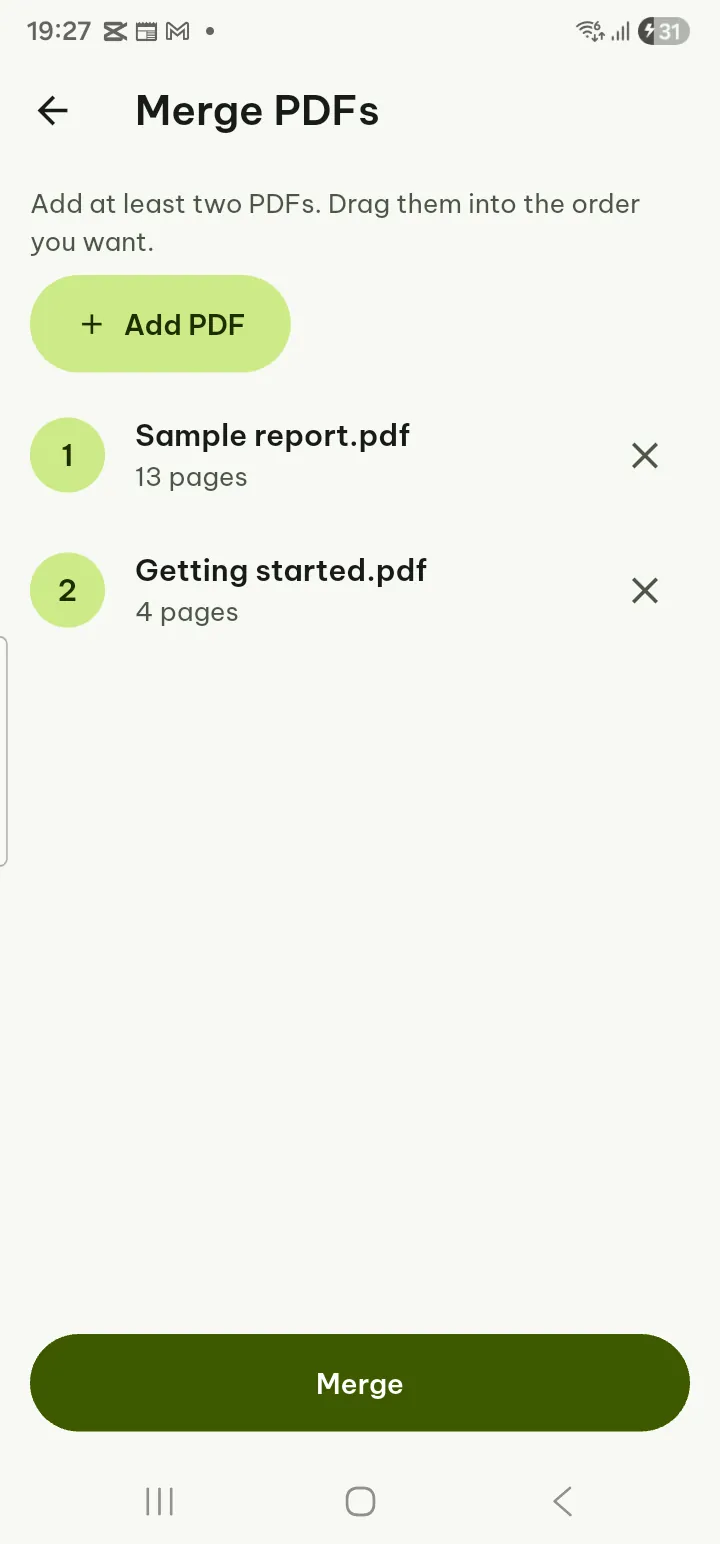
Tools › Merge PDFs. Tap Add PDF for each file, at least two. Drag them into the order you want (× removes one), then tap Merge.
Some things inside a PDF do not always survive being joined to another file: bookmarks, form fields and signatures. If any of those cannot be carried over, Pagiro says so before it merges and offers Merge anyway, so you are not surprised later by a form that no longer fills in.
Up to 400 MB of PDFs can be merged at once. For more, merge them in smaller groups and then merge the results.
Split one PDF into several
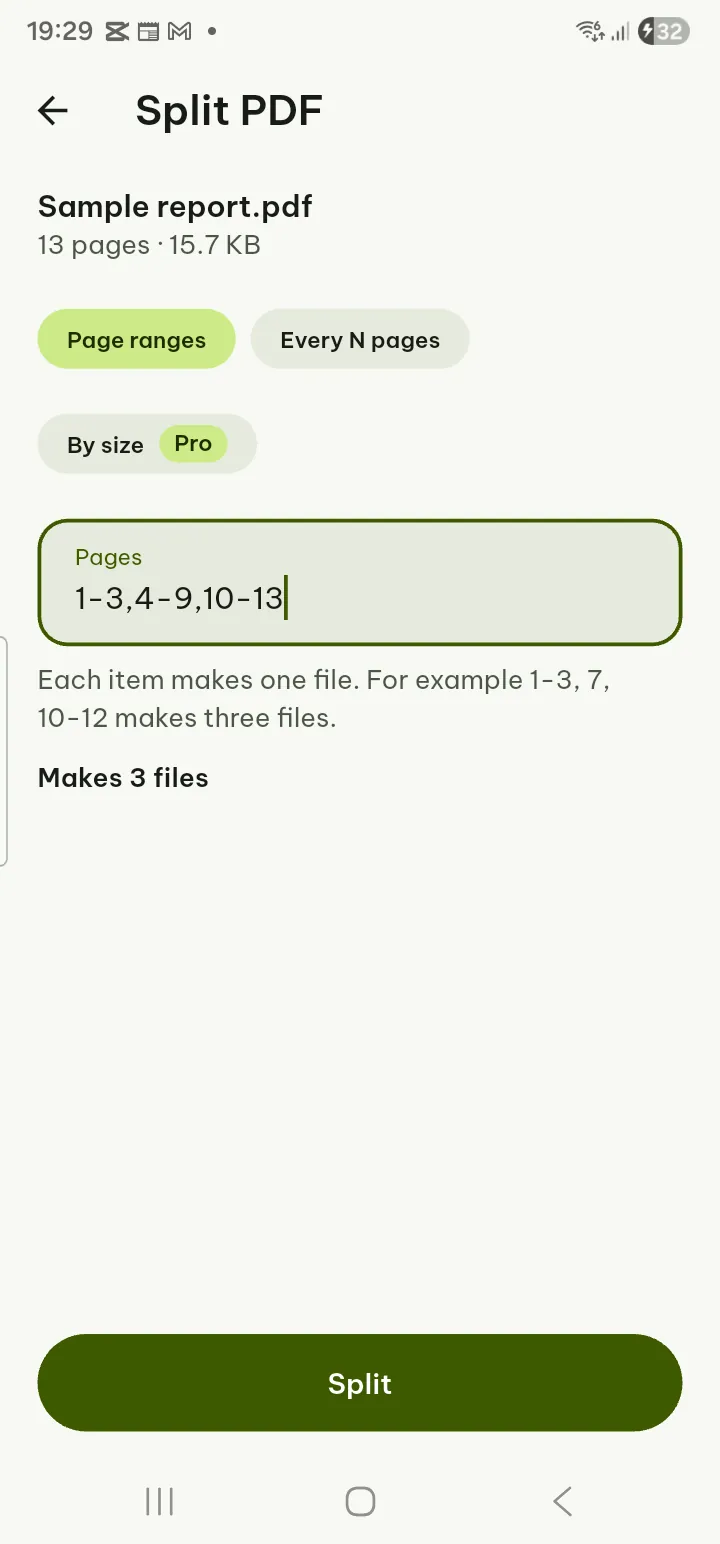
Tools › Split PDF, choose the file, then one of three ways:
- Page ranges: each range becomes a file. Good for pulling chapters or separate letters out of one scan.
- Every N pages: for a stack of two-page forms scanned in one go, every 2 pages gives one file per form.
- By size (Pro): you give the largest file size in MB, and Pagiro cuts the PDF into files under that size where it can. Made for upload forms and e-mail limits.
Check the line Makes N files before you tap Split; it catches a typo in the ranges.
Take out, remove, reorder or turn pages
Four tools share one page grid: Extract pages, Delete pages, Organize pages and Rotate pages. In all of them you select pages by tapping them, or by typing something like 1-3, 7, 10-12 and tapping Select. The chips Odd pages, Even pages and Invert save tapping on long files.
Extract pages keeps the pages you selected, in a new file. Delete pages is the opposite: select the pages to leave out, and the new file keeps the rest. They do the same job from two sides, so pick whichever means fewer taps.
Organize pages: hold a page and drag it to where it belongs. The buttons at the bottom turn the selected pages, or all of them. Tap Save as new PDF.
Rotate pages is for the classic scan with one page upside down: select it (or nothing, for all pages), tap Rotate left, Rotate right or Turn 180°, then Save as new PDF.
From inside an open PDF
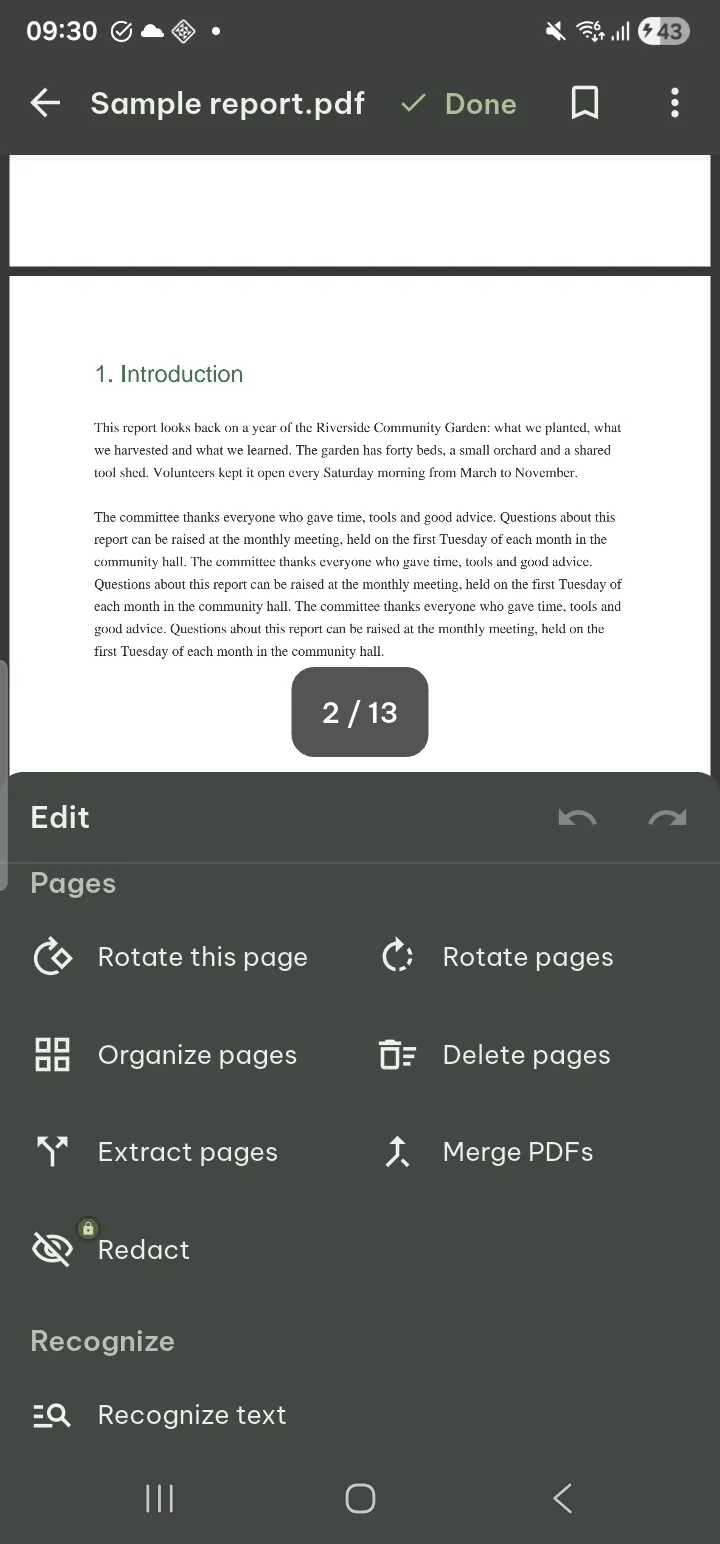
When you are already reading the file, tap Edit and look at the Pages section of the panel: Organize pages, Delete pages, Extract pages and Merge PDFs are there and work as in the Tools tab. It saves going back to the library to choose the file again.
Free or Pro
Merging, extracting, deleting, organizing, rotating and splitting by ranges or every N pages are free. Splitting by size needs Pro, and so does Batch, which merges or processes many files in one queue.
The user guide has the same tools in Extract, delete, organize and rotate pages.