
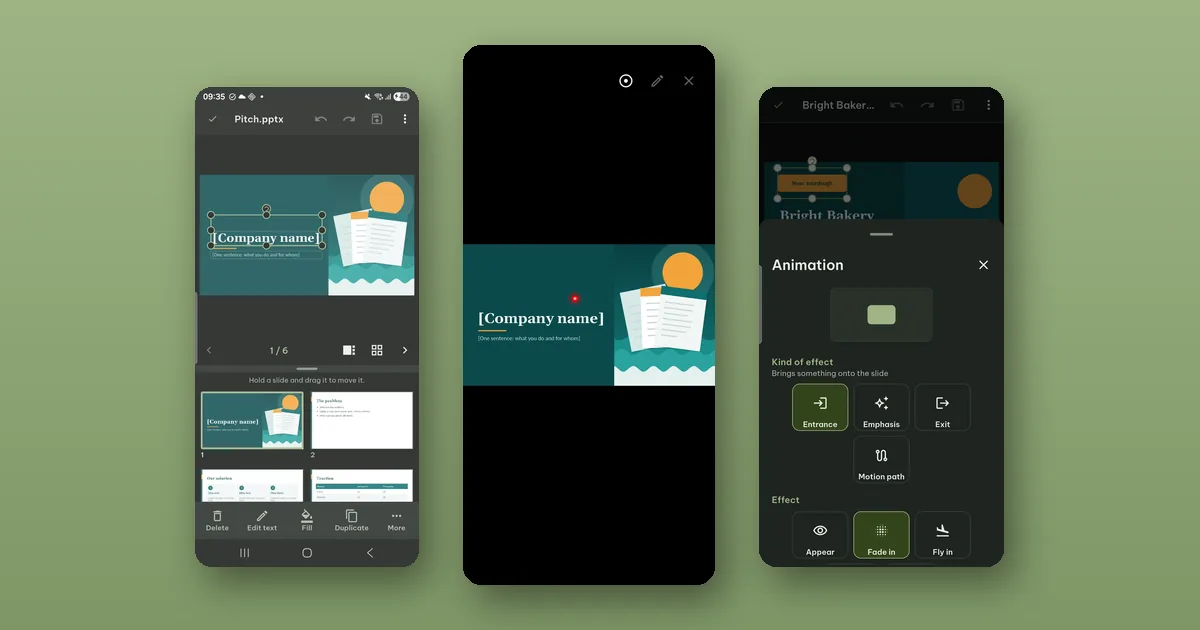
You can open a .pptx in Pagiro, fix a typo on slide 7, save, and start the slide show from the same screen. Editing text and presenting are free.
Fix a slide
- Open the file and tap Edit.
- Tap a text box to select it, then tap it again to type. An empty placeholder types at once.
- Format the text with bold, italic, underline, font, size, color, alignment and bullets.
- Tap Save.
A selected text box, shape or picture can be dragged to move it, and its handles change its size.
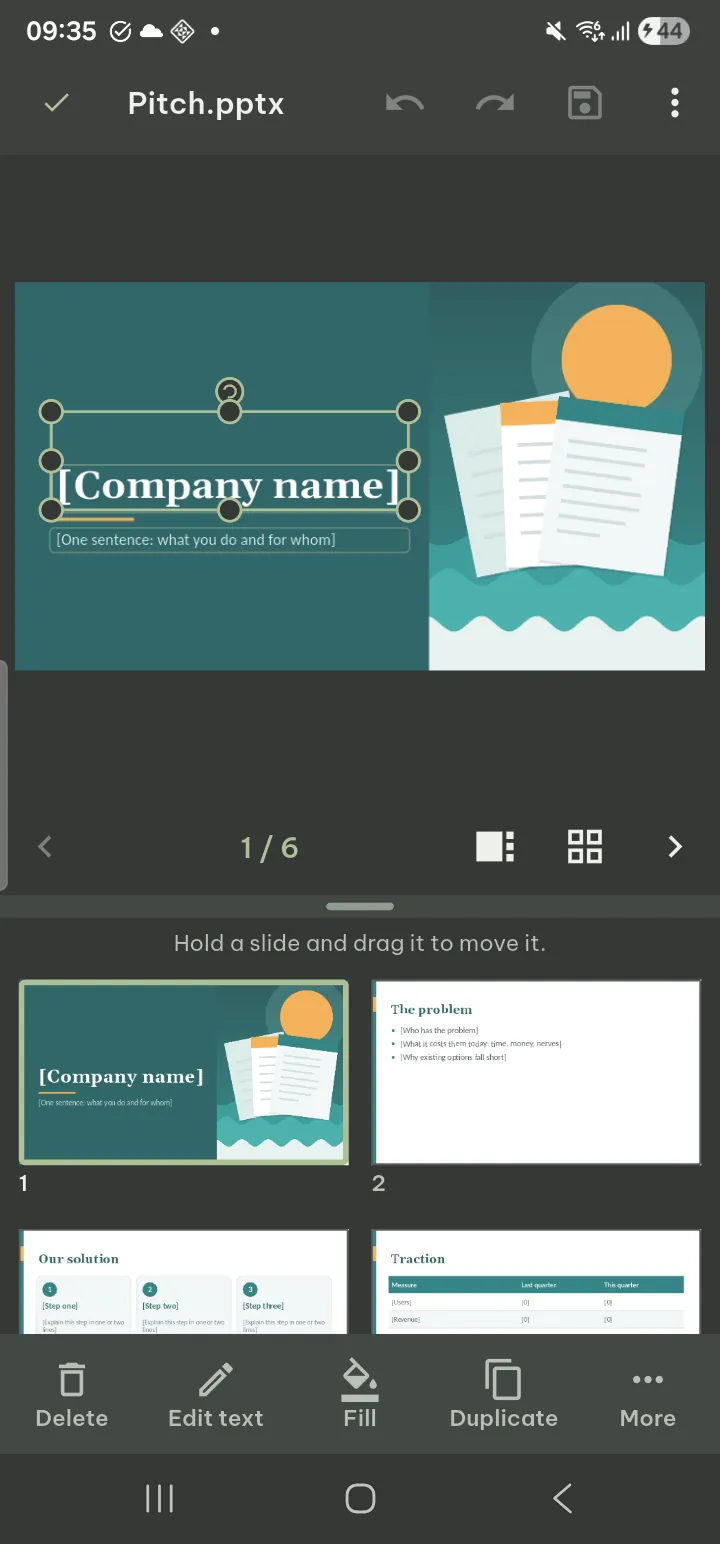
Also free: New slide, moving slides up and down, Delete slide, Text box, Picture (with crop and replace), Notes, changing the shapes already on a slide (fill, arrows, shadow, arrange, size and position, alt text), and in Design: Background, Color scheme and Slide size.
Pro adds inserting a Shape or a Table, Layout, Duplicate slide, Hide slide, Transition and Animation.
Animations
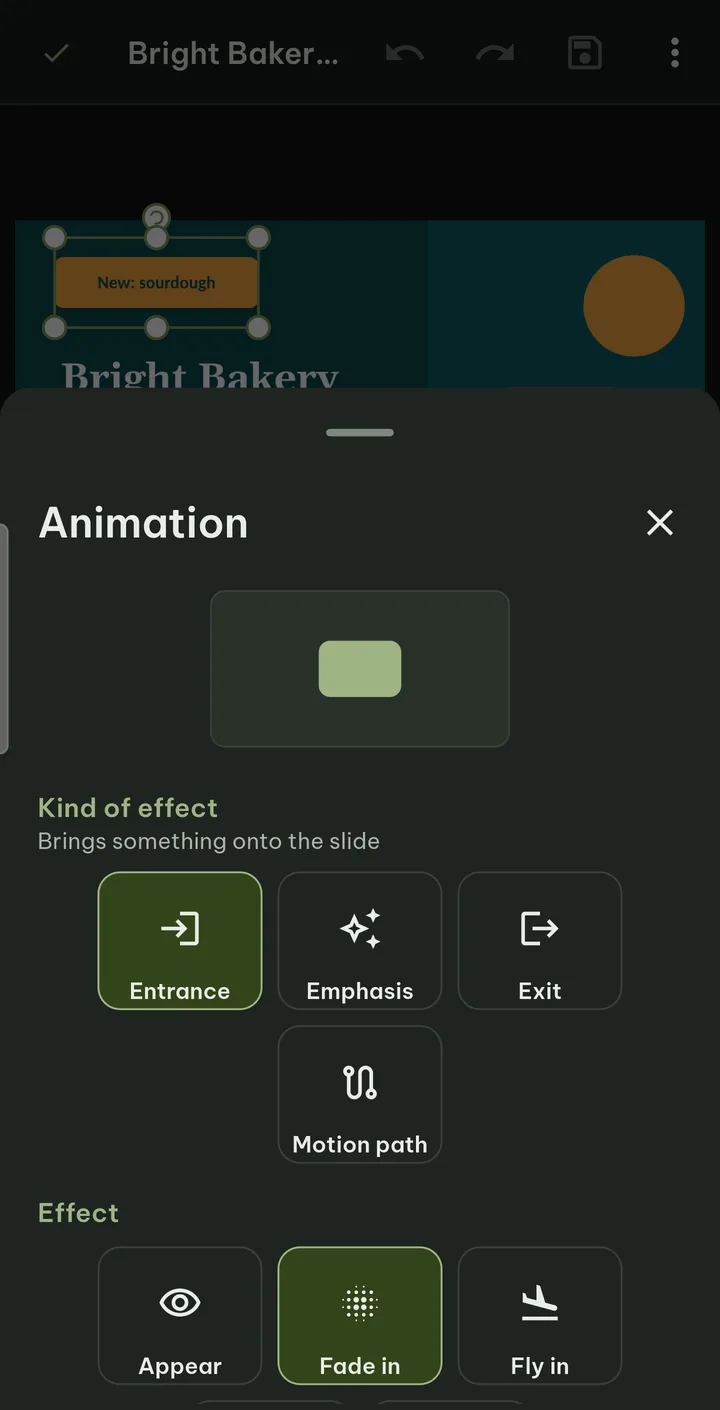
Animations that are already in the file play when you present. Adding an animation, or changing one, is a Pro tool. The Animation panel asks two things in order: the Kind of effect (Entrance, Emphasis, Exit or Motion path), then the Effect itself, such as Appear, Fade in or Fly in, with a small preview at the top.
Present
There are several ways to start, depending on where you are:
- While reading: View › Start slide show, or press and hold a slide thumbnail and choose Start slide show from this slide.
- In the editor: Present, or in Tools, Present from start or Present from this slide.
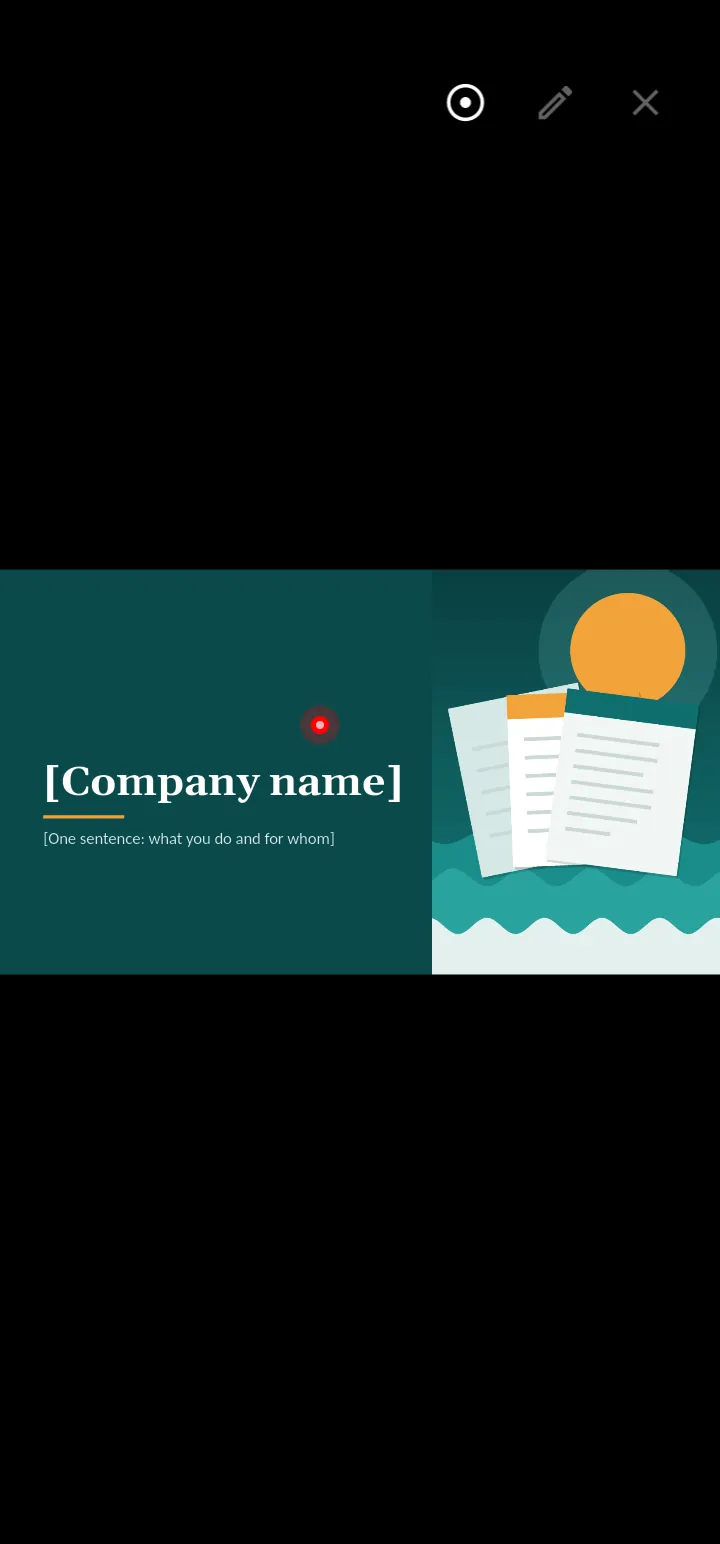
Swipe or tap to move between slides. Use the Laser pointer to point, Pen to draw on the slide and Erase ink to clear it. Speaker notes shows your notes. Video and sound in the slides play with Play.
With the setting Presenter view in slide shows, the phone shows your notes, the next slide and a timer during the show. Set to automatic, it turns on when the slides have notes.
Showing the slides on a TV or projector while the phone keeps the notes, the next slide and the timer is a Pro feature. The first time is free, so you can check that it works with your screen before a real talk.
If you cannot present yourself
Sometimes the room has its own computer and you only need to send the deck. Share › Save as PDF… makes a PDF of the slides, as handouts or as notes pages, and Share › Print… prints them. Your edits are in the .pptx itself, saved into the same file, and the version before each save is kept in Tools › Previous versions.
Older files
.ppt and .odp files open for viewing and presenting, also free, but cannot be edited. If you need to change one, a computer is still the way.
Step by step in the guide: Slides (.pptx) and Present.