
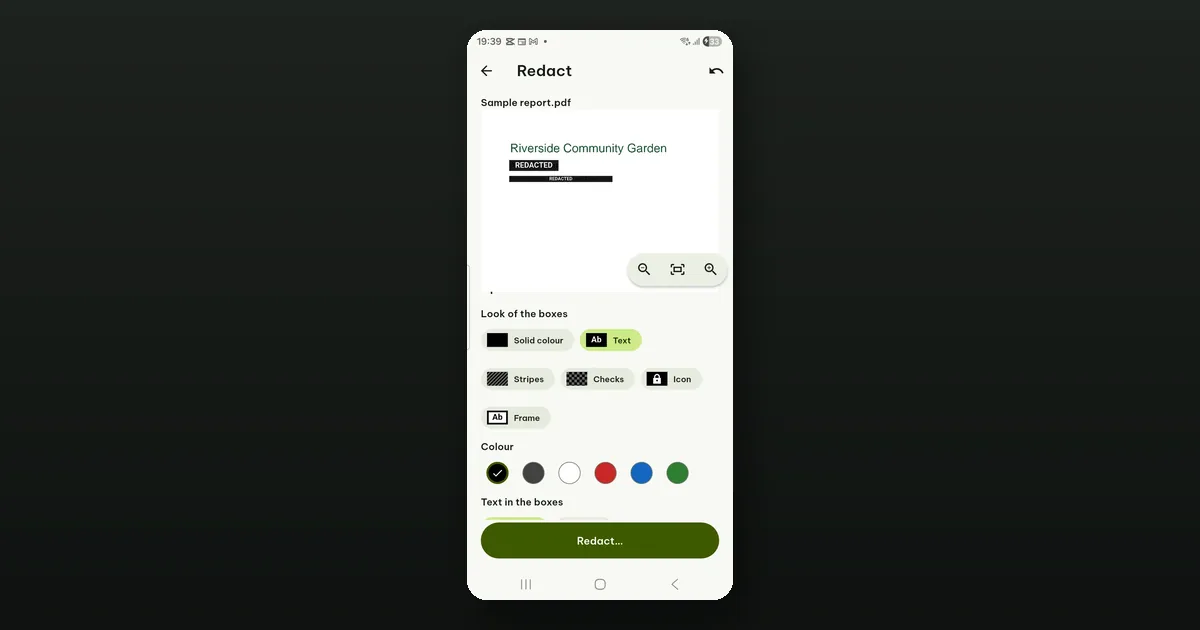
Drawing a black rectangle over a name in a PDF does not remove the name. It puts a black shape on top. The text is still in the file underneath, and anyone who selects across that spot, searches the file, or copies the page into another app can get it back.
On screen and on paper the result looks perfect, which is why the mistake is so easy to make. Pagiro warns you: choose a thick, dark pen to draw on a PDF and the bar says "Black ink only covers the text: it stays in the PDF and can be copied. This is not redaction."
Real redaction removes what is under the box from the file itself. That is what Redact does.
What gets removed
Redact makes a new copy of your PDF in which everything under the boxes is gone: text, pictures and graphics on the page, and also the comments, form fields, bookmarks and metadata that belong to that part of the page. What is under the boxes cannot be recovered from the new file. The original stays as it was, so keep it somewhere safe or delete it once you have checked the copy.
Under Options there are three extra switches for the whole file:
- Remove document information and metadata: the title, author and other details a PDF carries about itself. People forget these; a file name you redacted on the page can still sit in the title field.
- Remove attached files: PDFs can carry other files inside them.
- Turn marked pages into pictures: the safest choice. The page keeps its look but loses its text and vector graphics, so nothing on it can be selected or searched at all.
After redacting, Pagiro checks the new file. If it still finds something that should have been removed, it does not save it, and suggests turning the marked pages into pictures. On pages where the exact position of some text is not known, it turns those pages into pictures by itself and tells you.
How to do it
Open Tools › Redact, or, in an open PDF, Edit › Pages › Redact. Choose a PDF without a password. Then mark what has to go, in one of two ways.
Draw boxes. Drag one finger over what to hide. Small print is where mistakes happen, so zoom in: pinch, or use Zoom in, Zoom out and Fit page, and move the page with two fingers. Tap a box to select it, then drag it or its corners. Copy to all pages repeats a box on every page, which is handy for a reference number in the same place on every page.
Find text. Search for a word, a phrase or a pattern, or use Ready-made searches: e-mail addresses, phone numbers, long numbers (IDs) and card numbers. Then Mark all matches. This is the better way for a name that appears forty times, because you will miss one by hand.
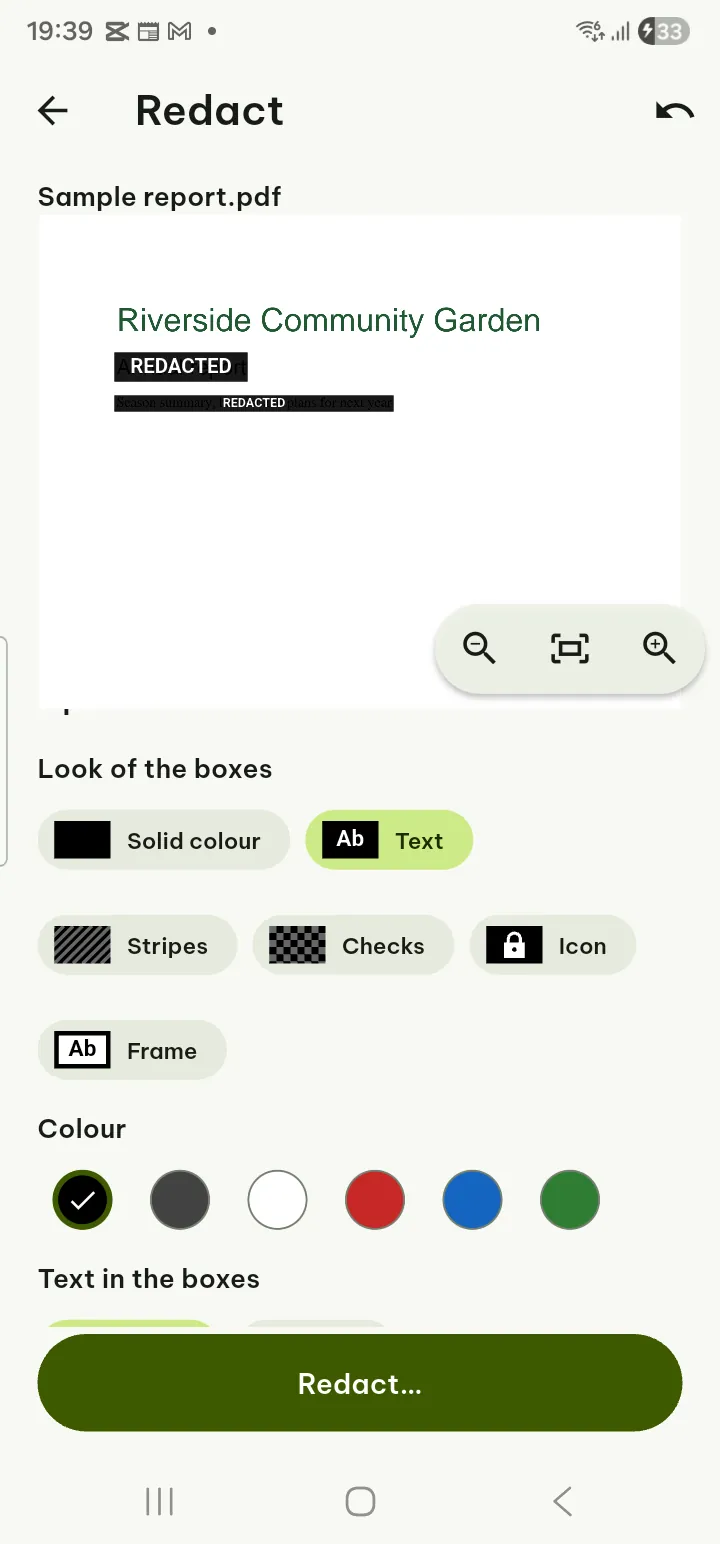
In Options you also choose the look of the boxes: Solid color, Text (REDACTED or your own words), Stripes, Checks, Icon or Frame, and the color. Only the look changes; whatever you choose, what is under the box is removed first.
Tap Redact…, read the summary (how many boxes on how many pages) and confirm.
What it cannot do for you
We would rather you know these before you send the file.
Text inside pictures is not found by search. If the PDF is a scan, or has a photo of an ID card on page 3, Find text will not see the words in the picture. Draw boxes over those areas yourself.
It removes what you mark, nothing more. Redaction is only as good as the boxes. Read the redacted copy from start to finish, including the last page and any footers, before you send it.
Some traces are technical, and Pagiro lists them. After redacting, the result can include notes such as: embedded fonts may still hold the shapes of removed characters (but not the order or place they were used); vector graphics partly under a box are clipped, not cut, so their numbers stay in the file; accessibility tags were removed because they can repeat the text. When those matter to you, choose Turn marked pages into pictures.
The redacted copy is a different file. A digital signature is removed, and the copy is not signed. Pictures are stored again, and JPEG pictures are compressed once more, so they may look slightly softer.
Why Redact needs Pro, and when you pay
Redact is a Pro tool, but it opens for everyone. You can draw or find all your boxes first and look at them; Pro is asked when you tap Redact…, and your boxes stay if you close that screen.
If what you want to hide is not on the page but in the file's details, Tools › Remove metadata (Pro) handles that on its own: title, author and dates, XMP, private data of programs, comment authors and the document ID.
The steps are also in the user guide under Redact.