
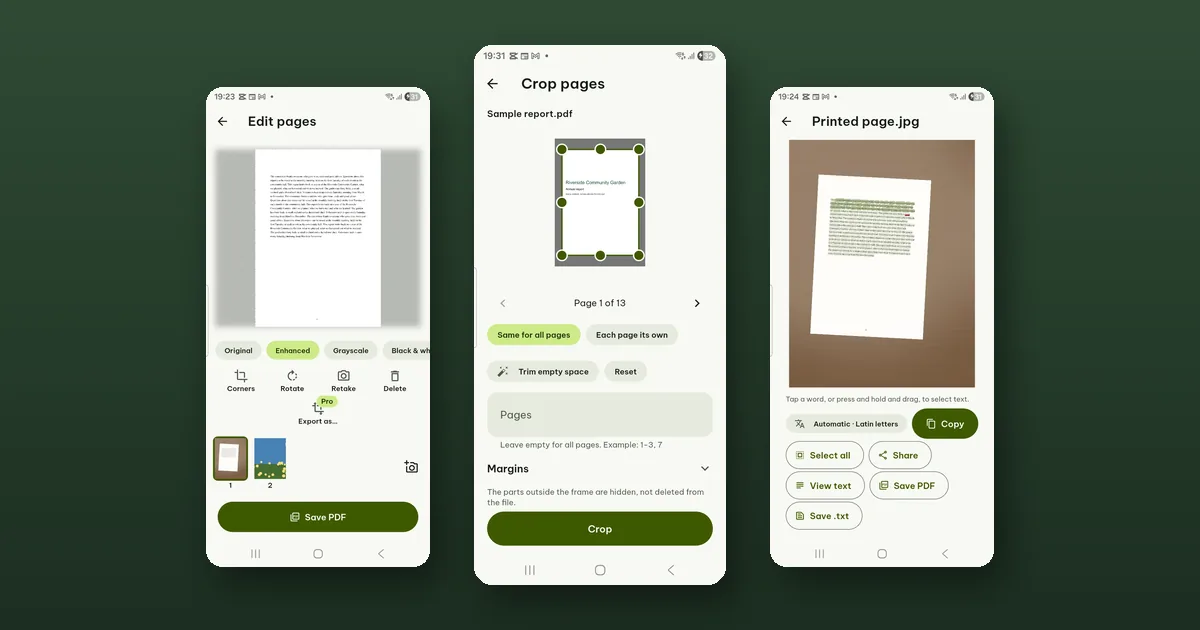
On Home, tap Scan to PDF, photograph each page, and tap Save PDF with Make text searchable left on. You get a PDF that looks like your paper and whose words you can search, select and copy. All of it is free, and none of it leaves your phone.
Taking the photos
Allow the camera the first time. Hold the phone over the page; when the screen shows Page found, tap Take photo. Then the next page, and the next.
Two plain photo habits help: put the paper on a darker surface so its edges stand out, and keep your own shadow off the page. The flash button helps in a dim room.
Already took the photos with the camera app? Tap Pick images instead.
Cleaning up the pages
After the last photo you land on Edit pages. Each page has already been straightened, so a sheet photographed at an angle comes out as a flat rectangle.
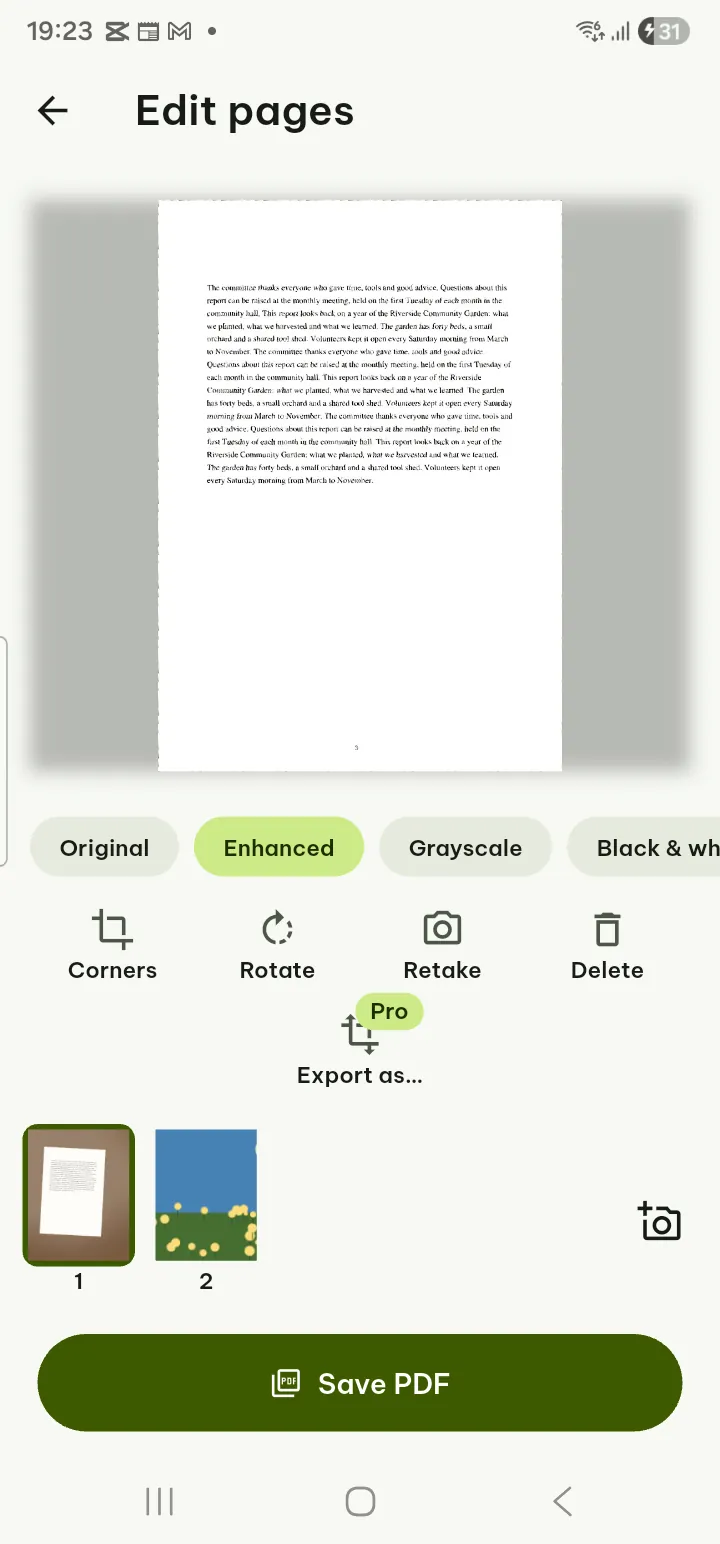
Here you can:
- choose a filter: Original, Enhanced, Grayscale or Black & white, and Use for all pages;
- fix the edges with Corners when the automatic straightening picked up the table instead of the paper;
- Rotate, Retake or Delete a page;
- drag pages in the strip to put them in order, and tap Add pages if you forgot one.
The filter is a matter of taste and of what is on the page. Black & white suits plain typed text; for a page with photos, coloured stamps or blue ink, compare it with Enhanced before you choose.
Saving with searchable text
Tap Save PDF. Set the file name, Paper size (Auto, A4, Letter) and Quality (Small file, Balanced, High). If the PDF is going by e-mail, Small file is usually enough to read comfortably.
Leave Make text searchable on. Pagiro recognizes the words on each page and stores them invisibly behind the picture, which is what lets you search the PDF later with Find, copy a sentence, or have it read aloud.
Text recognition uses Google ML Kit, running on your phone; your pictures are not uploaded. It reads Latin-script languages (English, Spanish, French, German, Vietnamese and many more), Chinese, Japanese, Korean and Devanagari. Automatic tries the script of your app language first, so if you scan a page in a different script, choose the language before saving.
Recognized text can contain mistakes, as with any text recognition, so check names and numbers before you copy them somewhere that matters.
Related jobs
A PDF that was scanned elsewhere and cannot be searched: open it and tap Edit › Recognize text. The search bar also offers Recognize text when it finds no text layer. Free.
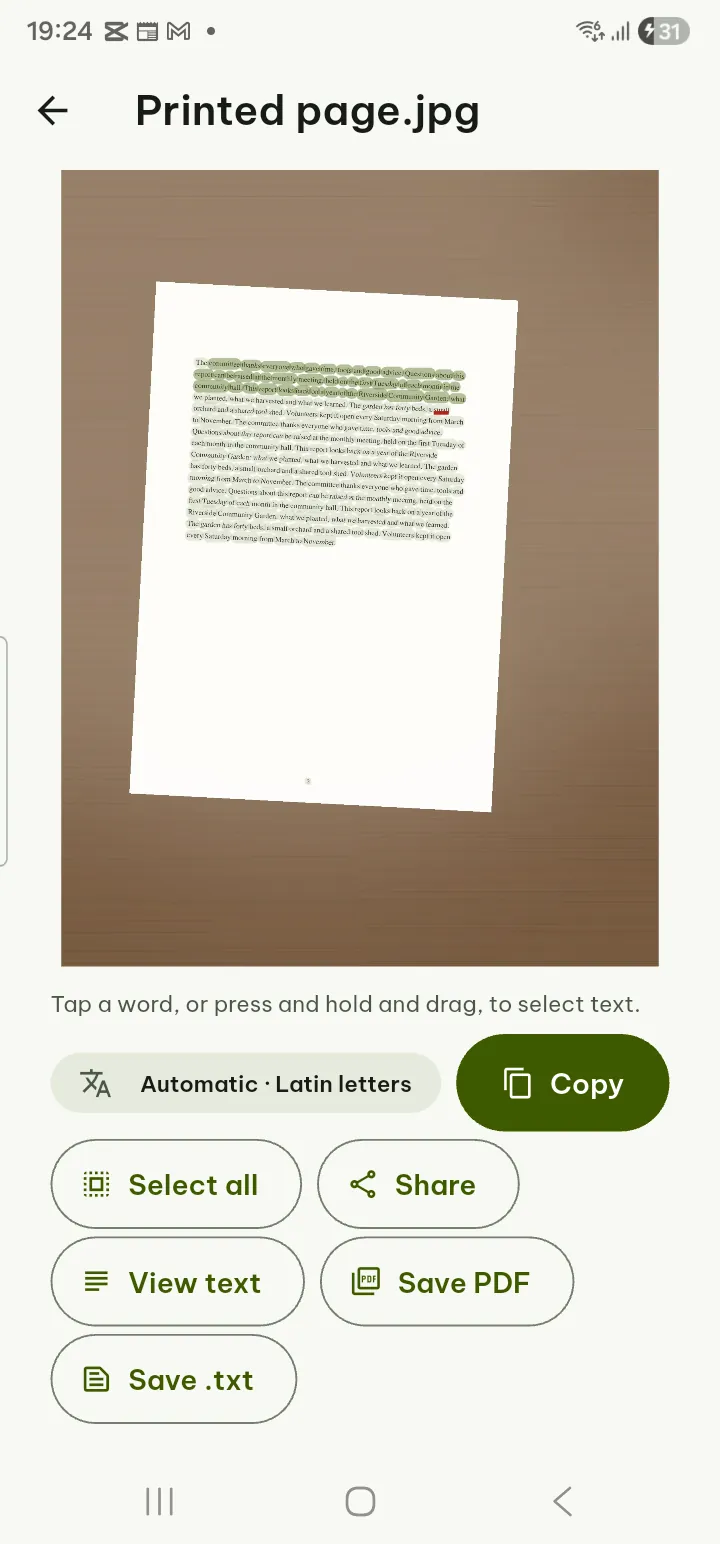
Just the words from one photo or screenshot: Tools › Text from a picture. Tap a word or drag to select, then Copy all, Share, Save PDF or Save .txt. Free.
Wide margins around the scanned pages: Tools › Crop pages (Pro) has Trim empty space. The parts outside the frame are hidden, not deleted from the file.
A scan you want to edit as a document: Export as… in Edit pages turns the scan into a .docx or .xlsx file instead (Pro). The layout may need some adjusting afterwards.
The full steps are in the user guide under Scan to PDF.