
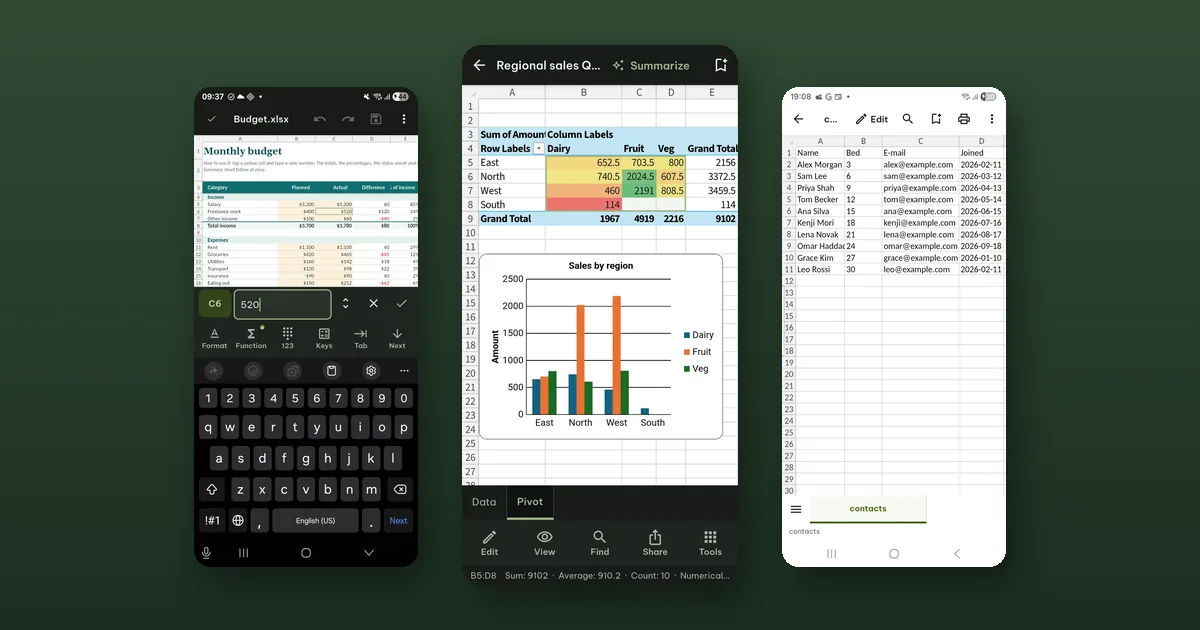
A phone is a good place to check a spreadsheet, correct a number, add a row or update a total. It is a poor place to build a forty-column model from scratch. We designed Pagiro's spreadsheet editor for the first kind of job, and this post is an honest map of what that covers.
Editing cells
A .xlsx opens as a grid, with the sheets as tabs at the bottom.
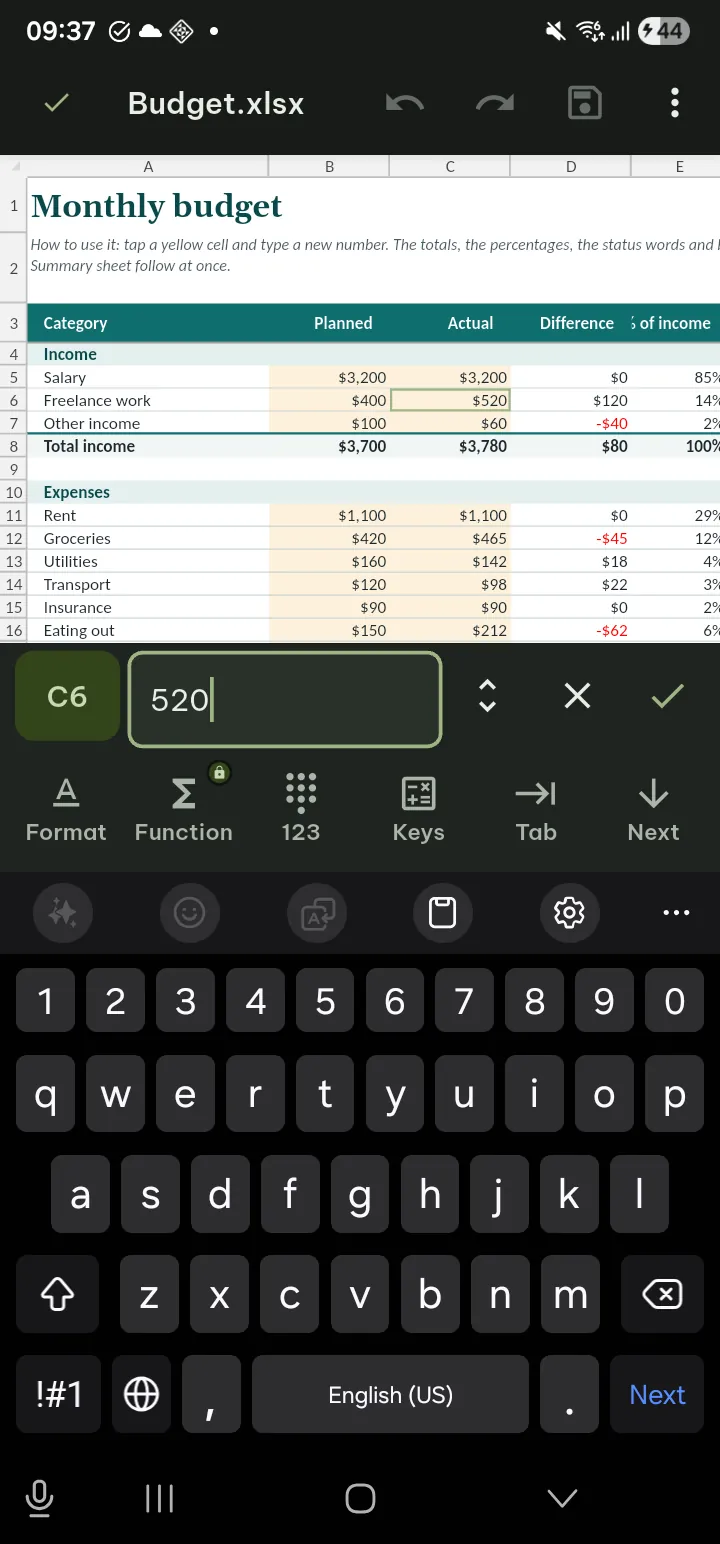
To change a cell, double-tap it. Or select it and tap Edit in the bottom bar. You type in the cell bar, and Next moves on to the next cell, so filling in a column is type, Next, type, Next.
Formulas start with =, as everywhere. Pagiro checks a formula before it accepts it, so a formula with a mistake is not accepted as it is. Formulas are recalculated after the change. The function picker (fx), which lists the functions to choose from, is a Pro tool; typing a formula yourself is free.
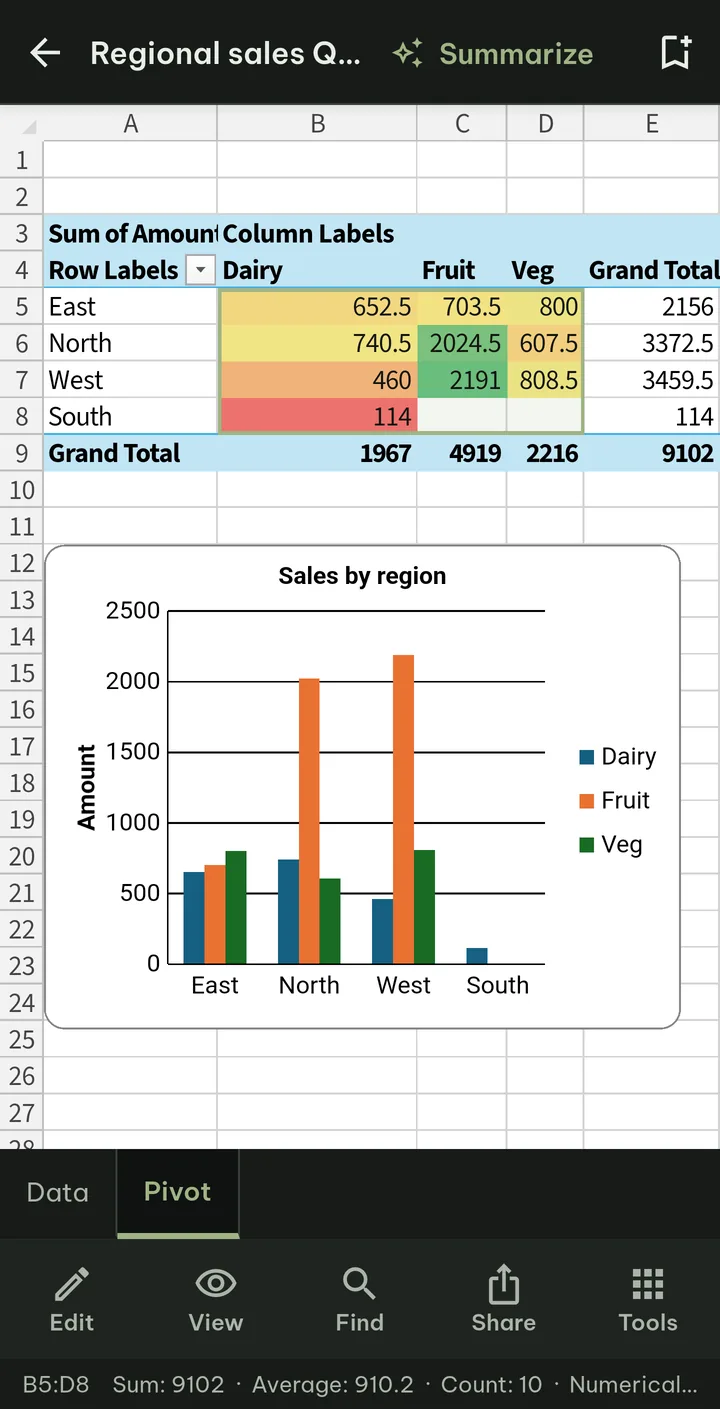
When you select a range of cells, the line at the bottom of the screen shows their sum, average and count. For checking a column of numbers, that is often all you need, and it costs no edit at all.
The free tools
The editor's Tools has four tabs: Home, Insert, Data and View. Free are:
- cut, copy and paste (also values only or formats only), fill down and right, clear, find and replace;
- Format cells, Merge cells, Wrap text, column width and row height;
- inserting or deleting one row or column, hiding and showing;
- sheets: Add sheet, rename, Duplicate, delete, move, Tab color, hide.
What Pro adds
The data tools: Sort A to Z, Sort Z to A, Sort…, Filter, Remove duplicates…, Data validation…, Conditional formatting…, Chart, Freeze first row and the other freeze panes, the function picker, and inserting or deleting several rows or columns at once.
Undoing the effect of a Pro tool is always free. If a file comes to you filtered, frozen or full of validation rules, you can show all rows, unfreeze, remove validation or clear the rules without Pro.
Charts
Charts that are already in the file are drawn in the sheet, so you can read the numbers and the picture together. Adding a new chart is a Pro tool.
Pivot tables
Pivot tables in the file are shown as they are. If you tap one of their cells to type into it, Pagiro explains why that does not work: a pivot table shows totals of other cells. To change it, you change those cells, then tap Pivot table › Refresh. If a workbook has several, Refresh all pivot tables in Tools › Data brings them all up to date. Refreshing is free.
Refresh has limits, and Pagiro says which one it hit instead of guessing:
- Some pivot tables cannot be refreshed on the phone, for example one with a calculated field, one whose data comes from a database or another file, or one that a pivot chart is drawn from. You get a message with the reason, nothing is changed, and you can refresh it on a computer.
- If the refreshed table needs more room and the cells next to it hold something, Pagiro asks before writing over them.
- If rows were added right under the data, it asks whether to include them.
Reading view for long rows
A wide sheet on a narrow screen means a lot of sideways scrolling. View › Reading view shows the rows as text instead, which is easier to read on a small screen and can be read aloud. Grid view in its top bar goes back.
CSV files
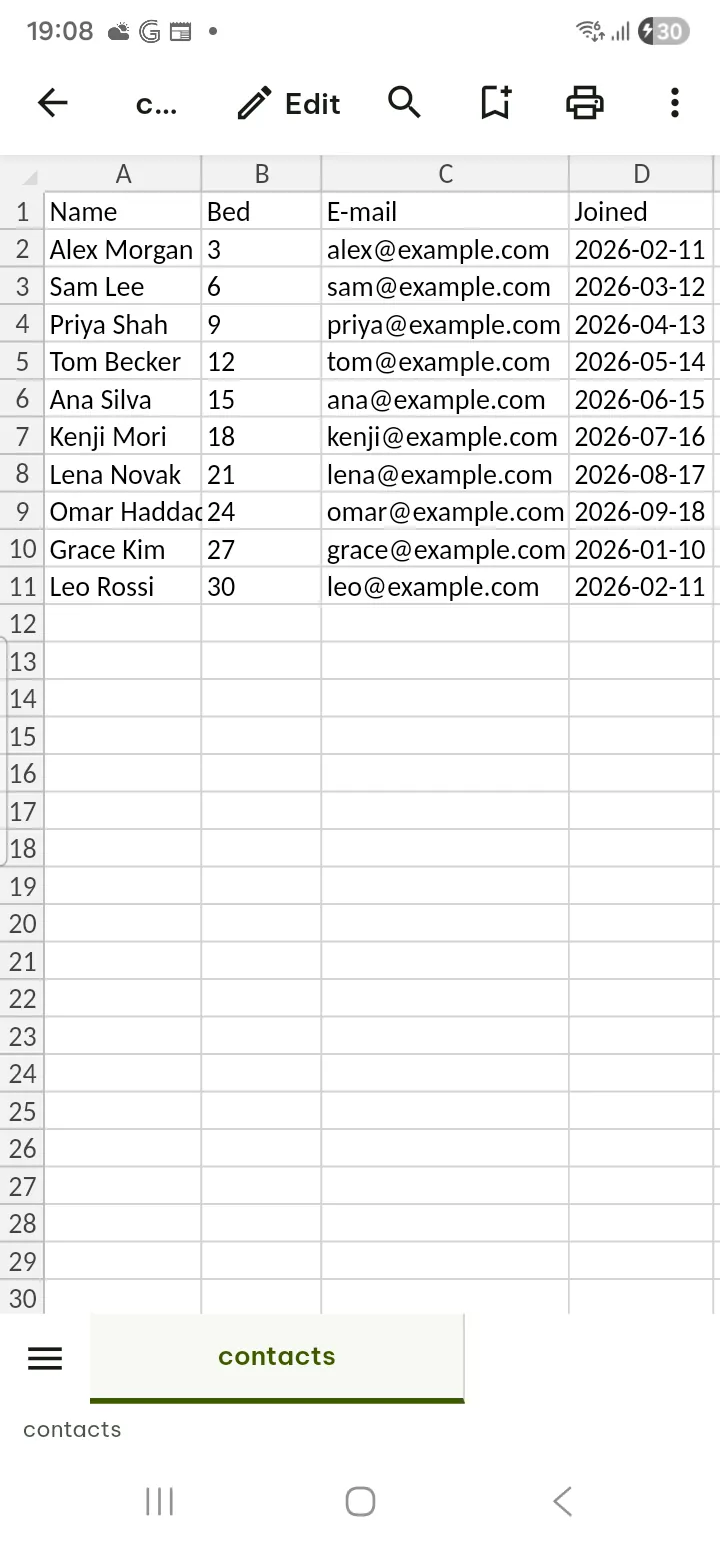
.csv and .tsv files open in the same grid. You edit the cell text with the Home tools, and Undo is in the top bar. A CSV file has no formulas or formats, so there are none to edit. When you save, only the cells you changed are rewritten, the rest of the file stays as it was. CSV editing is free, for files up to 24 MB.
Which files
You can edit .xlsx (also .xlsm, .xltx and .xltm), .csv and .tsv. Older .xls, .xlsb and .ods files open for reading only; you can still print them or save them as PDF. Password-protected files open with your password but cannot be edited.
Edits are saved into the same file, parts Pagiro does not understand are kept as they were, and the version before each save is in Tools › Previous versions.
The full list of spreadsheet tools is in the guide: Spreadsheets (.xlsx).