
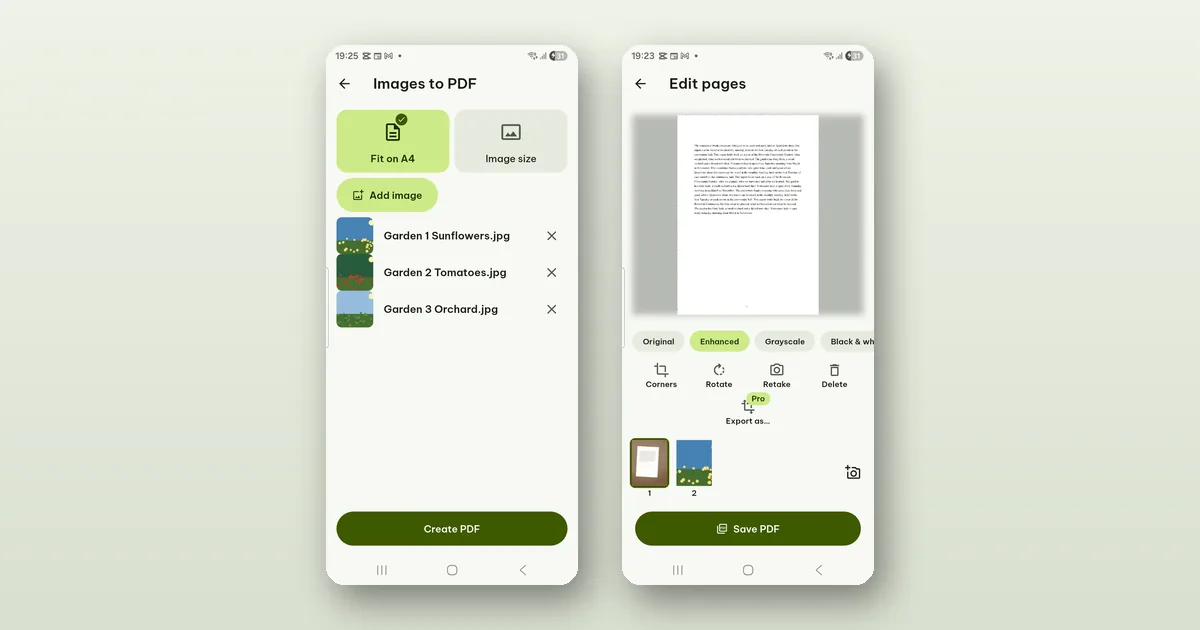
Pagiro has two tools that turn pictures into a PDF, and they give quite different files. Images to PDF puts each picture on a page as it is. Scan to PDF treats each picture as a sheet of paper: it straightens it, cleans it up and makes the text searchable. Both are free.
The quick rule: photos of things, use Images to PDF. Photos of paper, use Scan to PDF.
Images to PDF
Tap + › Images to PDF (it is also in the Tools tab). The picture picker opens straight away; choose your photos, several at once if you like.
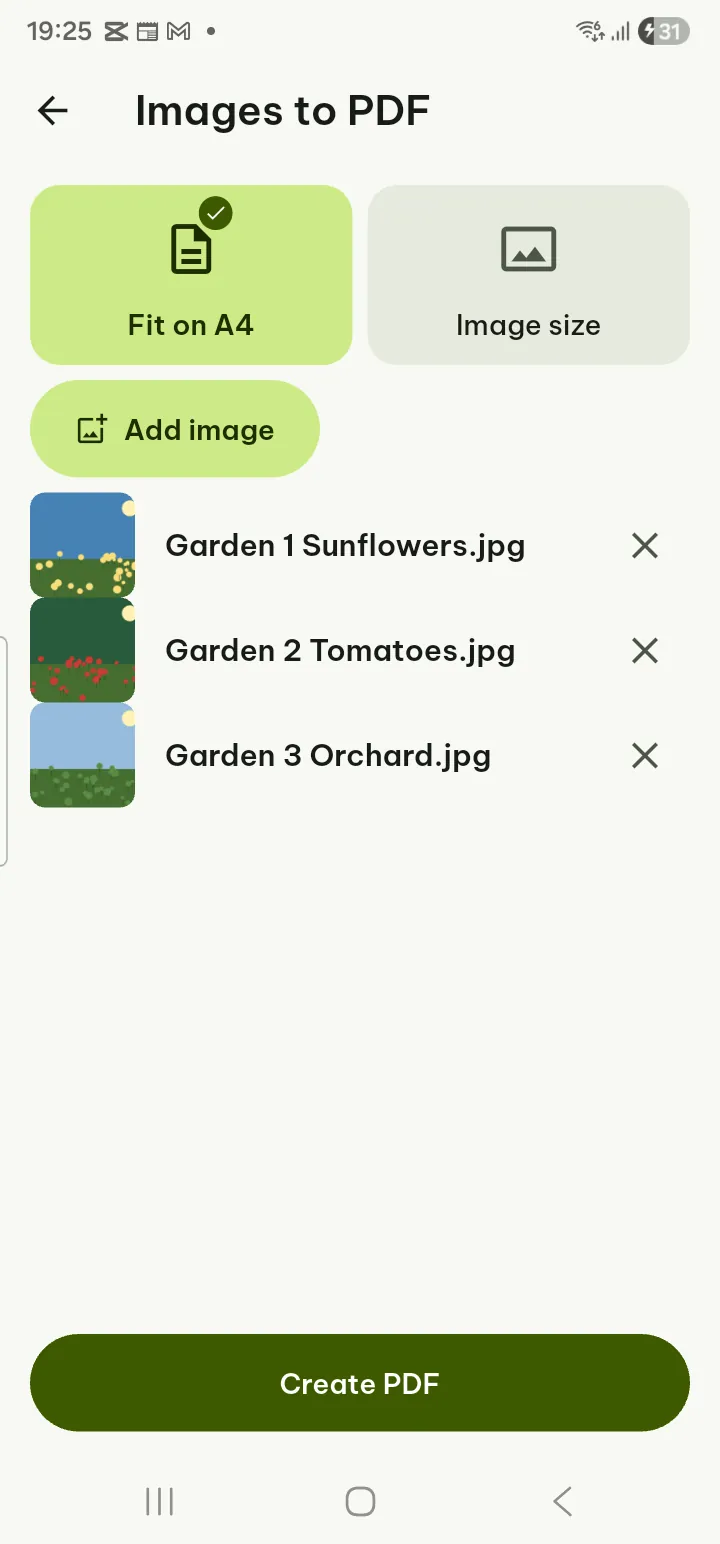
The list is the order of the pages. Drag a photo up or down to move it, tap × to take one out, and Add image for more. Then choose the page size:
- Fit on A4: each picture is centered on an A4 page. Best for printing, and every page of the PDF is the same size.
- Image size: each page is exactly the size of its picture, with no margin. Better for viewing on a screen, and for a mix of upright and sideways shots, since each page takes the shape of its photo.
Tap Create PDF. The new file, named "Images" with the date and time, is in your library. Rename it from the document menu if that name will not mean anything next week.
Quality and file size
By default, photos are reduced to print quality: 300 dpi on an A4 page. That is still sharp on paper, and it keeps a PDF of twenty phone photos small enough to send.
If you need every pixel (a photo someone will zoom into, a drawing with fine lines), turn on Full resolution. The PDF can then be much larger. If it gets too big for e-mail, Compress PDF can shrink it again, at some cost in sharpness.
What Images to PDF does not do: it does not crop, straighten or recognise text. The pictures go in as they are.
When the photos are of paper
Receipts, a signed letter, pages of a contract you photographed with the camera app: here Images to PDF gives you a PDF of photos, with the table edge, the shadow of your hand and a page at an angle. It works, but it looks like what it is.
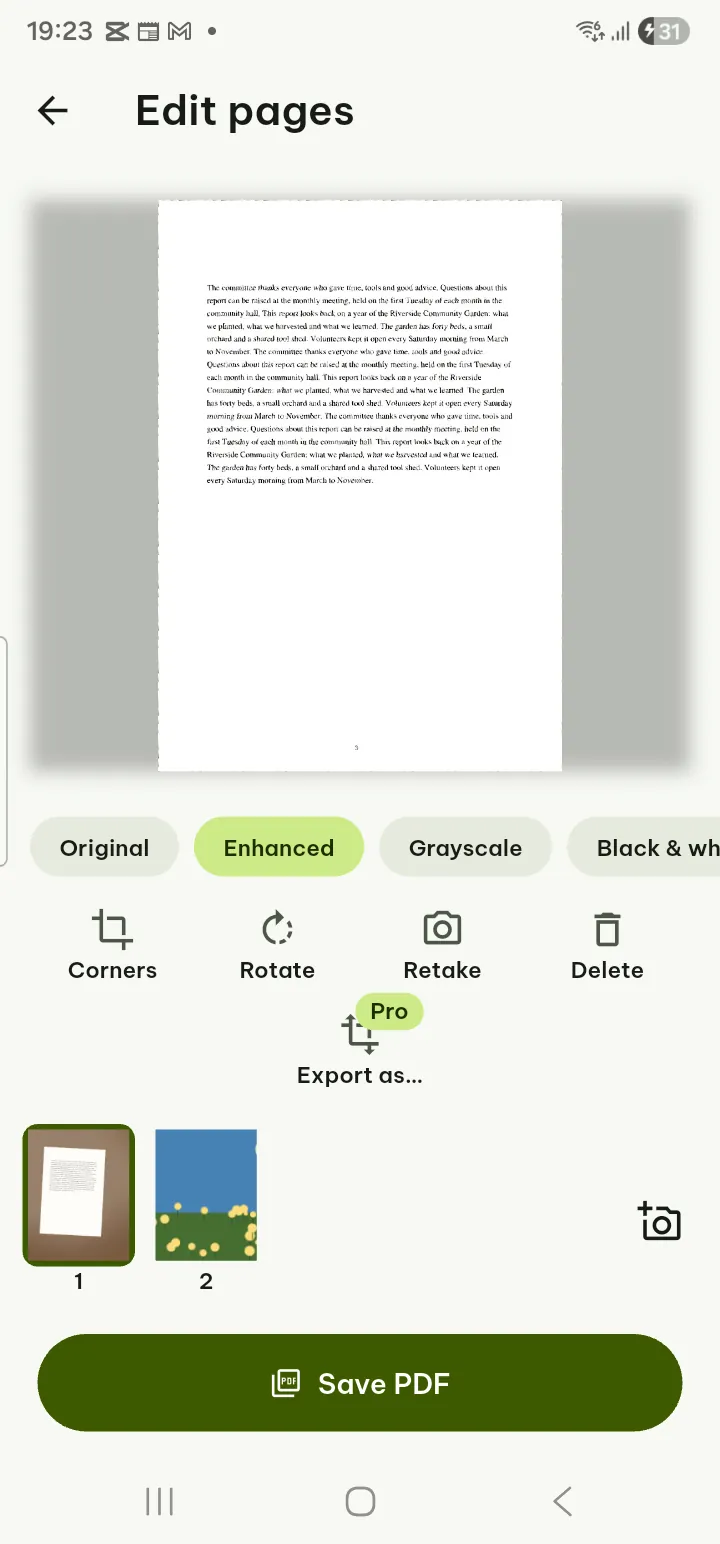
Use Scan to PDF instead, and tap Pick images rather than taking new photos. The pictures you already have go through the same steps as a fresh scan:
- each page is straightened automatically, and Corners fixes it when the paper's edge was not found;
- a filter (Original, Enhanced, Grayscale, Black & white) changes how the page looks, and Use for all pages applies it to the rest;
- you can Rotate, Delete and drag pages into order in the strip at the bottom.
When you save, you choose Paper size (Auto, A4 or Letter) and Quality (Small file, Balanced, High), and with Make text searchable on, the words on the pages are recognised on your phone and stored behind the pictures. You can then search the PDF, copy a line from it, or have it read aloud. Text recognition can make mistakes, so check names and amounts before you copy them.
Already made the PDF the other way?
If you made a PDF of document photos with Images to PDF and now want to search it, open it and tap Edit › Recognize text. The pages stay as they are (not straightened), but the text becomes searchable.
The two tools in the user guide: Images to PDF and Scan to PDF. For tips on taking the photos in the first place, see How to scan paper to a searchable PDF.