
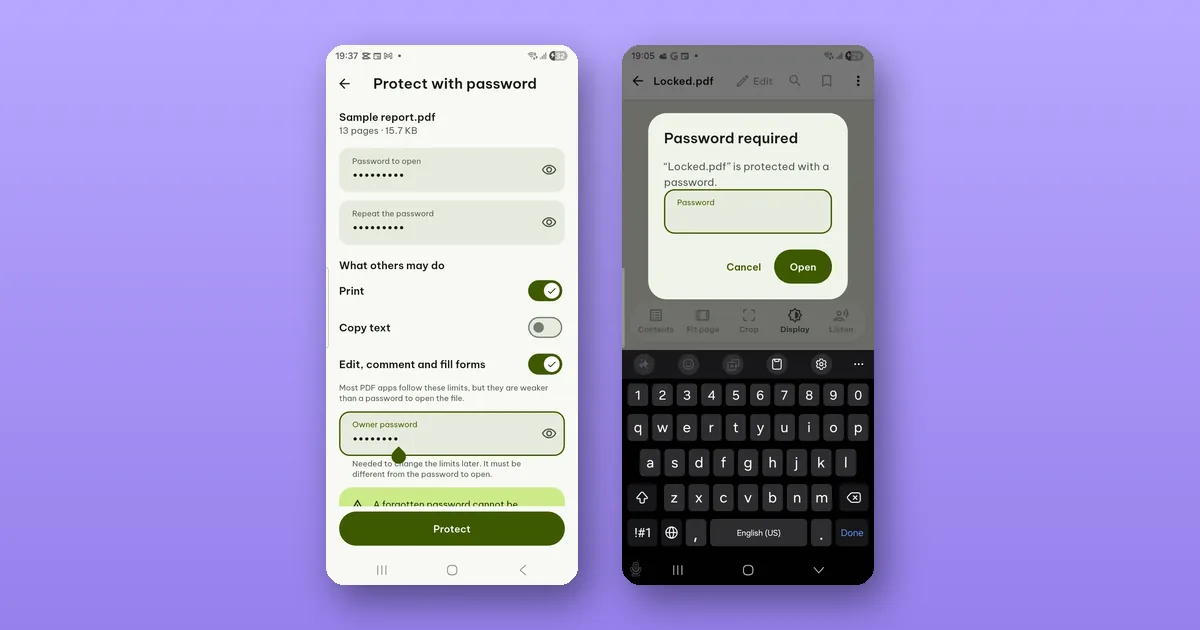
A PDF can carry two different kinds of protection, and they do very different jobs. A password to open encrypts the file: without the password, the content cannot be read. Limits (no printing, no copying, no editing) are a request written into the file, which PDF apps are expected to follow. Pagiro can set both, and it follows both when you open a file someone sent you.
Opening a protected PDF you received
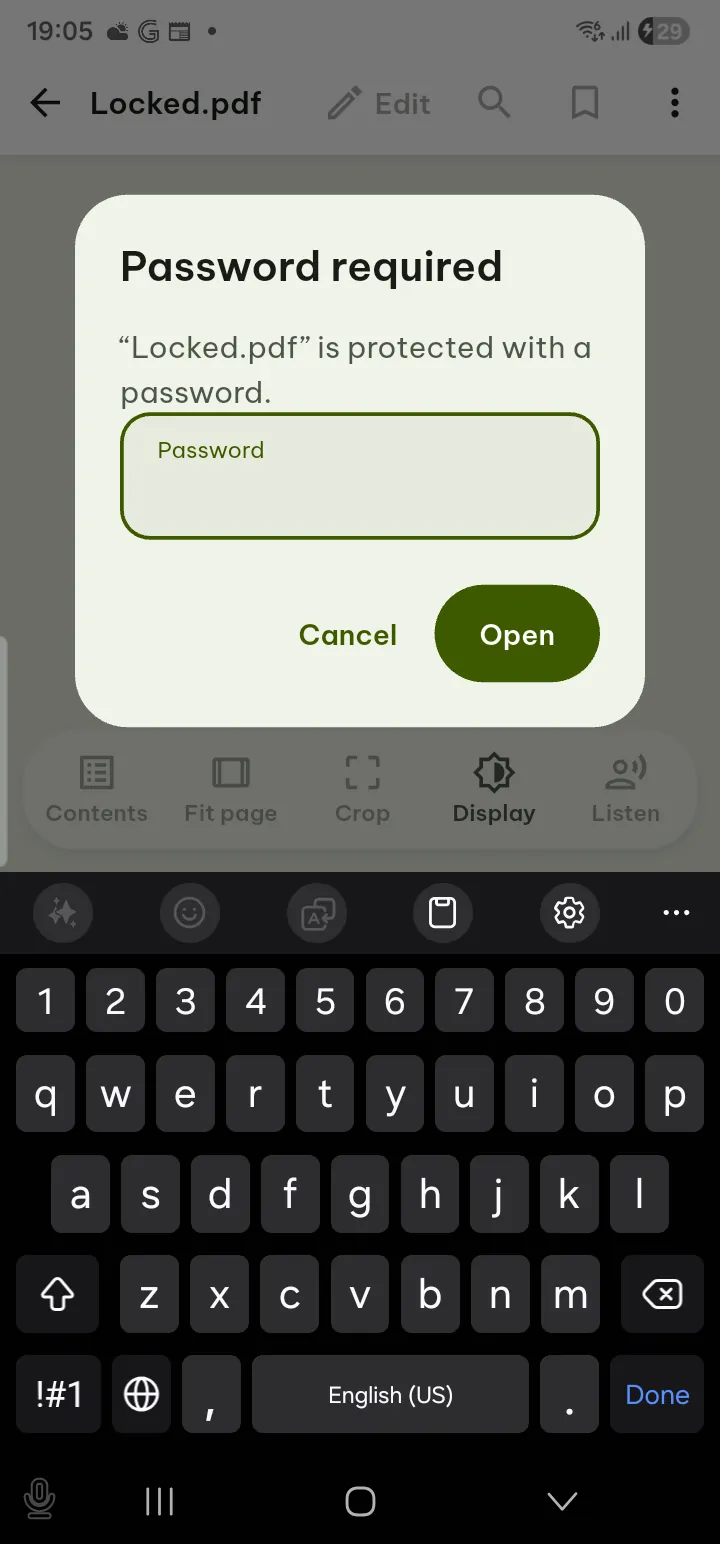
This part is free. Open the file and Pagiro shows Password required. Type the password the sender gave you and the PDF opens as usual.
If the author set limits, Pagiro respects them: when copying or printing is not allowed, those actions are not offered. Tools › File info lists which restrictions the file has, which saves guessing why the Print button is missing.
Pagiro cannot recover or bypass a password. If you have lost it, the only way is to ask whoever made the file.
Adding a password
Tools › Add password (Pro), and choose the PDF.
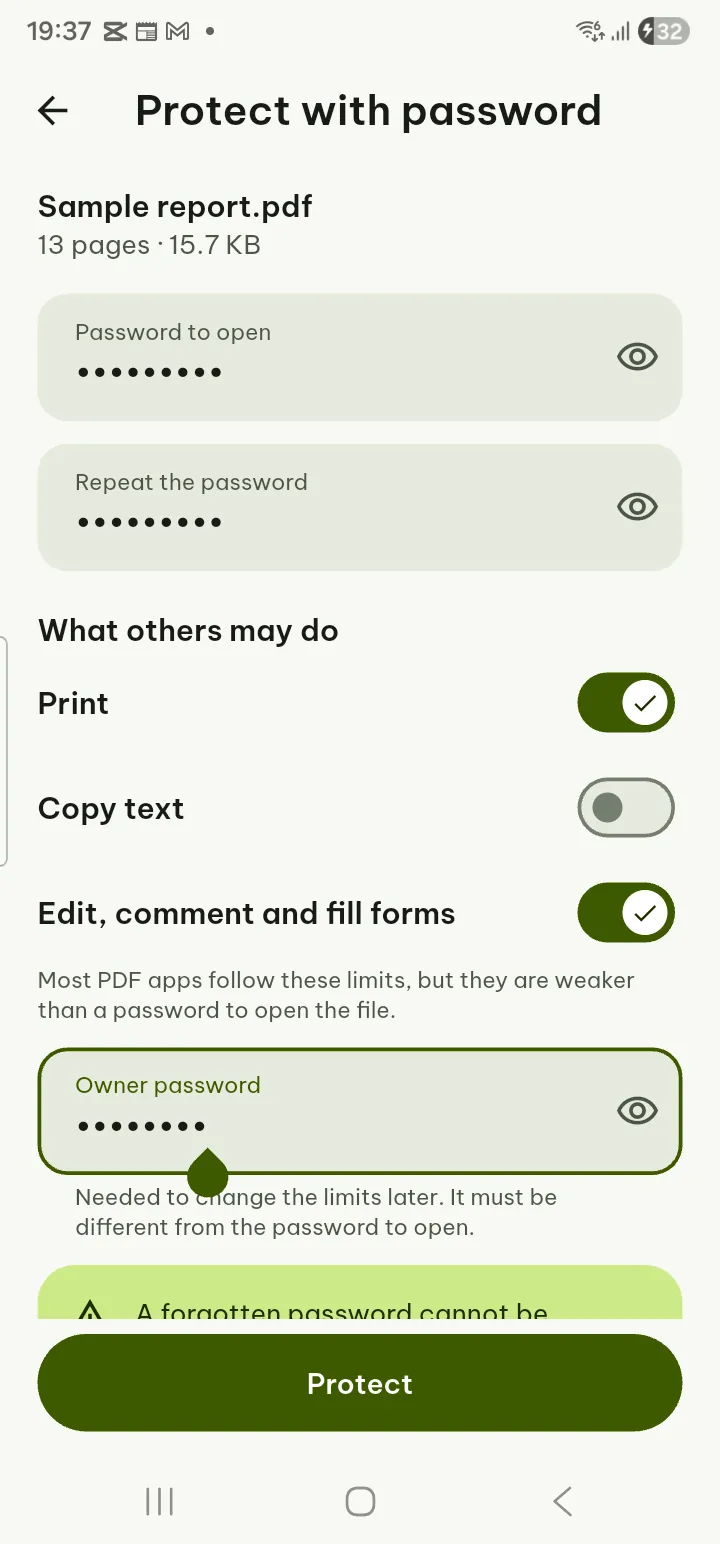
- Type the Password to open, then type it again in Repeat the password.
- Under What others may do, switch off what you want to limit: Print, Copy text, and Edit, comment and fill forms.
- If you set limits, add an Owner password. It is needed to change the limits later and must be different from the password to open.
- Tap Protect.
The protected copy is a new file named "(protected)" in your library; the original is not changed. That also means the unprotected original is still on your phone, so if the point was to stop the file from being read on this phone too, delete the original once you have checked the copy opens.
Pagiro encrypts the file with AES-256, the method of the current PDF standard. A password can be up to 127 plain letters and digits (fewer if you use letters with accents or other scripts).
A forgotten password cannot be recovered, by you or by us. Write it down somewhere other than the e-mail you send the PDF in.
What a password does and does not stop
A password to open does real work. A copy of the file that leaks, gets forwarded to the wrong person or sits on a lost phone is unreadable without it. Its strength is the password itself: a short word that is easy to guess protects less than a long one.
Limits are weaker, and the Add password screen says so: most PDF apps follow these limits, but they are weaker than a password to open the file. Anyone who can open the file can see its content, and an app that ignores the limits can print or copy it anyway. Use limits to make your intent clear and to stop casual copying, not to keep a secret.
You can set limits without a password to open. Then anyone can read the file, and only the limits apply.
Some things no password stops. Anyone who can open the file can take a photo of the screen. And whoever you give the password to can share the password. If the real goal is that some parts are never seen, protect less and remove more: redact those parts before you send.
Removing a password
Tools › Remove password (Pro). Choose the protected PDF, type the Current password and tap Remove password. The password is used once and not saved. If the file also has limits, only its owner password can remove the protection.
Only do this with files you have the right to change.
Some tools need a file without a password, for example Redact and Create form fields, and editing the text of a protected PDF is not possible in Pagiro. Remove password makes an unprotected copy named "(no password)"; work on that, then protect the result again when you are done.
Step by step, the same is in the user guide under Add password, Remove password and Protected and signed PDFs.